Serento
SERENTO The interactive guide

Everything Serento
can do.

The best features are the ones nobody tells you about. This is a slow, guided walk through all of them, in plain language, with real examples and a live look at each one. The goal is simple: to help you discover a use for something you'd never have found on your own.

First, the easy part.

Serento plays music you already own, kept on a server at home. Connecting is quicker than you'd think, and there's nothing here you can break.

It finds your music by itself
Use several servers at once
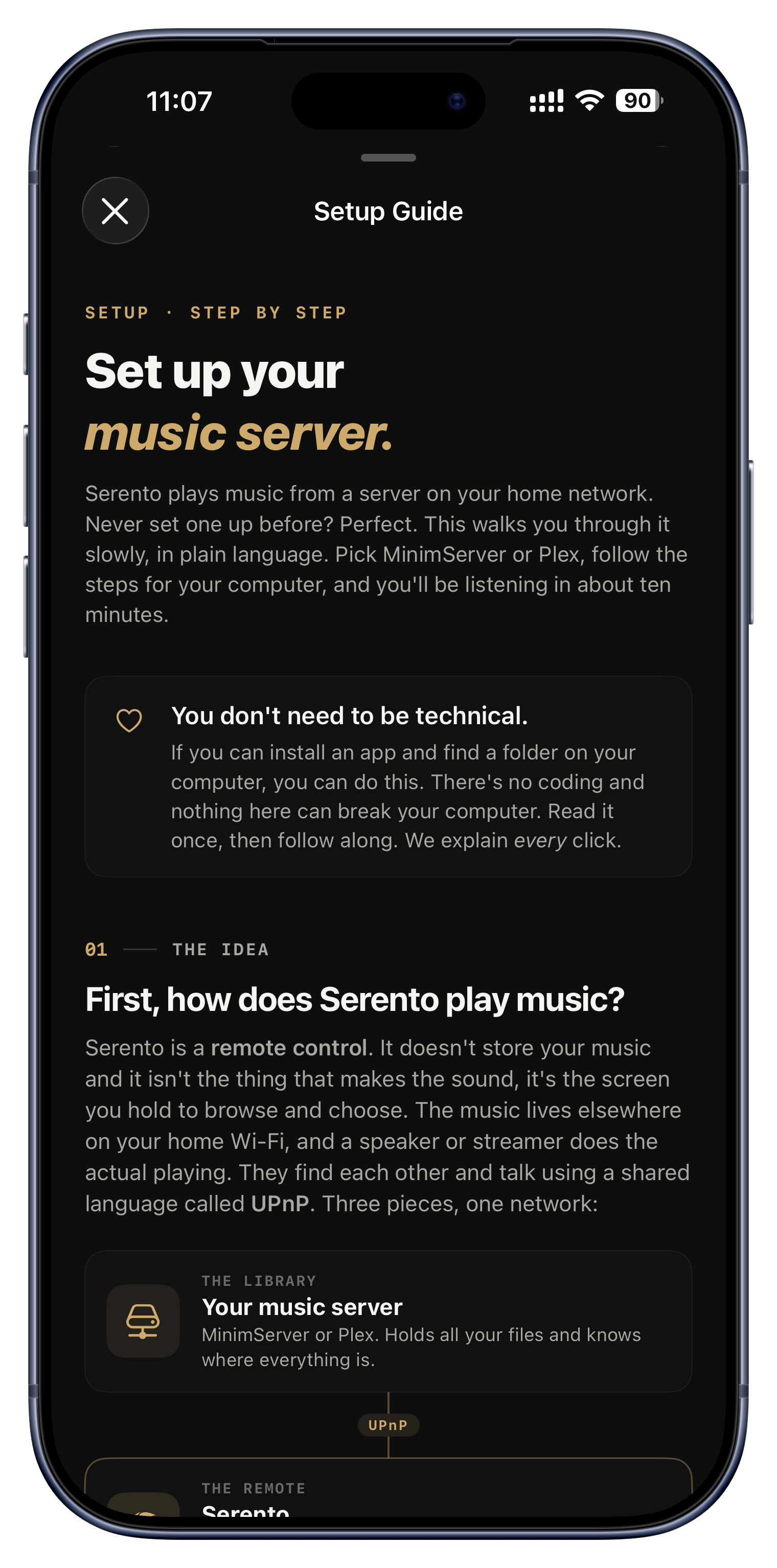
A setup guide for non-technical people
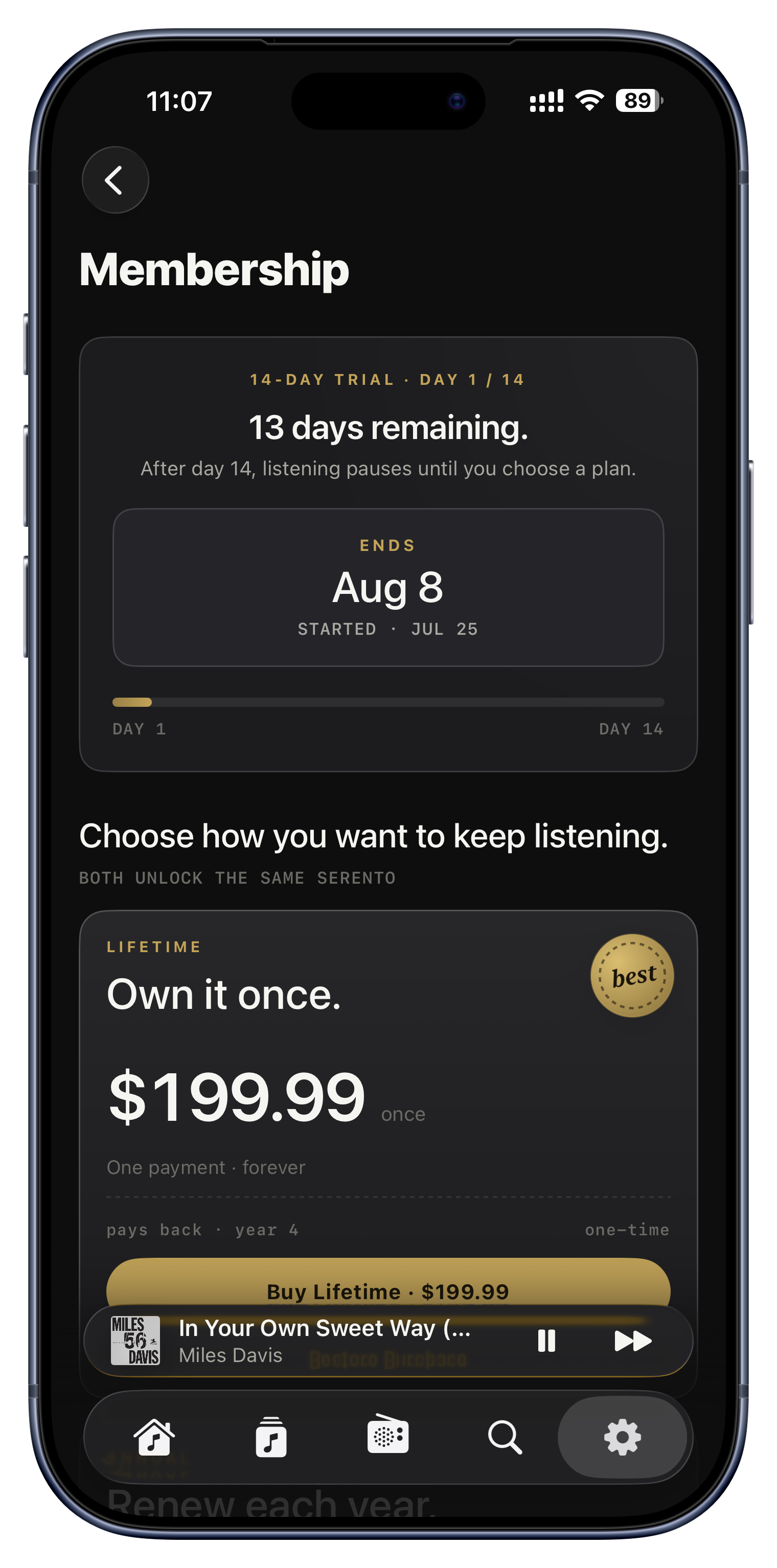
Fourteen days free, no sign-up
It finds your music by itself

It finds your music by itself

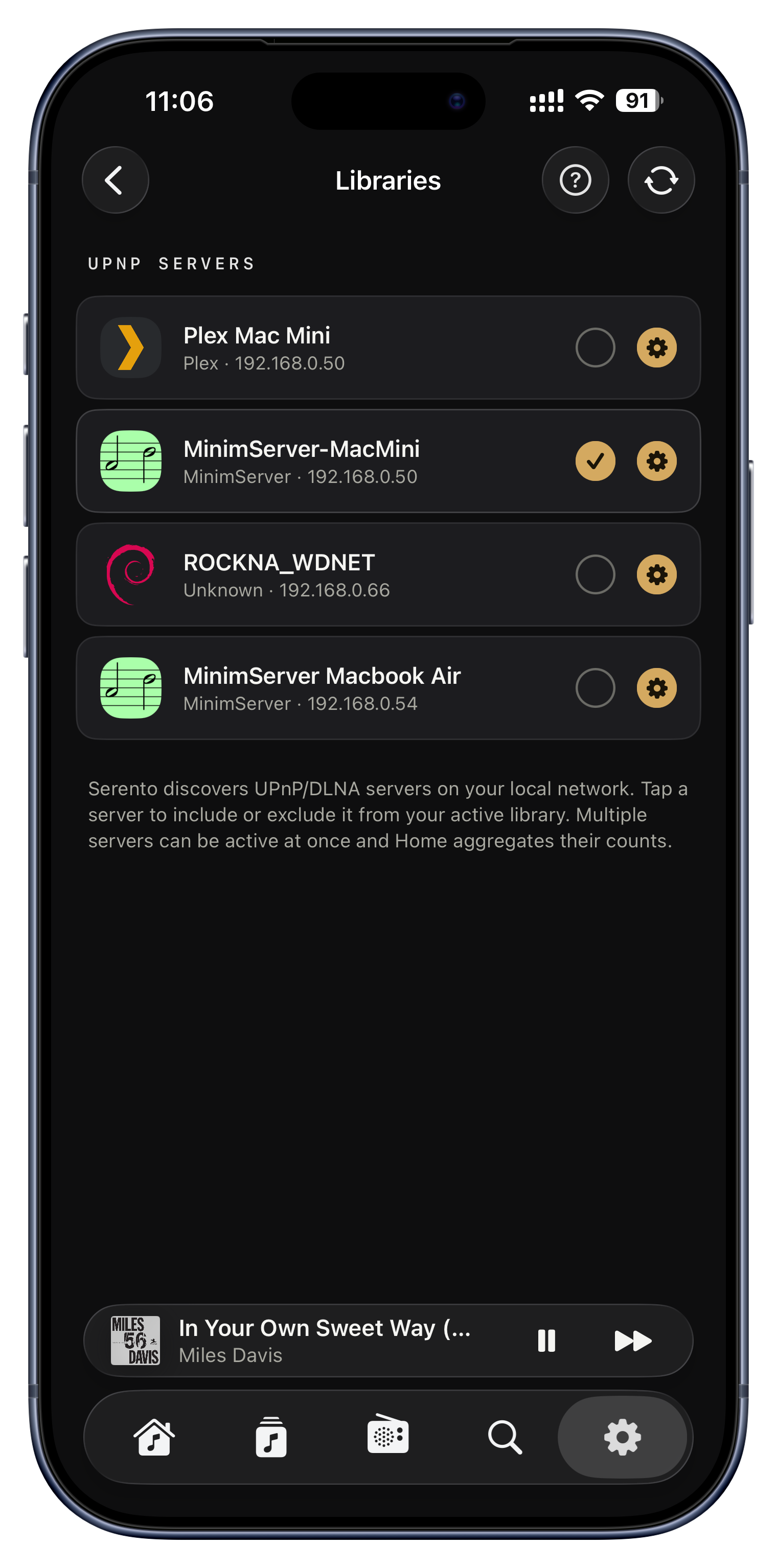
Open Serento and it quietly listens on your home Wi-Fi for music servers, then lists each one by name. It speaks the universal language every server understands, so MinimServer, Asset, Plex or a NAS all appear the same way. There is nothing to type: no IP address, no port number, no login.

Ideas to try
  • A Synology or QNAP NAS running MinimServer shows up the moment you open the app.
  • Already run Plex for movies? Its music library appears here too.
  • Changed routers or moved house? Just reopen Serento and it finds everything again.
Settings › Libraries
Use several servers at once

Use several servers at once

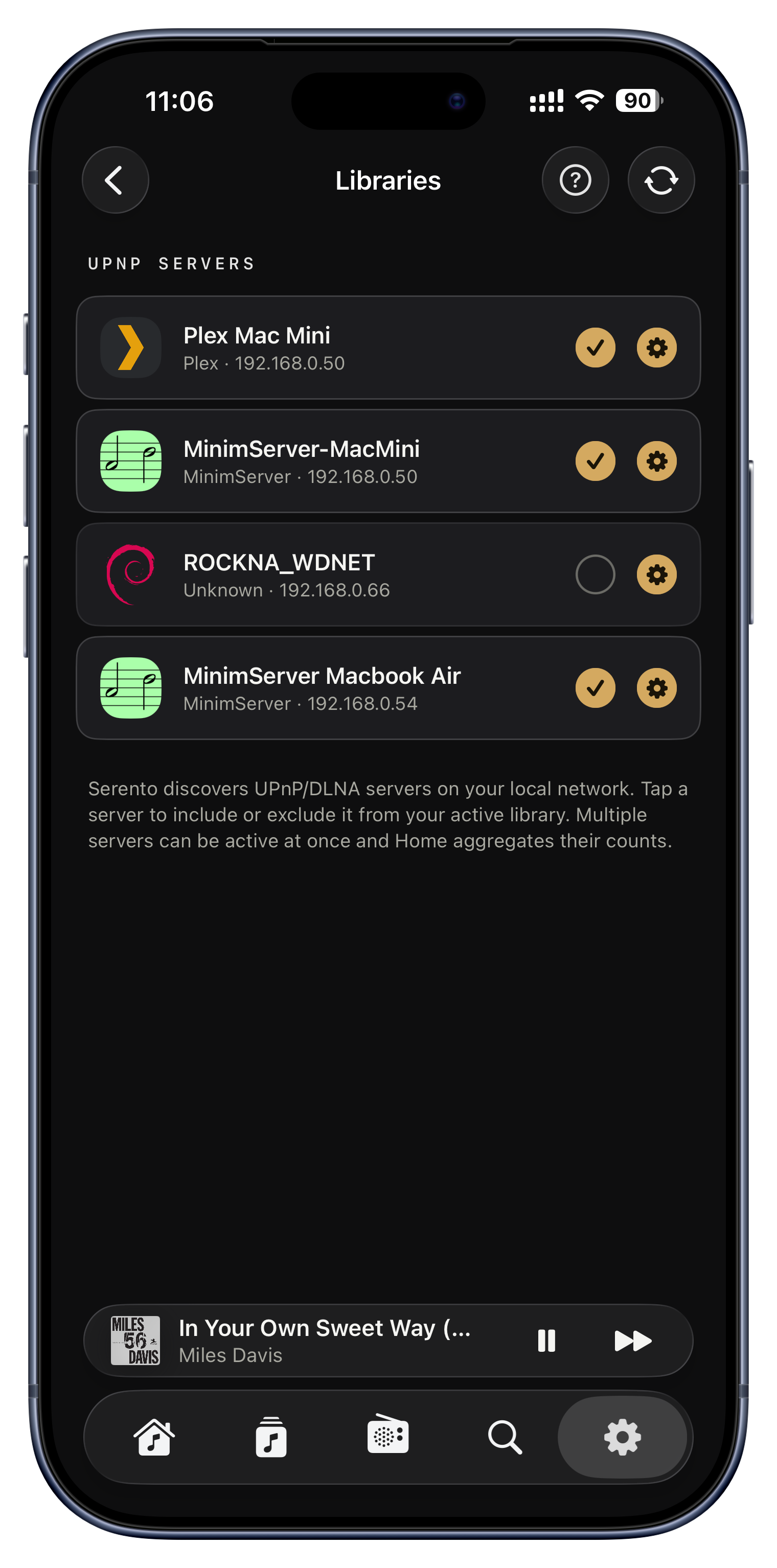
Most people keep everything on one server, but you can switch on several at once and Serento merges them into a single library. Albums, artists and tracks from every active server are counted and browsed together, as if they lived in one place.

Ideas to try
  • Keep lossless rips on a big NAS and your DSD collection on a faster drive, and see them side by side.
  • A shared family server plus your own personal one, both active at the same time.
  • Testing a new server? Leave the old one on until you are happy, then switch it off.
Settings › Libraries › tap a server's ring
A setup guide for non-technical people

A setup guide for non-technical people

If you have never installed a music server, the built-in guide walks you through it in plain language, step by step, for Windows, Mac, Linux or a NAS. It explains what a server even is, promises that nothing here can harm your computer, and gets you from zero to playing in about ten minutes.

Ideas to try
  • Copy-paste the recommended MinimServer settings so tags and covers come through perfectly.
  • Stuck on 'Plex won't show up'? The troubleshooting section covers the classic 'enable DLNA' fix.
  • Prefer a human? There is an email-us button right at the end.
Settings › Libraries › the ? button
Fourteen days free, no sign-up

Fourteen days free, no sign-up

New here? You get fourteen days of the full app with no account to create and nothing to enter up front. The trial is tied to your iCloud, so reinstalling won't quietly hand you another one, and a live countdown always shows exactly where you stand.

Ideas to try
  • Sync your whole library and really live with it for two weeks before deciding.
  • See the exact end date and days remaining any time in Membership.
  • Choose Annual or a one-time Lifetime when you are ready; Lifetime can be added later too.
Settings › Membership

Tune it to you.

Once your library is synced, the very next thing worth doing is making the app behave the way you want. These quiet switches shape every session that follows, yet most people never open them. So here they are, right up front.

Choose what a track tap does
Gapless playback
Open Now Playing on play
The alphabetical index bar
Album version grouping
What shows on album tiles
Lyrics timing, per streamer
Each device keeps its own settings
Choose what a track tap does
Most people never find this

Choose what a track tap does

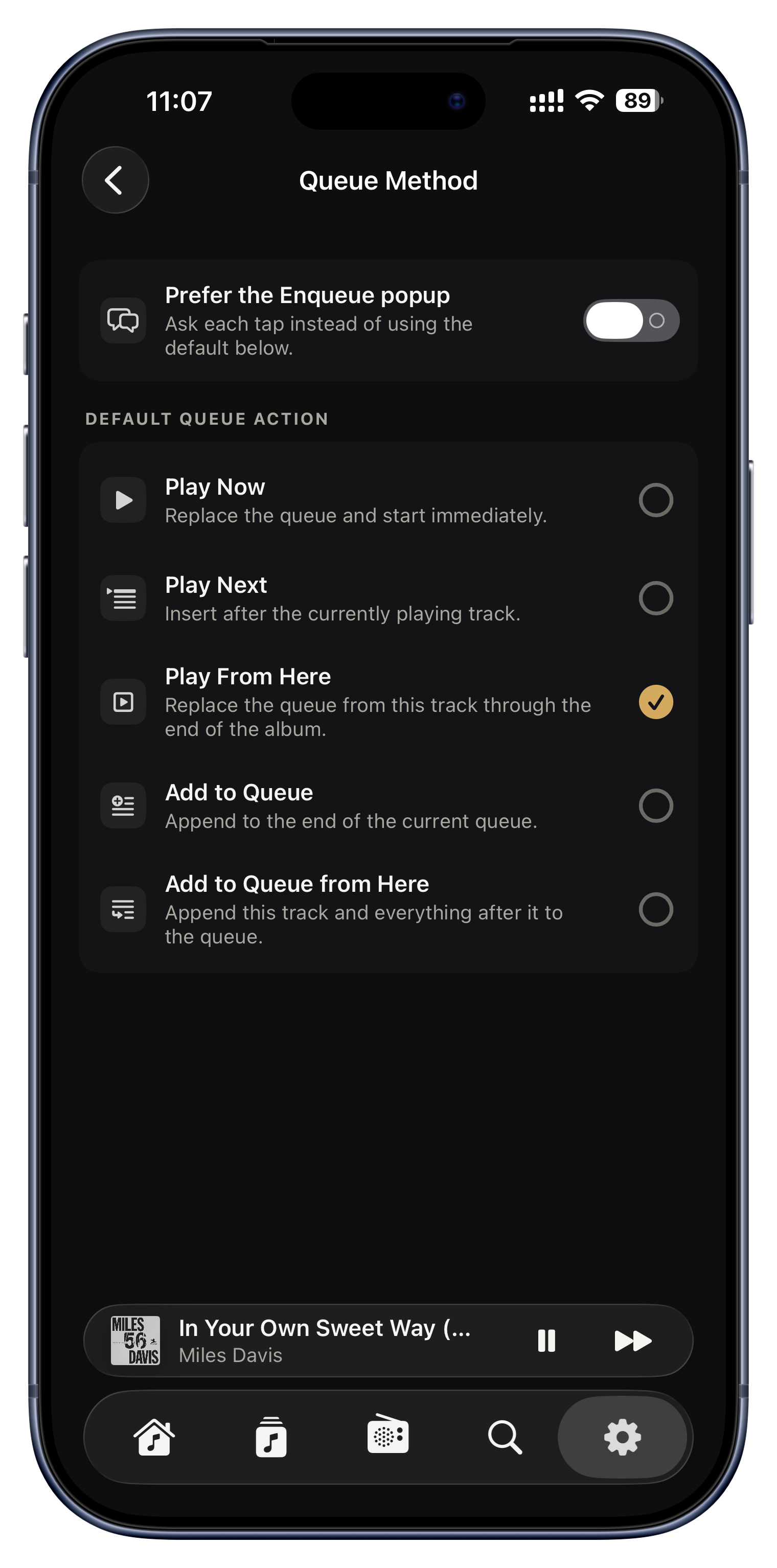
This one setting quietly shapes every tap for the rest of your time in the app, which is exactly why it belongs first. You decide what tapping a track does by default: play it now, play it next, play from that track onward, or add it to the queue. Prefer to choose each time? Turn on the quick popup and every tap offers all the options, with your favorite highlighted as the recommendation.

Ideas to try
  • Set it to 'Play Now' if you like a tap to interrupt and start fresh.
  • Set it to 'Add to Queue' if you like building a set as you browse, without stopping the music.
  • Turn on the popup when you are undecided, and pick per tap.
  • 'Play From Here' is perfect for starting a long album partway through.
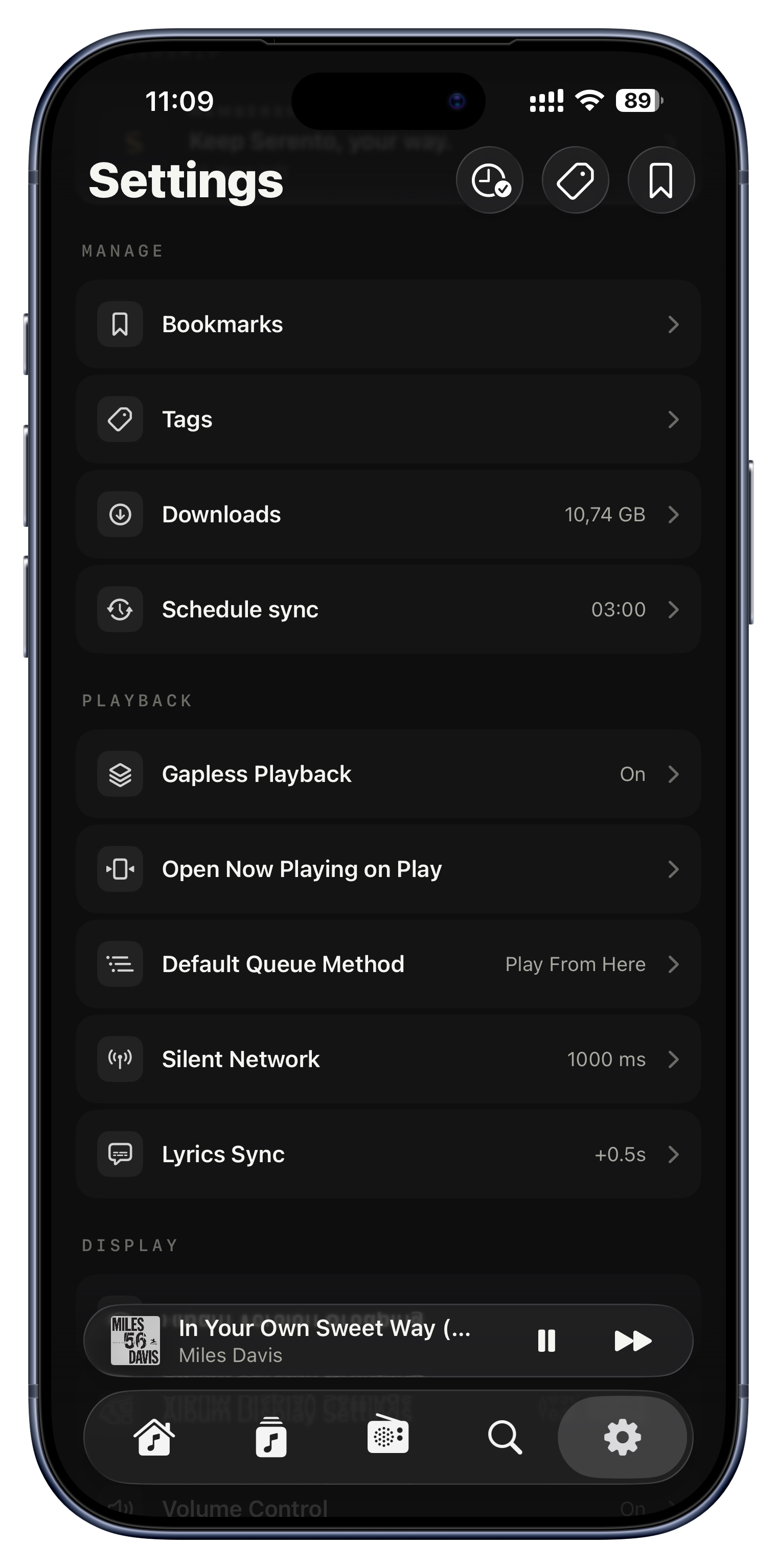
Settings › Playback › Default Queue Method
Gapless playback

Gapless playback

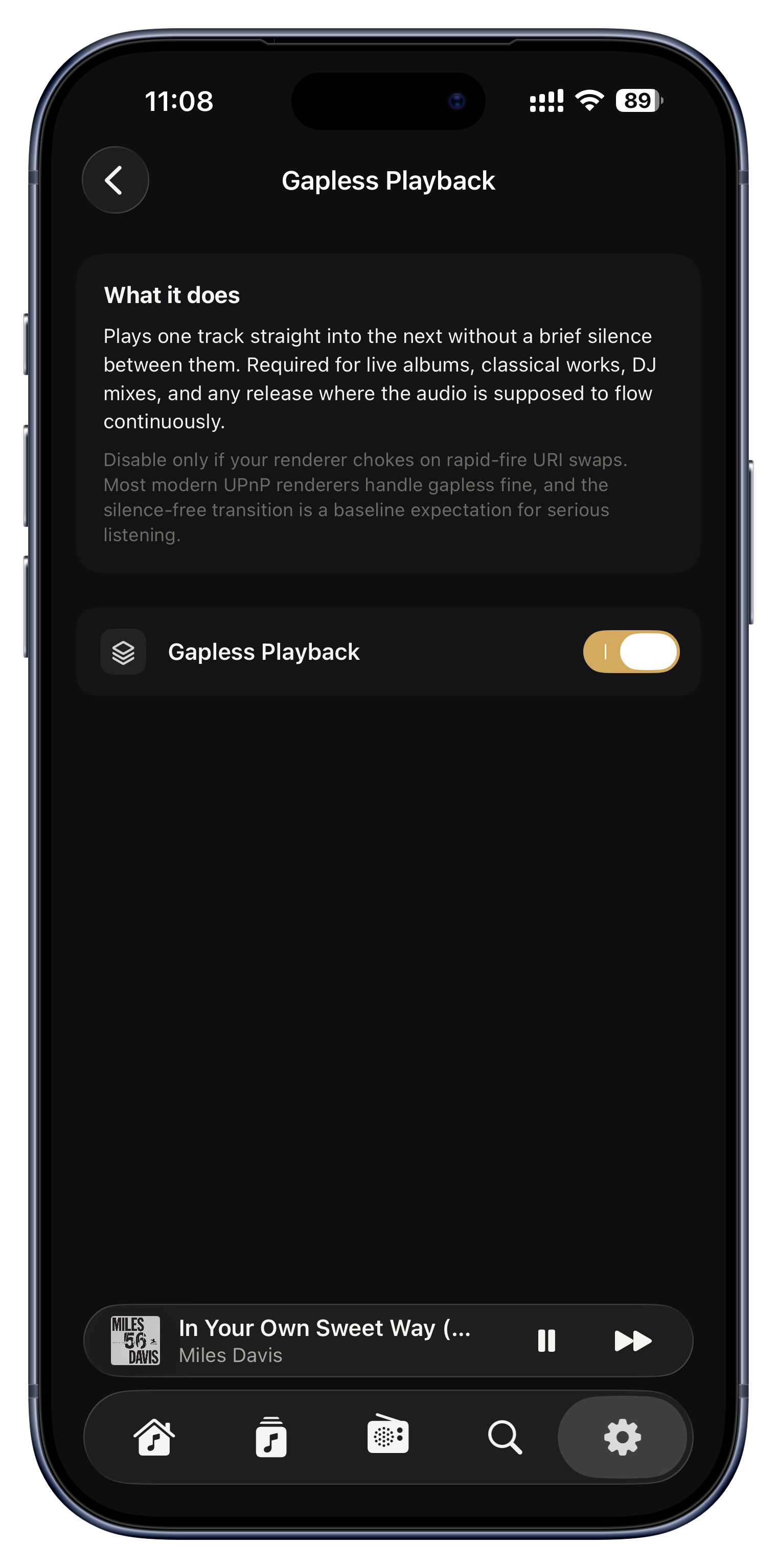
Gapless removes the tiny silence between tracks, so albums that were meant to run continuously actually do. You may not notice it until it is on, and then you can't unhear it.

Ideas to try
  • Live albums where applause and the next song bleed together.
  • Classical works and concept albums that fade one movement straight into the next.
  • Beat-matched DJ mixes that should never drop a beat between tracks.
Settings › Playback › Gapless
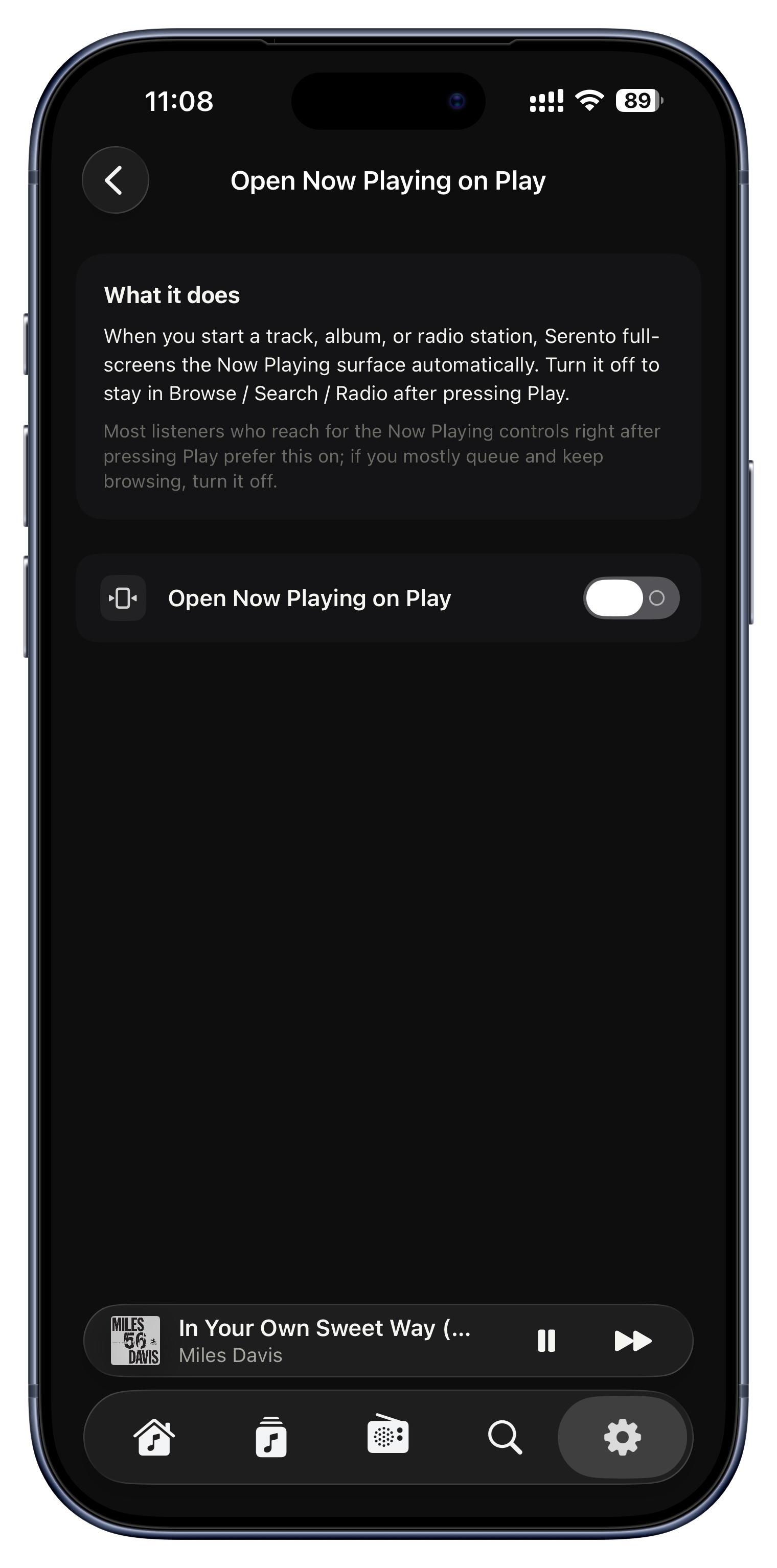
Open Now Playing on play

Open Now Playing on play

Choose whether starting a track jumps you straight to the full-screen player, or keeps you exactly where you are so you can carry on browsing while it plays. A small choice that changes how the whole app feels.

Ideas to try
  • Turn it on if you love the immersive Now Playing view with big art and lyrics.
  • Leave it off if you like queueing up a stack of albums without the player taking over.
Settings › Playback
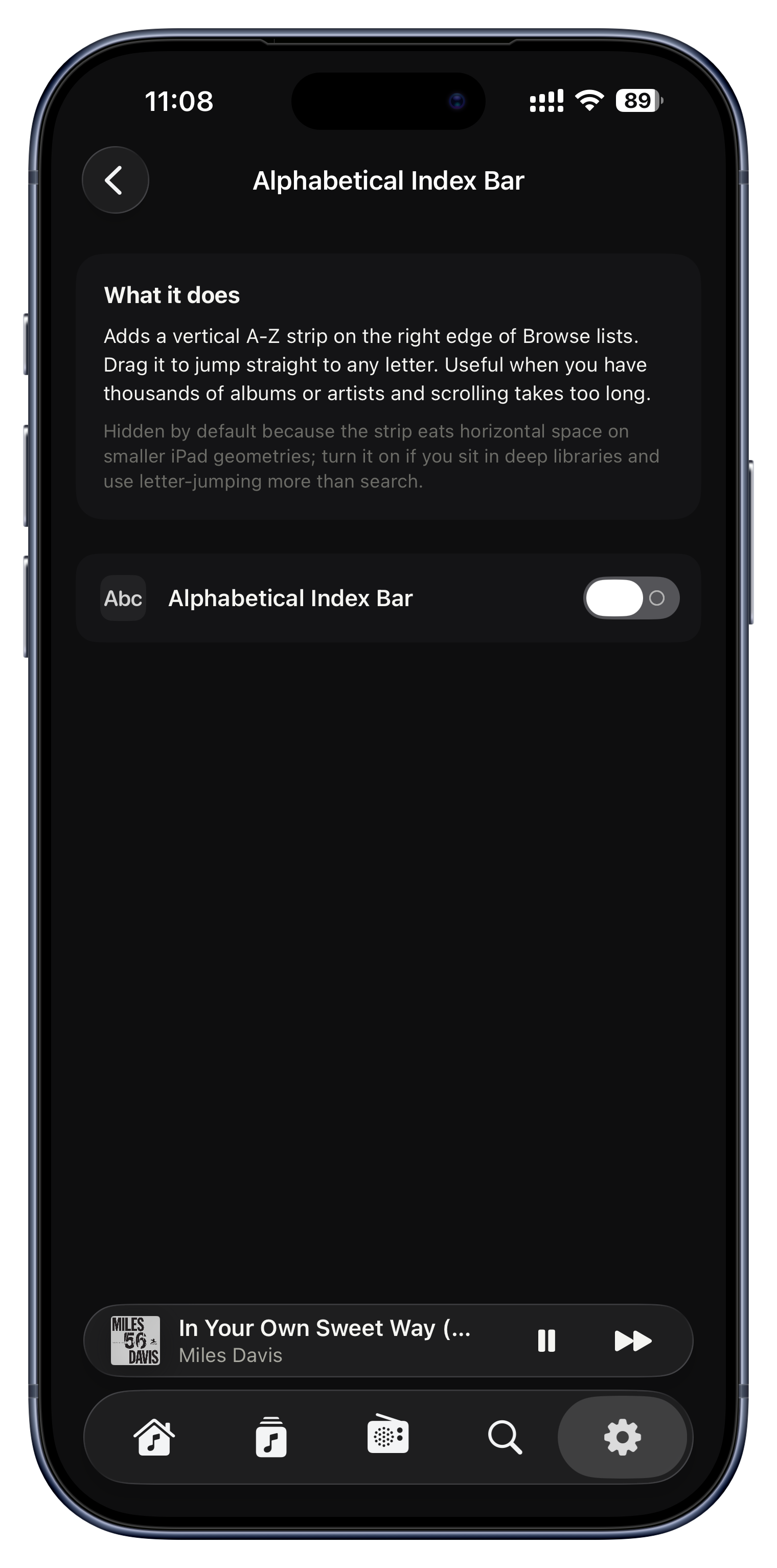
The alphabetical index bar

The alphabetical index bar

The A to Z scrubber on the edge of long lists lets you flick to any letter instantly. Turn it on or off to taste; on very large libraries it steps aside automatically where it wouldn't help anyway.

Ideas to try
  • Keep it on if you browse a huge alphabetized collection by artist or album.
  • Turn it off for a cleaner edge if your lists are short.
Settings › Display › Alphabetical Index Bar
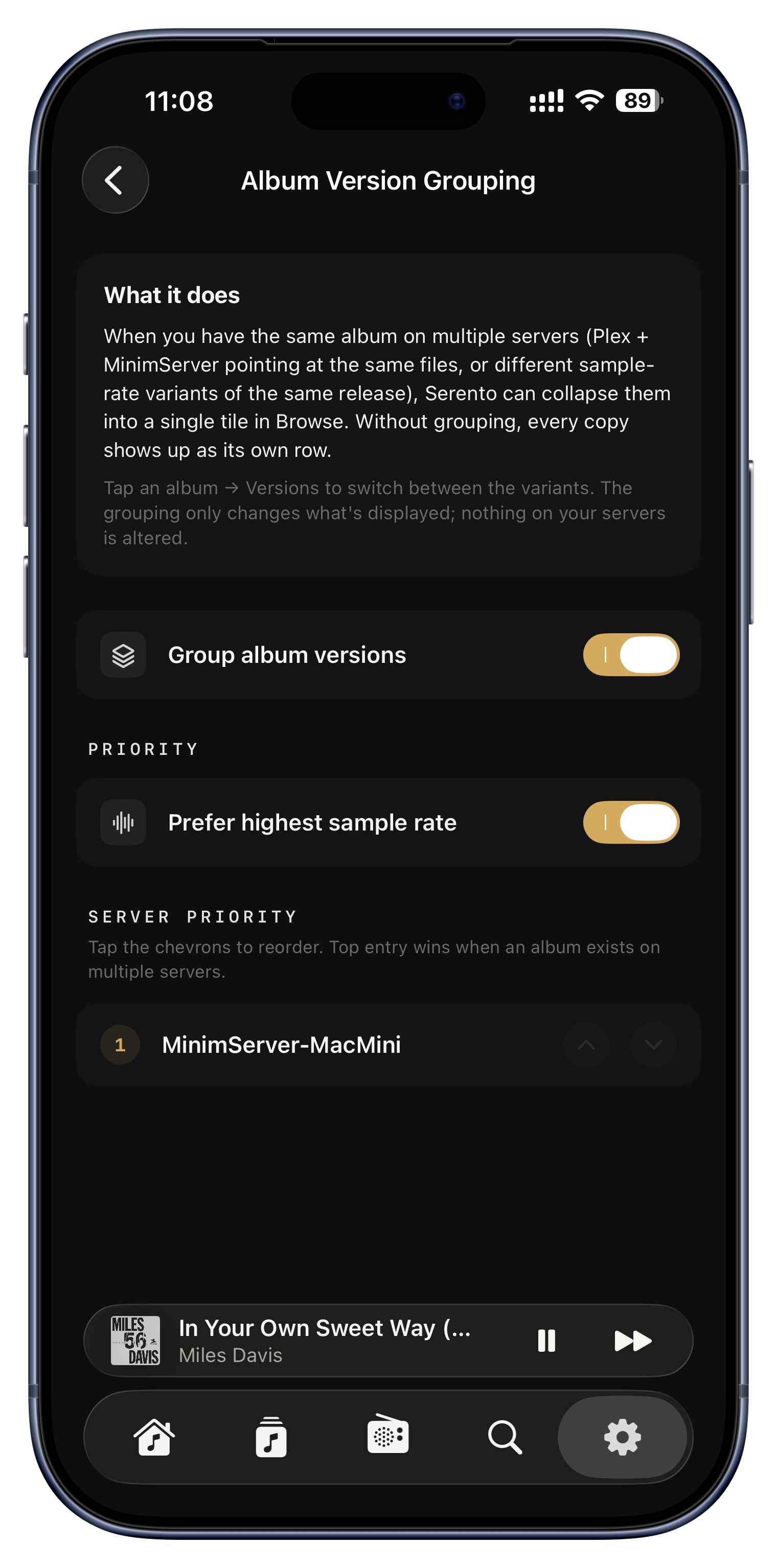
Album version grouping

Album version grouping

If you collect the same album in more than one format, version grouping folds those duplicates into one tidy entry and always plays your best copy. Your shelves stay clean without you ever losing the hi-res master.

Ideas to try
  • A FLAC rip and a 24-bit download of the same album become one tile that plays the hi-res.
  • A CD version and a DSD version collapse together, with DSD chosen for playback.
  • Reach the other versions any time from the album's ⋯ menu.
Settings › Display › Album Version Grouping
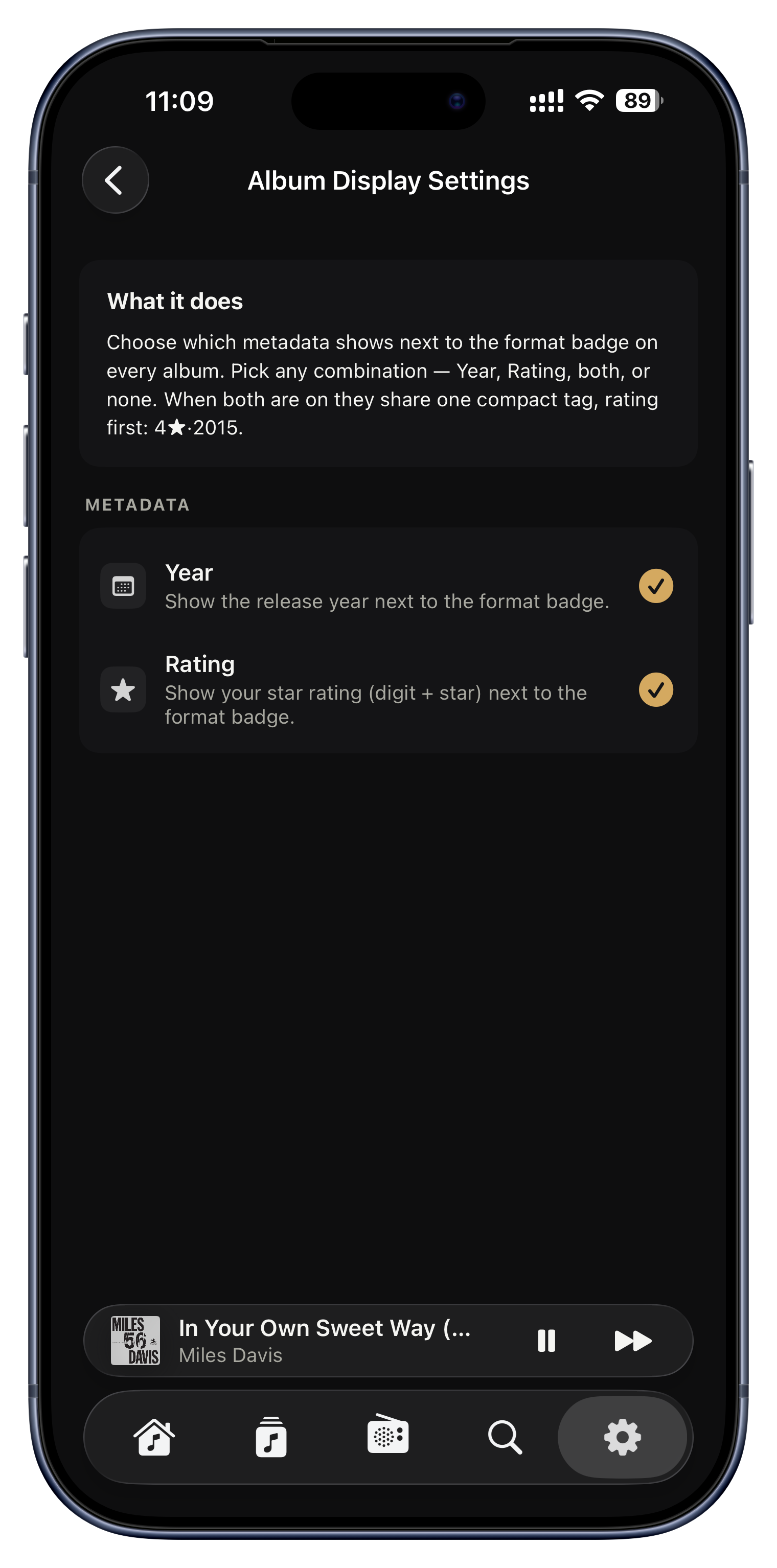
What shows on album tiles

What shows on album tiles

Decide what appears on each album cover in your grids: the release year, your star rating, both, or neither. A clean wall of art, or a grid you can read at a glance.

Ideas to try
  • Show ratings to spot your five-star albums instantly across the whole library.
  • Show the year to see a collection age at a glance.
  • Show neither for a pure, gallery-style wall of covers.
Settings › Display › Album Display
Lyrics timing, per streamer

Lyrics timing, per streamer

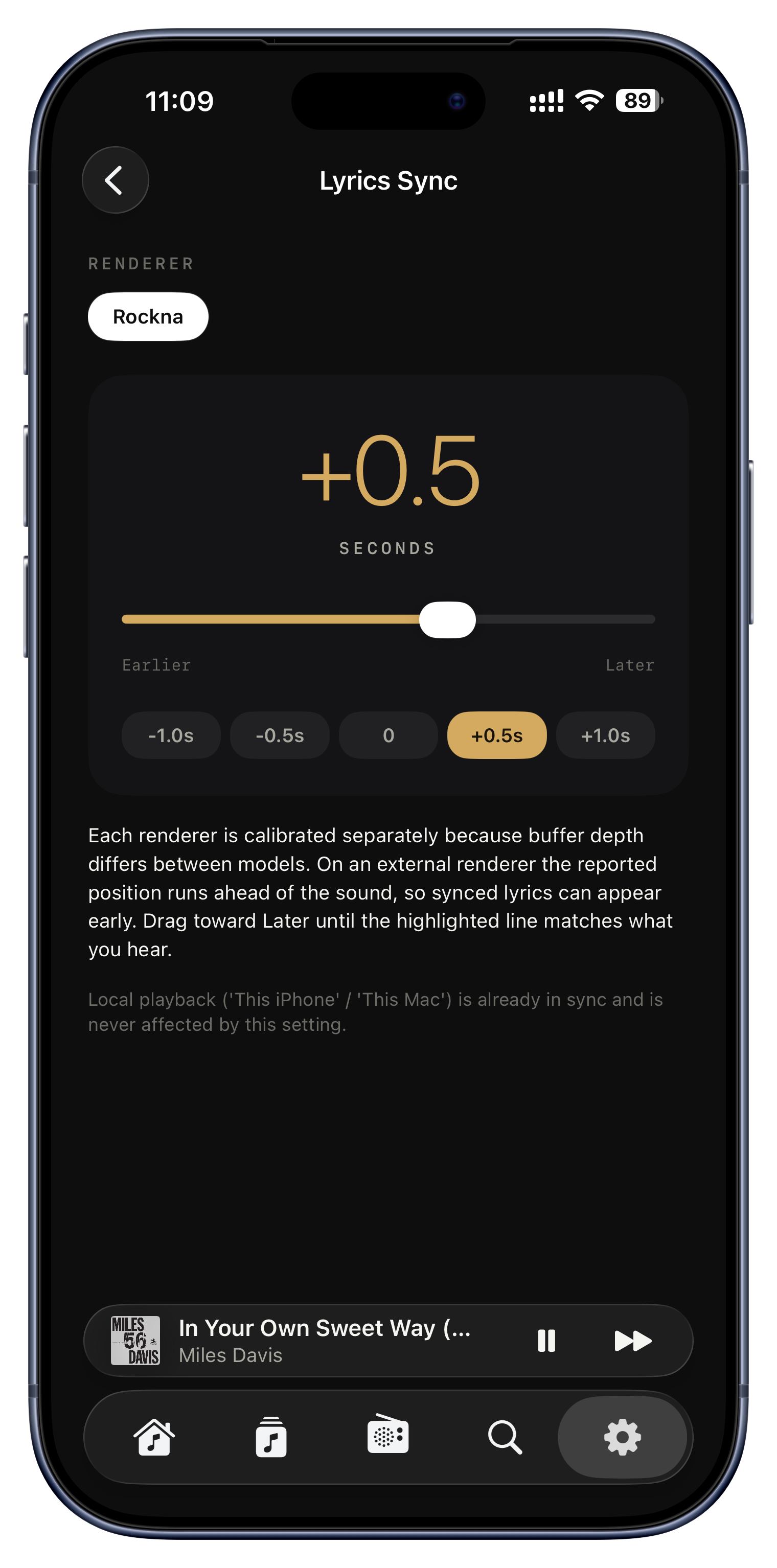
Networked streamers each buffer audio a little differently, so synced lyrics can drift slightly ahead of or behind the singer. Nudge the timing once for a given streamer and it stays perfectly aligned there, without affecting your other rooms.

Ideas to try
  • Your living-room streamer runs a beat ahead? Slide its offset back once and it is fixed.
  • Playing on the device itself has near-zero delay, so it is left untouched.
Settings › Playback › Lyrics Sync
Each device keeps its own settings

Each device keeps its own settings

Your preferences live per device, so each one can behave the way that suits it, even though your favorites, playlists, tags and ratings all still sync everywhere. The library is shared; the way you interact with it is personal to each device.

Ideas to try
  • Full metadata enrichment on your Mac at home, a lighter profile on your iPhone to save battery.
  • A dense compact layout on the iPad, big cover tiles on the phone.
  • A different default output on each device, without one overriding the others.
Settings

Your library, your way.

However you think about music, by album, by artist, or by the exact folders on your drive, there's a way in that matches.

Six ways to browse
Sort within a sort
Filter until it's exactly right
Fly through a huge library
Grid or list, your call
Other versions, tidied away
Six ways to browse

Six ways to browse

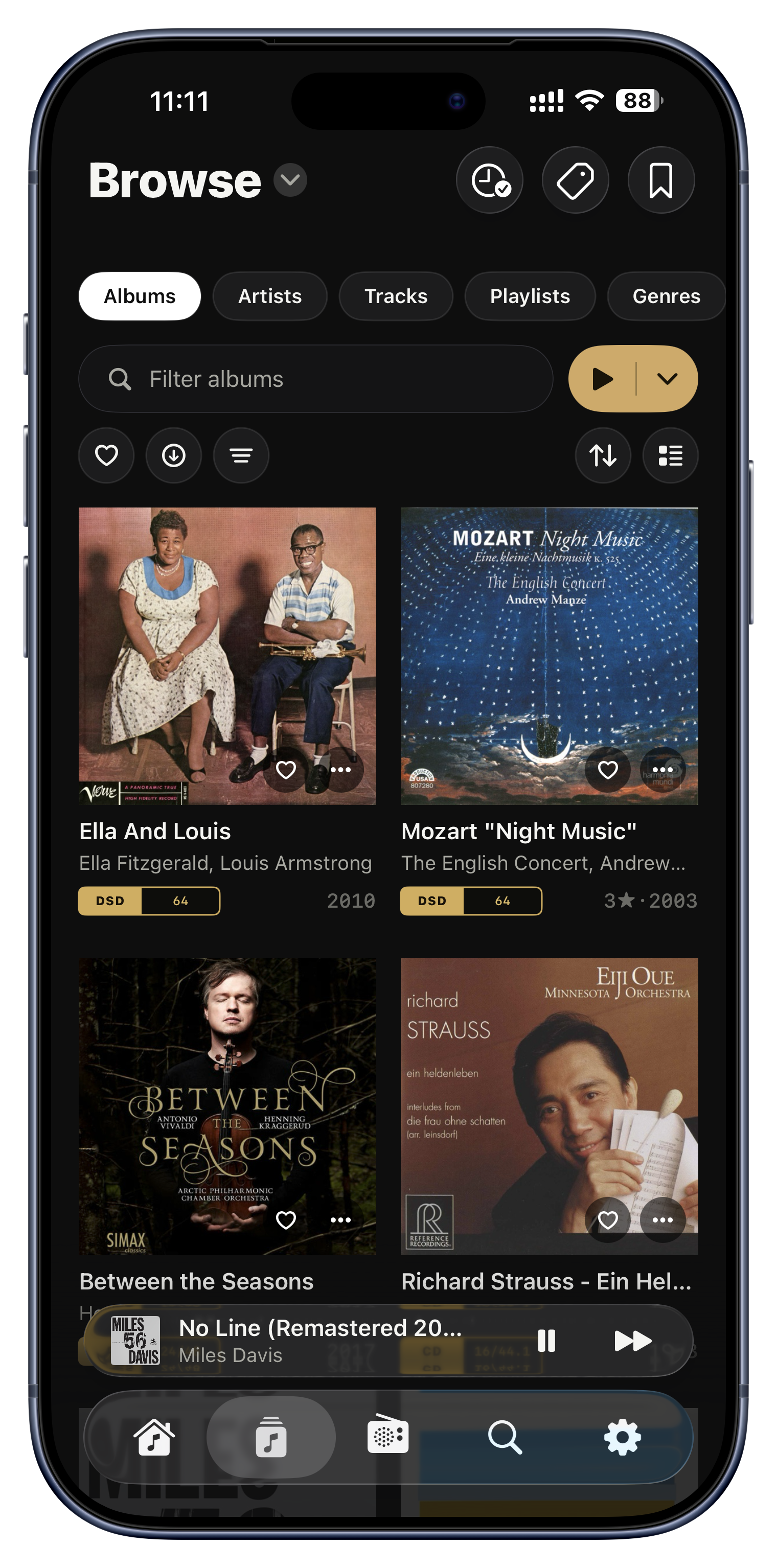
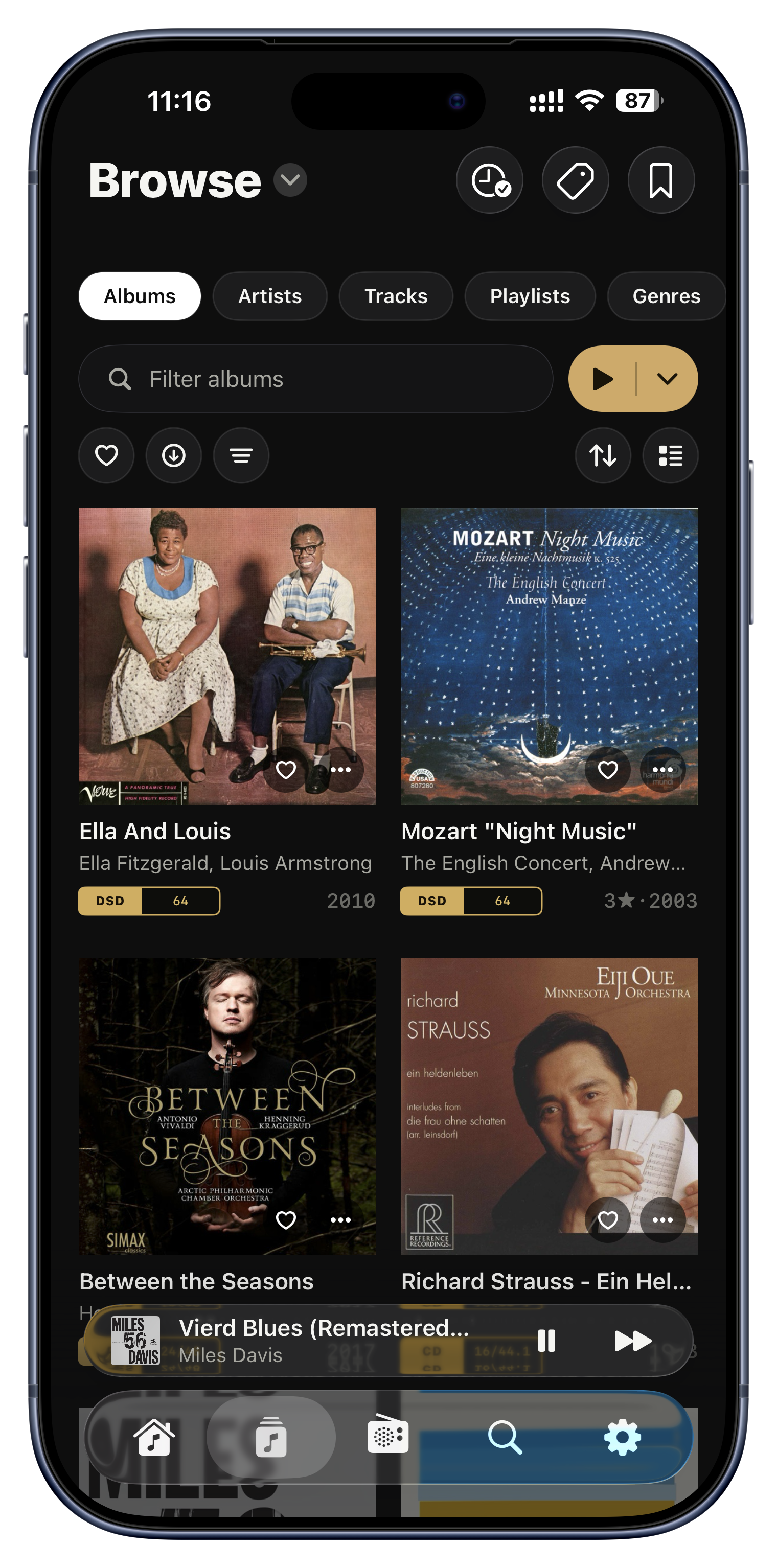
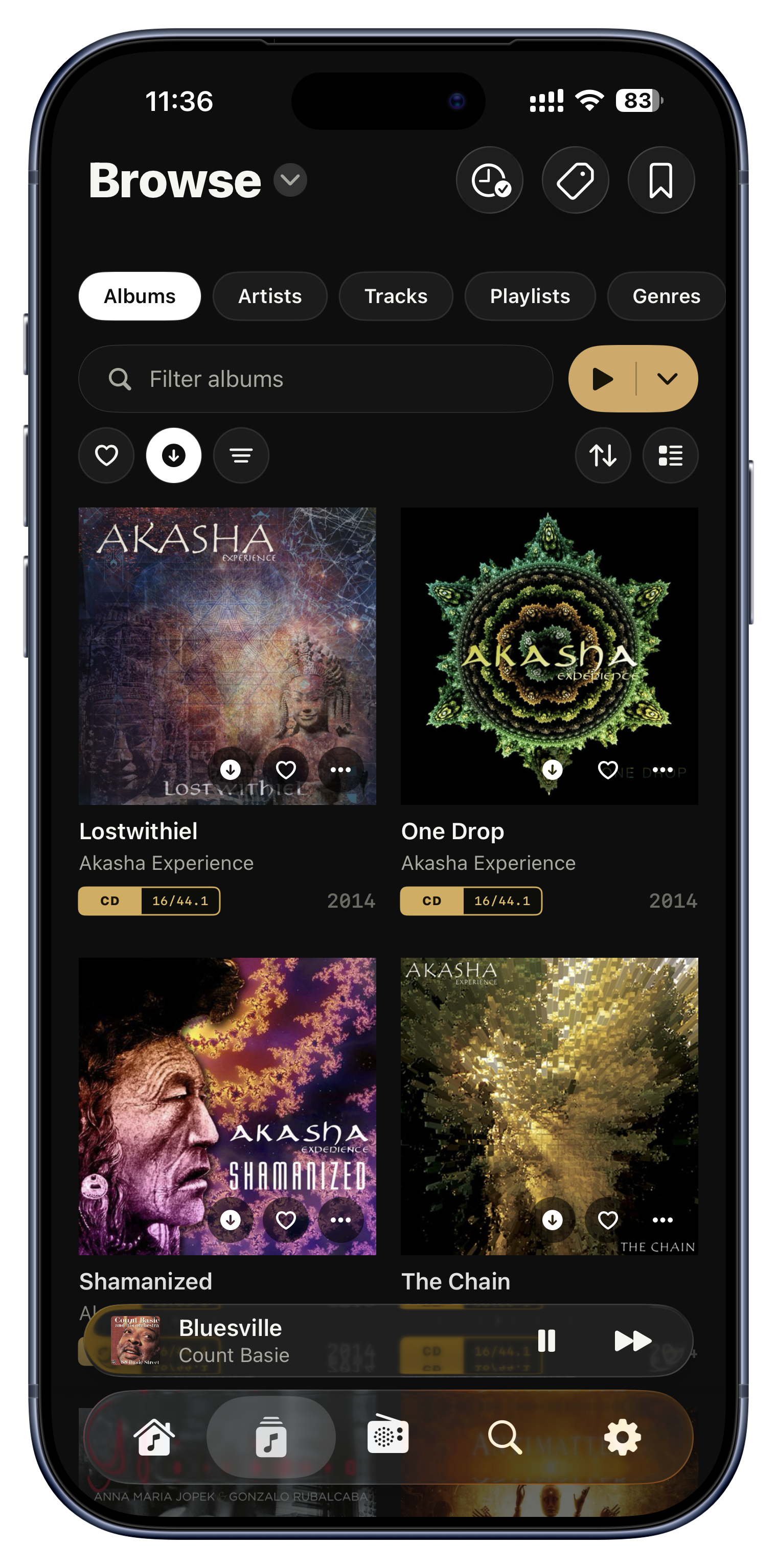
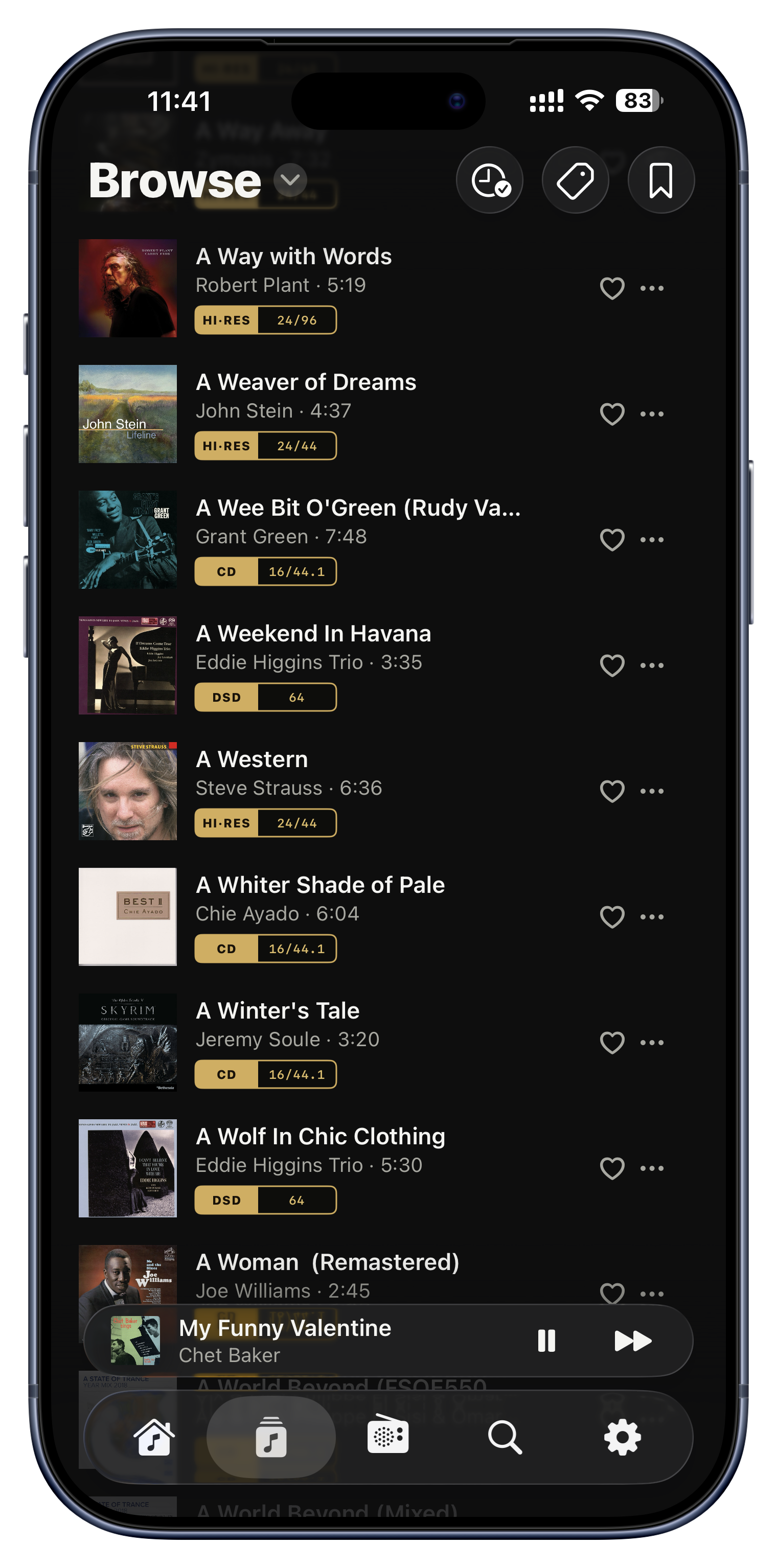
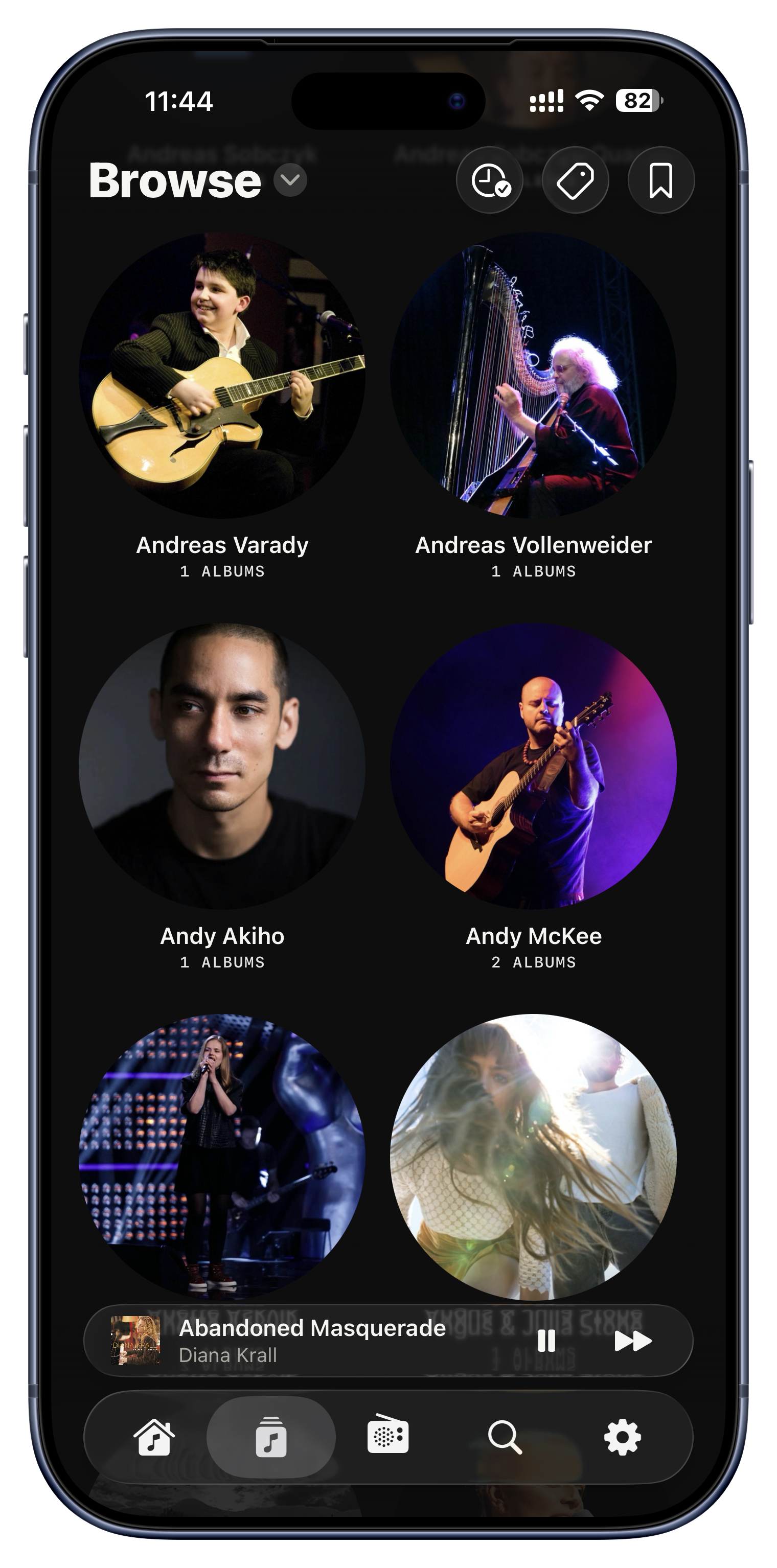
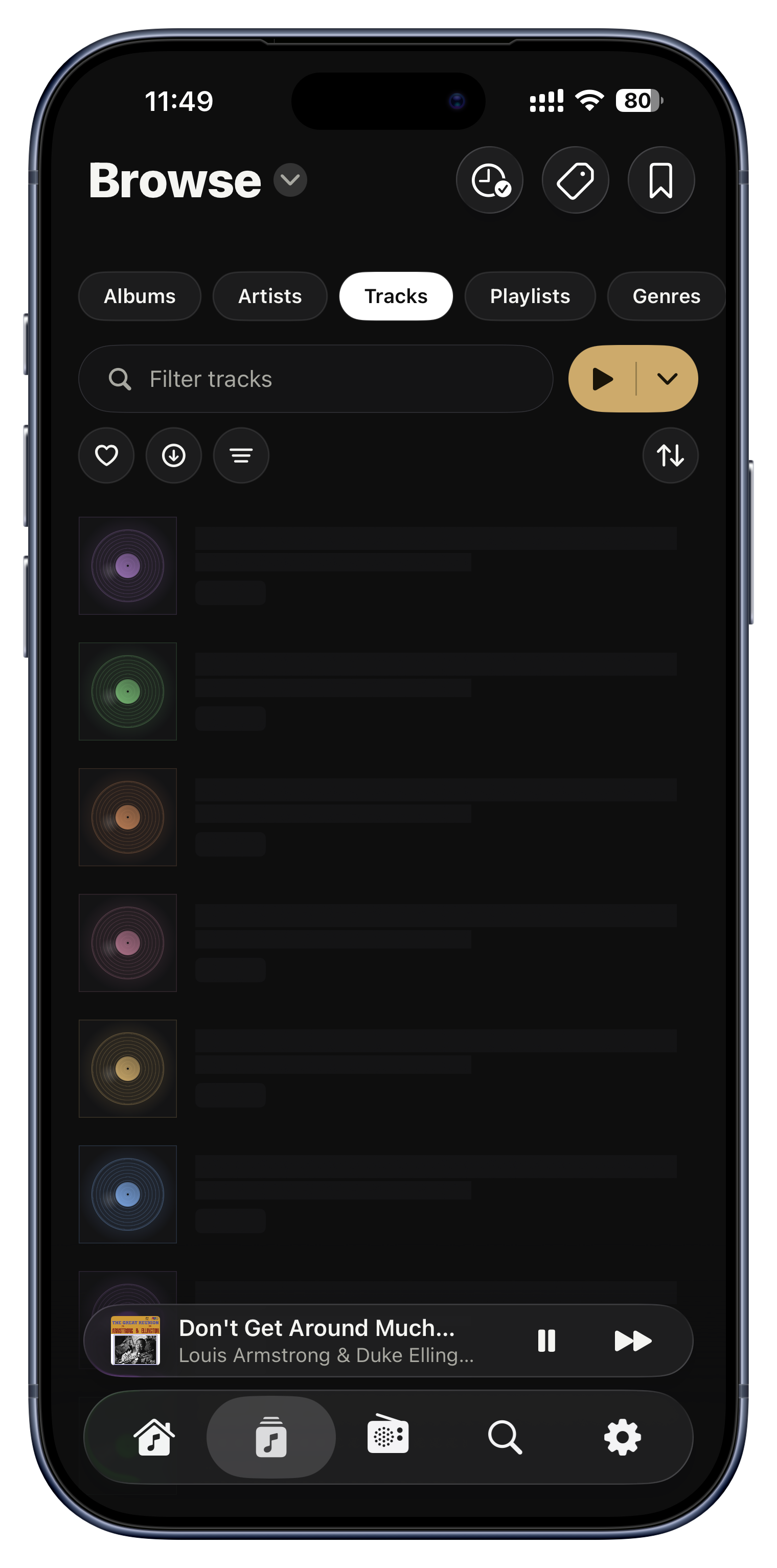
The Browse tab splits your whole collection into six views you flip between with pills at the top: Albums, Artists, Tracks, Playlists, Genres and Folders. Folders is the quiet hero: it mirrors the exact folder tree on your server, so a library you have filed carefully browses just the way you arranged it.

Ideas to try
  • Use Folders to reach box sets, bootlegs or oddly-tagged files that don't group cleanly elsewhere.
  • Browse by Genre when you are in a specific mood.
  • Jump to Tracks to find one song across every album at once.
Browse › the pill row
Sort within a sort

Sort within a sort

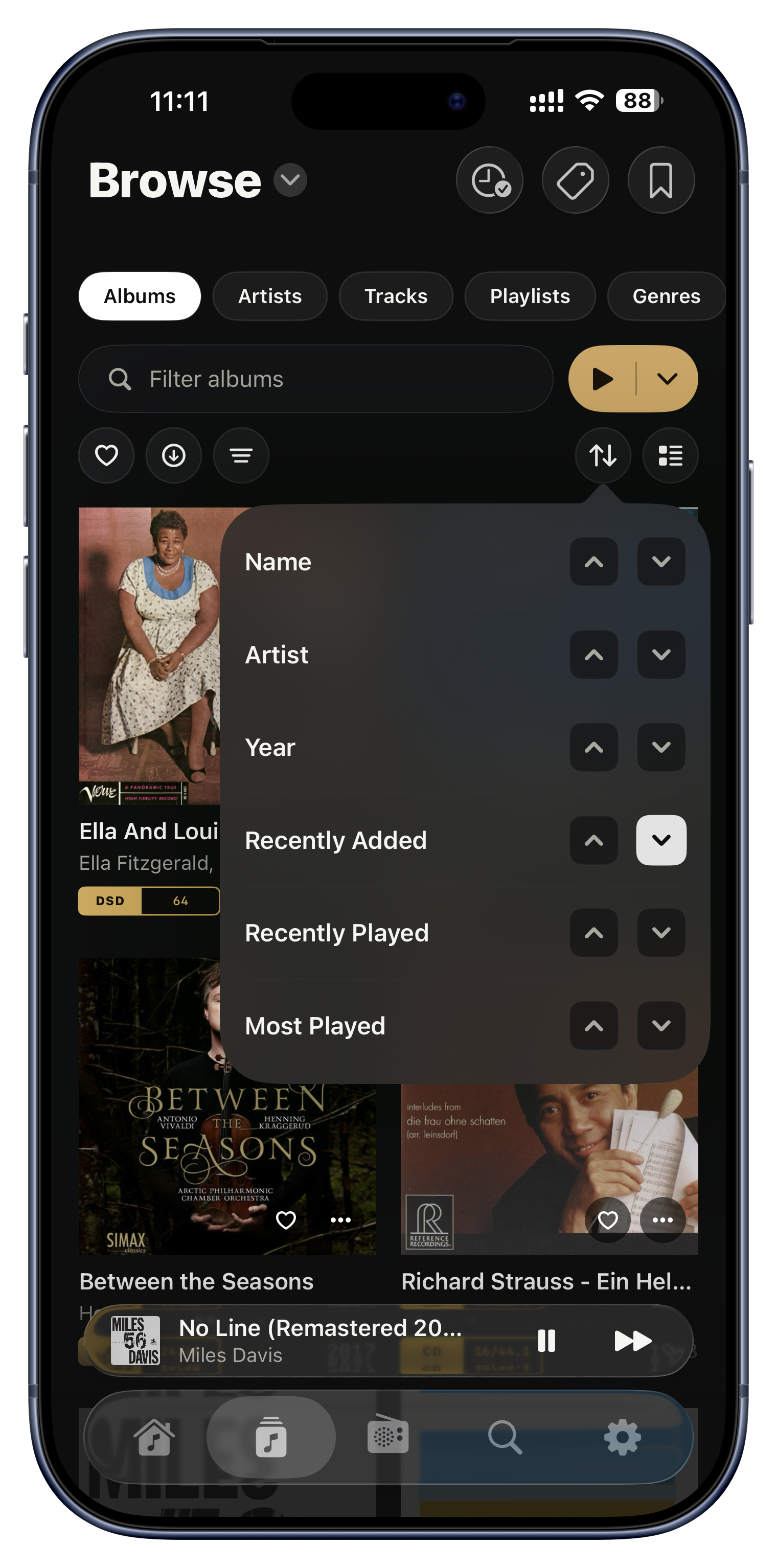
Sorting is not just A to Z. You can stack several rules, so albums sort by Artist and then by Year within each artist, giving a discography in true release order. Every screen remembers its own sort independently, and the options include Most Played and Recently Played, powered by your own listening history.

Ideas to try
  • Sort albums by Recently Played to keep your current rotation on top.
  • Sort an artist's page by Year to read their catalogue in order.
  • Sort Tracks by Most Played to find your genuine anthems.
The sort button on any Browse view
Filter until it's exactly right

Filter until it's exactly right

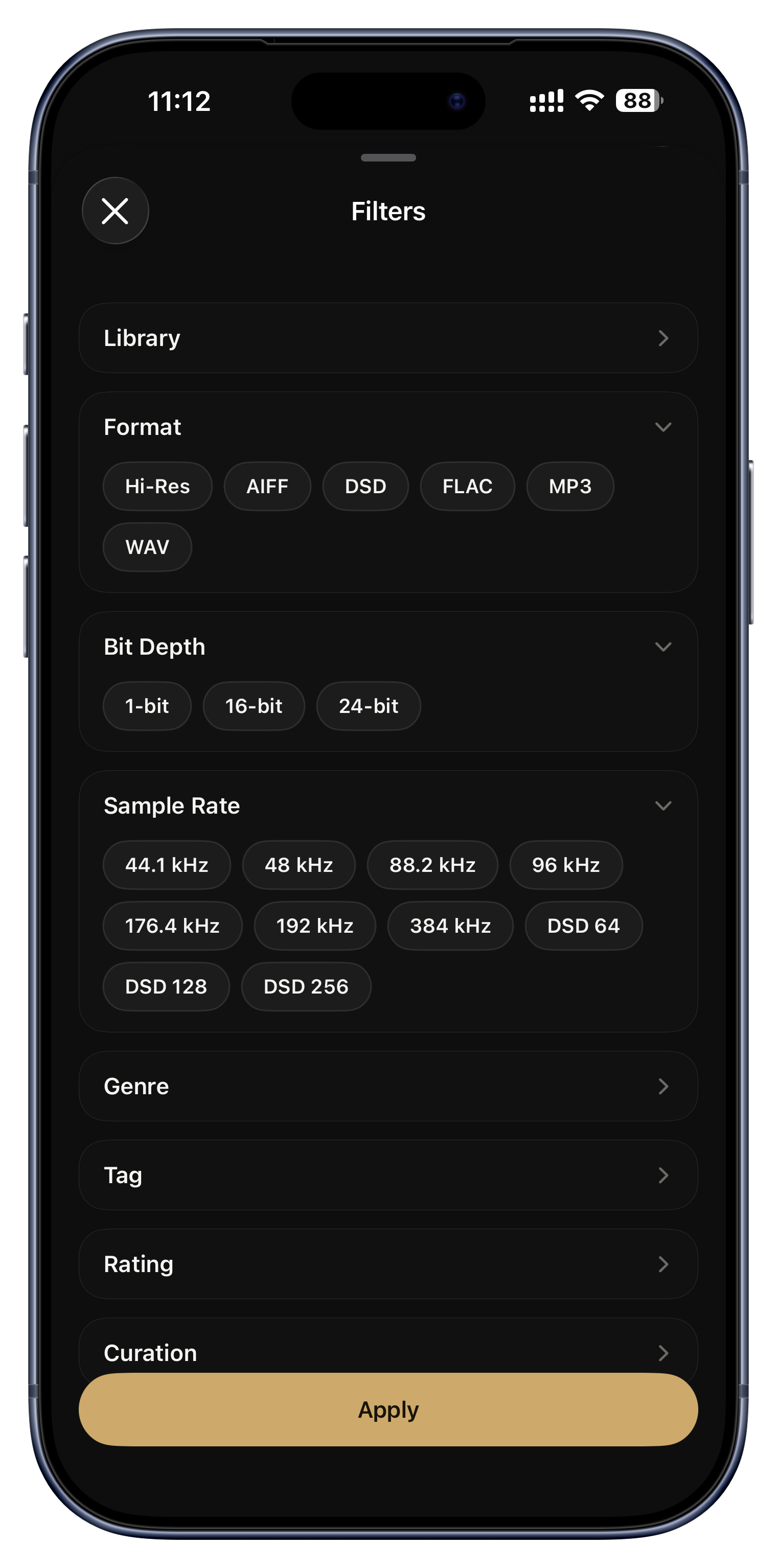
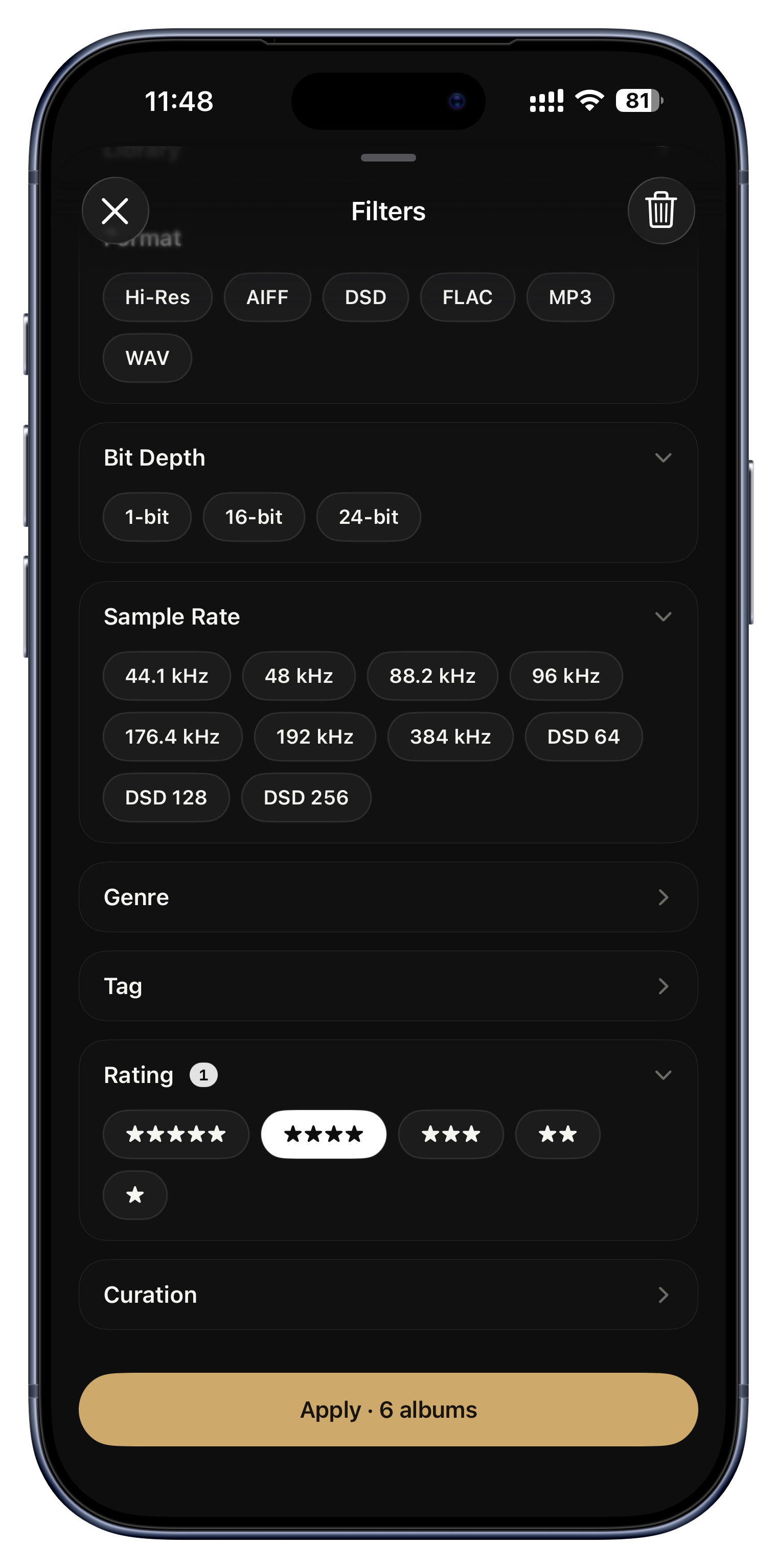
Filters carve a huge library down to precisely what you want: by record label, codec, bit-depth, sample-rate, genre, star rating, tag, or a Hi-Res-only switch. Tap a chip a second time to exclude instead of include. There are even housekeeping filters to find albums that need attention.

Ideas to try
  • Show only your 24-bit, 96kHz-and-up hi-res albums for a critical listening night.
  • Filter to a single record label to browse a reissue series.
  • Use 'missing artwork' to hunt down covers that need fixing.
  • Combine filters, then bookmark the result as a reusable preset (more on that in Organize).
The filter button on Albums, Tracks or Artists
Fly through a huge library

Fly through a huge library

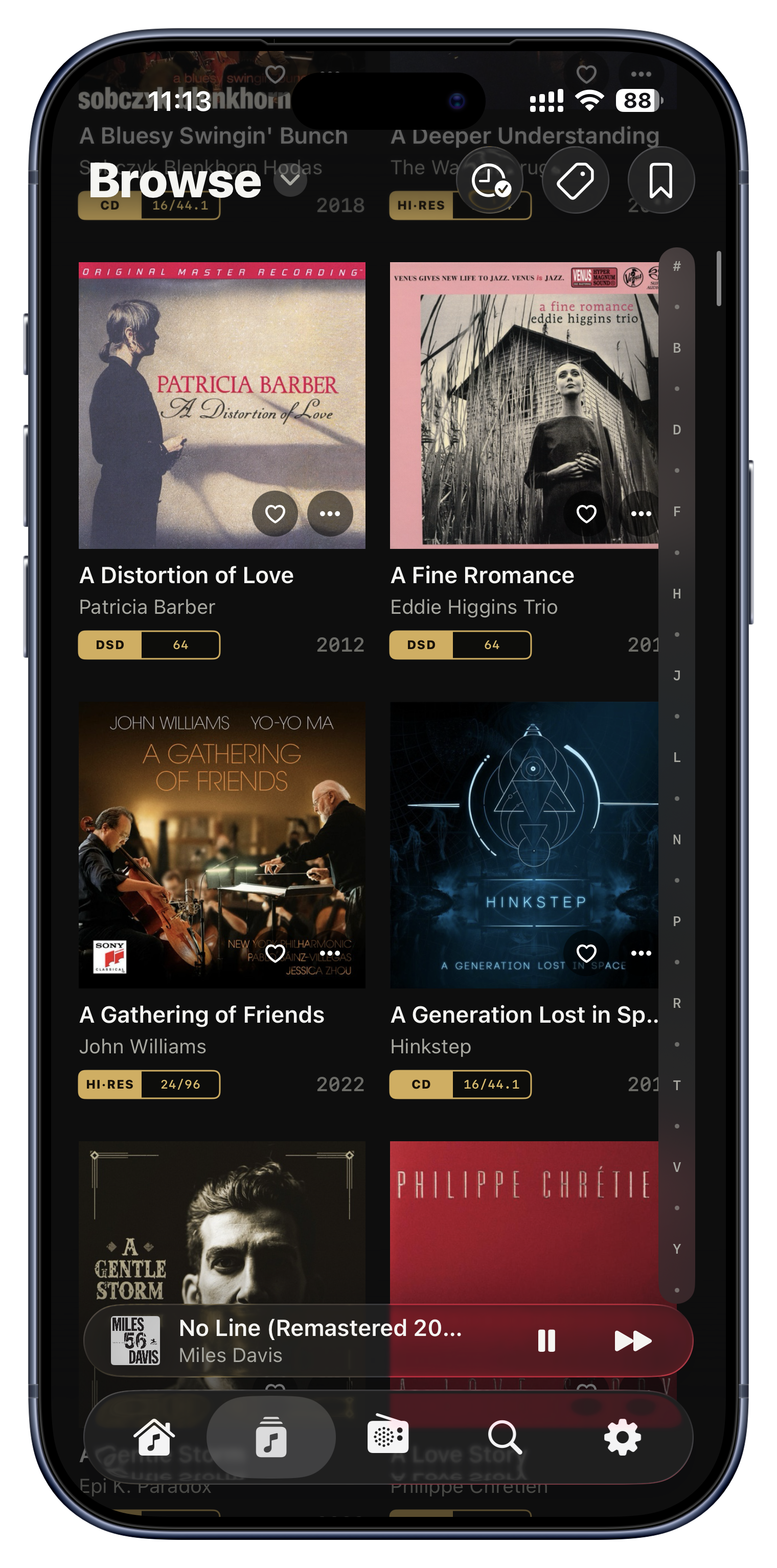
A vertical alphabet strip pins to the edge of long lists. Drag down it and a big letter callout shows where you'll land, so you can jump across thousands of entries in a single swipe. It fits the whole alphabet even on smaller screens, and tucks itself away when you stop scrolling.

Ideas to try
  • Leap from A to R in a twenty-thousand-album library in one motion.
  • Find an artist by their initial without endless scrolling.
Right edge of long lists (toggle in Settings)
Grid or list, your call

Grid or list, your call

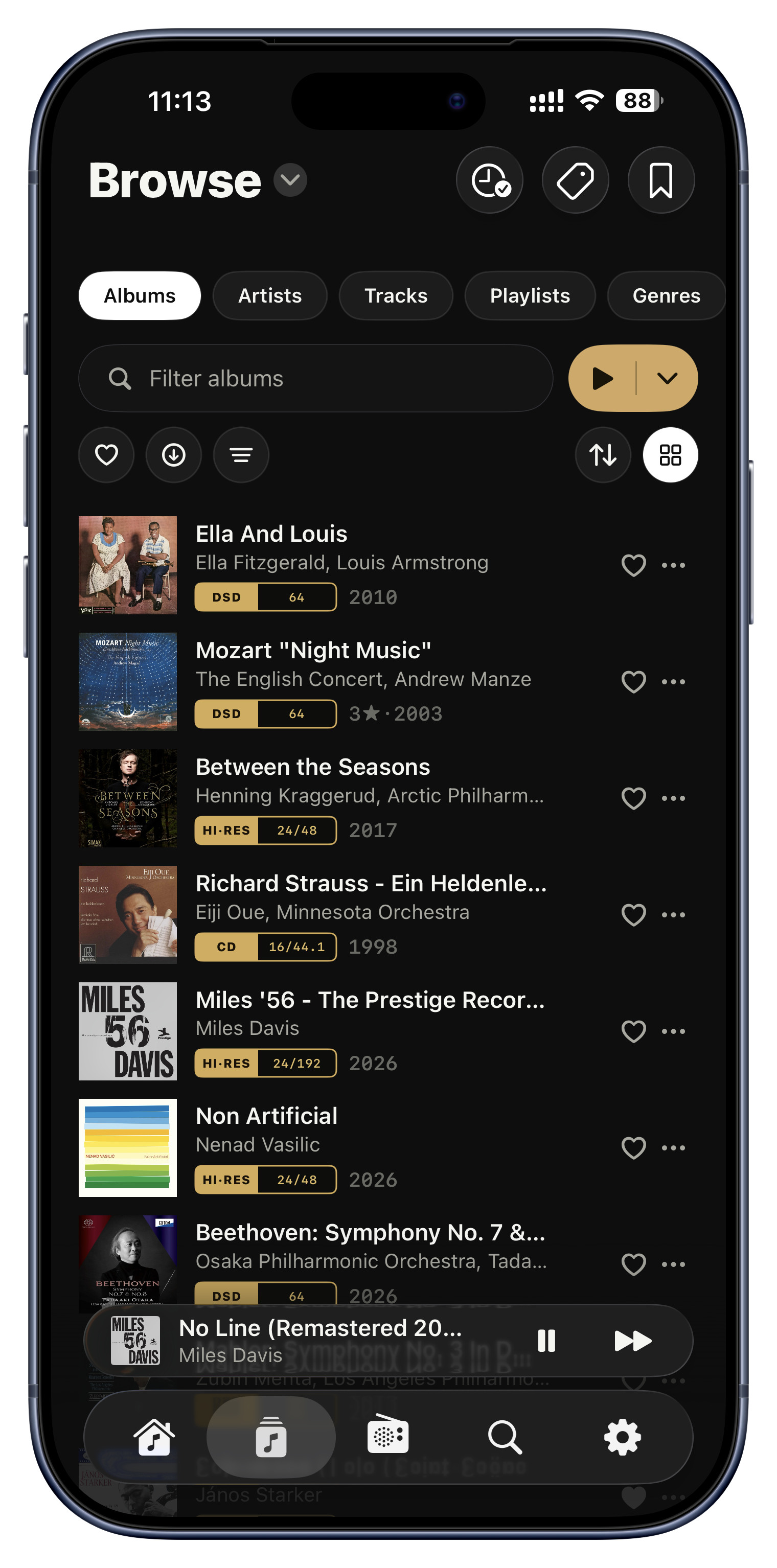
Every browse view flips between a grid of big cover art and a compact one-line list. Art when you want to browse by feel, names when you want to scan quickly on a small screen.

Ideas to try
  • Grid on the iPad for a gorgeous wall of covers.
  • Compact list on the iPhone to scan a long artist catalogue fast.
The layout toggle inside each view
Other versions, tidied away

Other versions, tidied away

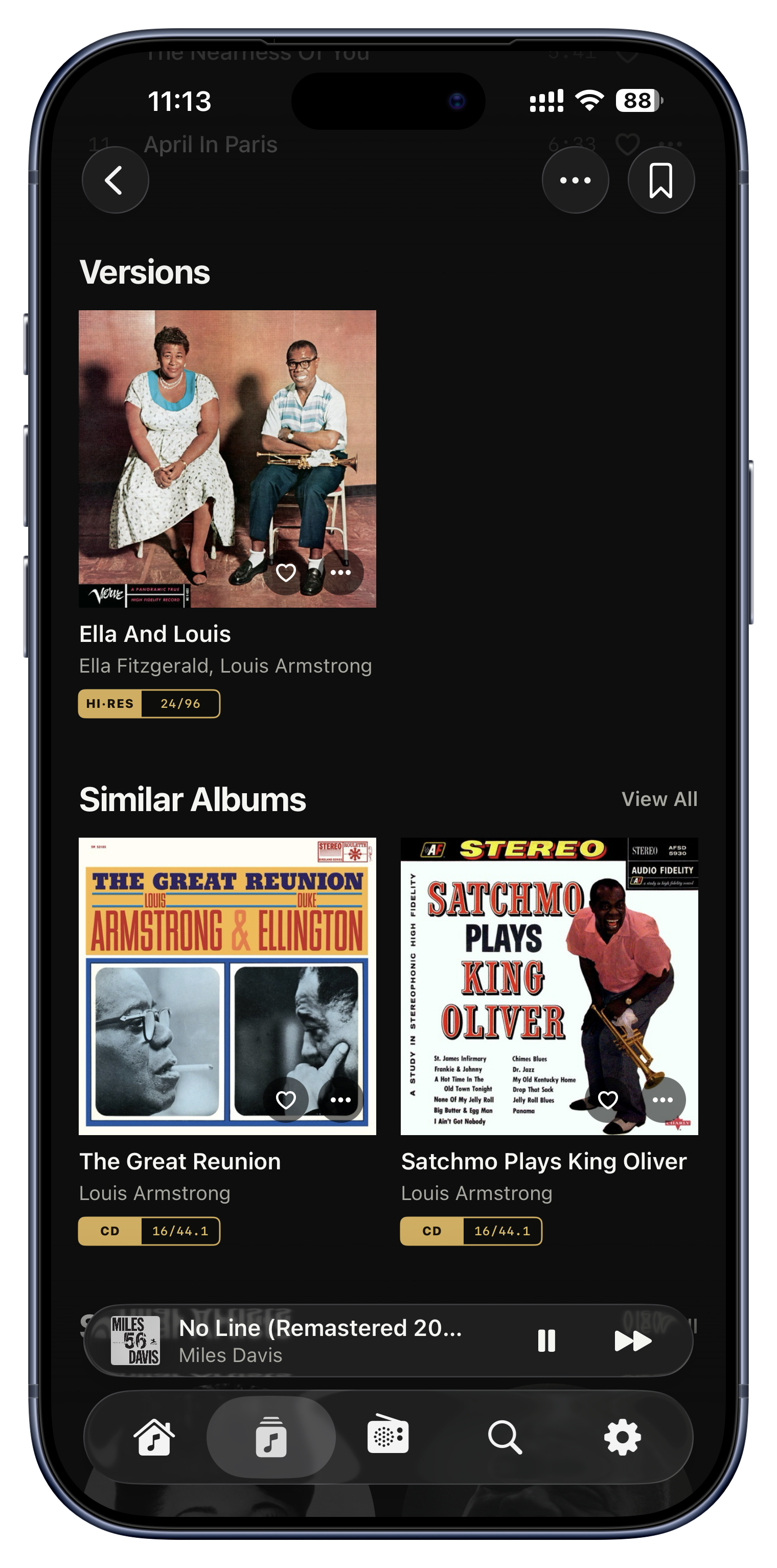
When you own an album more than once, a remaster, a hi-res re-release, a different pressing, Serento recognizes them as versions of the same record and keeps them together. You can mark one as the main version to show in your library, and reach the rest whenever you want them.

Ideas to try
  • Keep the 24/192 remaster as your main copy, with the original a tap away.
  • Compare a mono and a stereo pressing without cluttering your shelves.
  • Demote a lossy duplicate so only the lossless one shows.
Album ⋯ menu › Other Versions

Press play, your way.

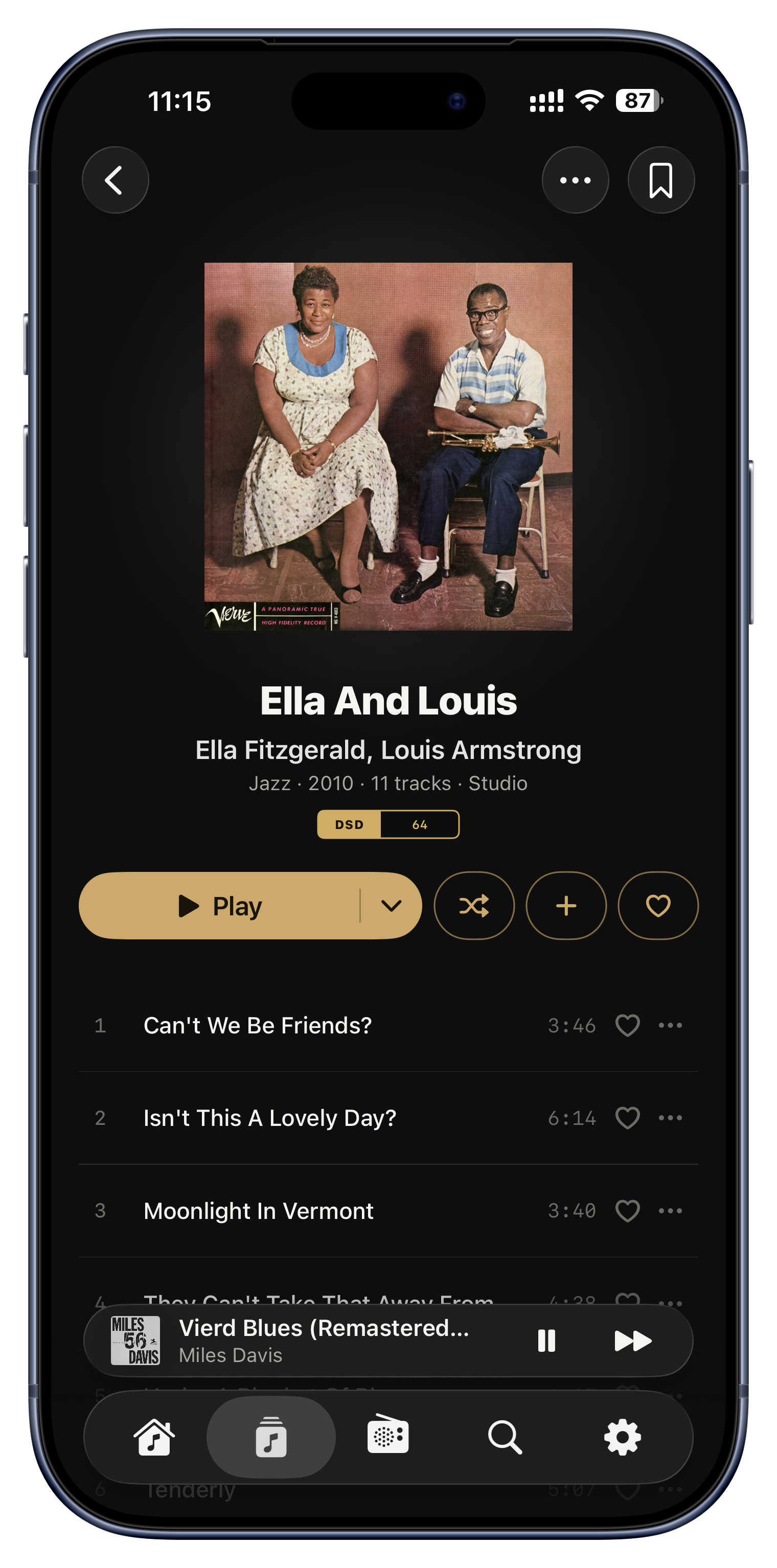
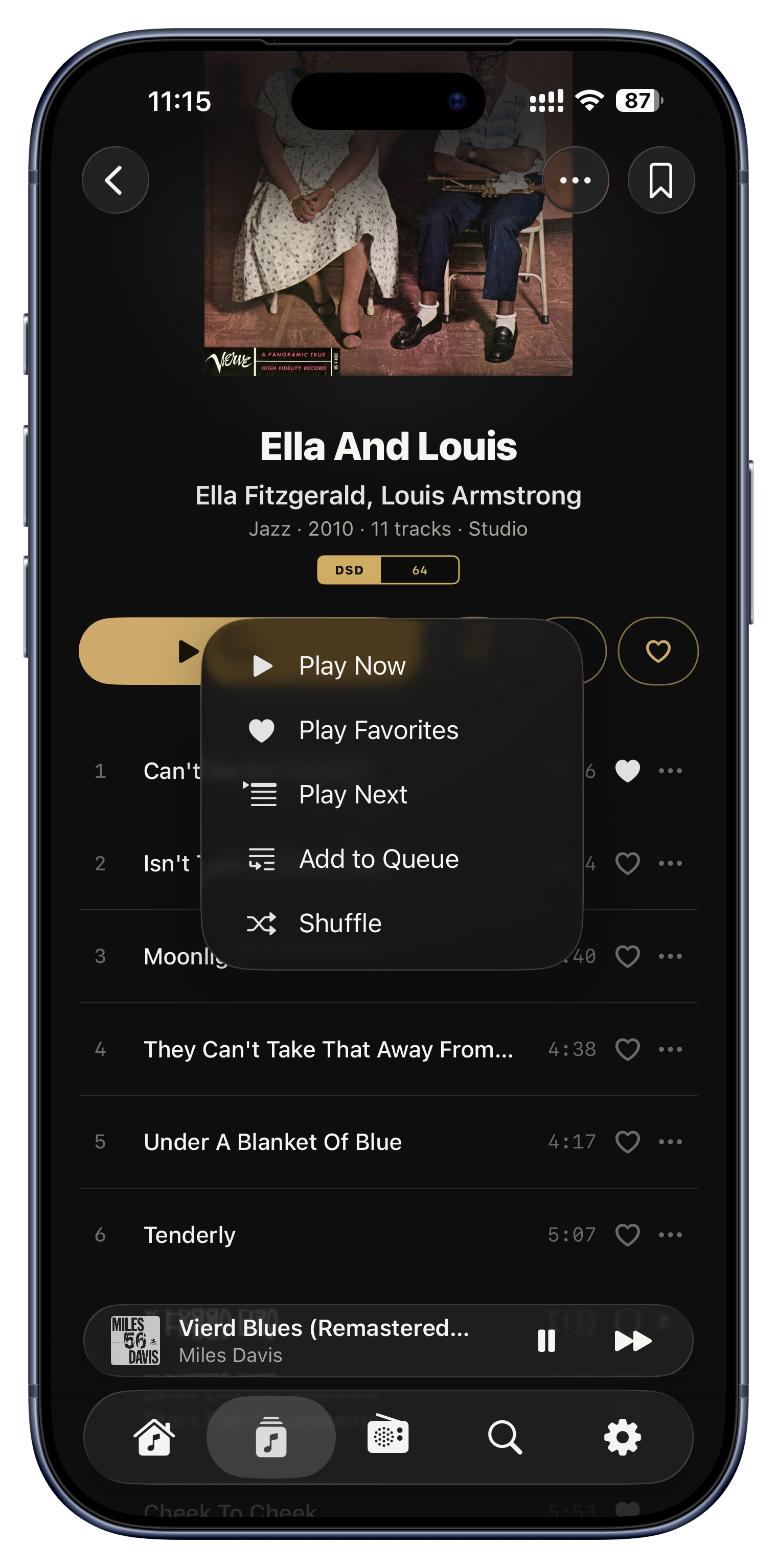
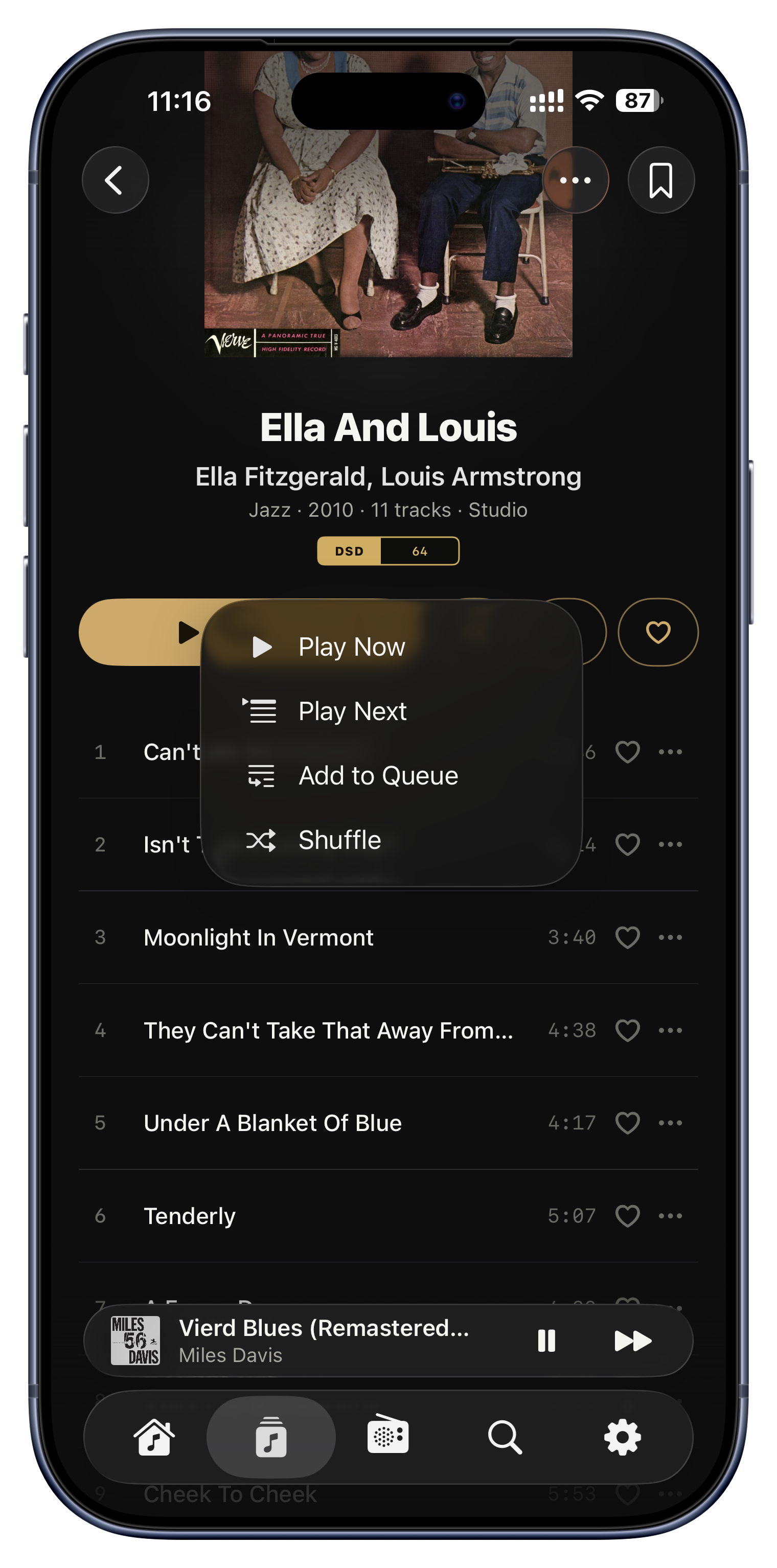
That little gold Play button with the arrow is Serento's signature control. The arrow hides options most people never open, and they're the good ones.

Go on, tap the little arrow. That dropdown is the control most people never open.

Play Now
Play Favorites
Play Next and Add to Queue
Shuffle anything, or everything
Play exactly what's on screen
The queue, laid bare
Play Now

Play Now

The left side of the gold Play button does the obvious thing: it clears the queue and starts your selection immediately. But the small arrow beside it is where the real control lives, so it is always worth a glance.

Ideas to try
  • Tap an album's Play to drop everything and start it right now.
The Play button, or any ⋯ menu
Play Favorites
Most people never find this

Play Favorites

Hidden in the Play dropdown is Play Favorites: it plays only the tracks you have hearted, in their natural album order, and skips everything else. It appears only when there actually is a favorite in what you are looking at, which is exactly why so few people ever find it.

Ideas to try
  • On a sprawling double album where you love four songs, play just those four.
  • On an artist's page, play only your favorite tracks across their whole catalogue.
  • On your whole library, it becomes a personal 'best of' jukebox.
  • Inside a tag, hear only the starred tracks in that mood.
The Play button dropdown
Play Next and Add to Queue

Play Next and Add to Queue

Play Next slips a selection in right after the current song; Add to Queue drops it at the very end. Either way, the rest of your lineup stays exactly as it was, so you can shape what is coming without ever stopping the music.

Ideas to try
  • Someone requests a song? Play Next, and it is up after this one.
  • Building an evening's listening? Add to Queue as you browse.
  • Queue three albums back to back before you start cooking.
Play dropdown, or any ⋯ menu
Shuffle anything, or everything

Shuffle anything, or everything

Shuffle scrambles whatever you are pointed at: one album, an artist, a genre, a playlist. From the Albums view with no filter, it shuffles your entire library and keeps going forever, quietly topping up the queue. And it is honestly random; an old 'smart' shuffle that kept front-loading your most-owned artist was deliberately removed.

Ideas to try
  • Shuffle your whole collection for an endless, surprising radio of your own music.
  • Shuffle a single artist to rediscover their deep cuts.
  • Shuffle a 'Road Trip' tag for a mixed, mood-right set.
Play dropdown › Shuffle
Play exactly what's on screen

Play exactly what's on screen

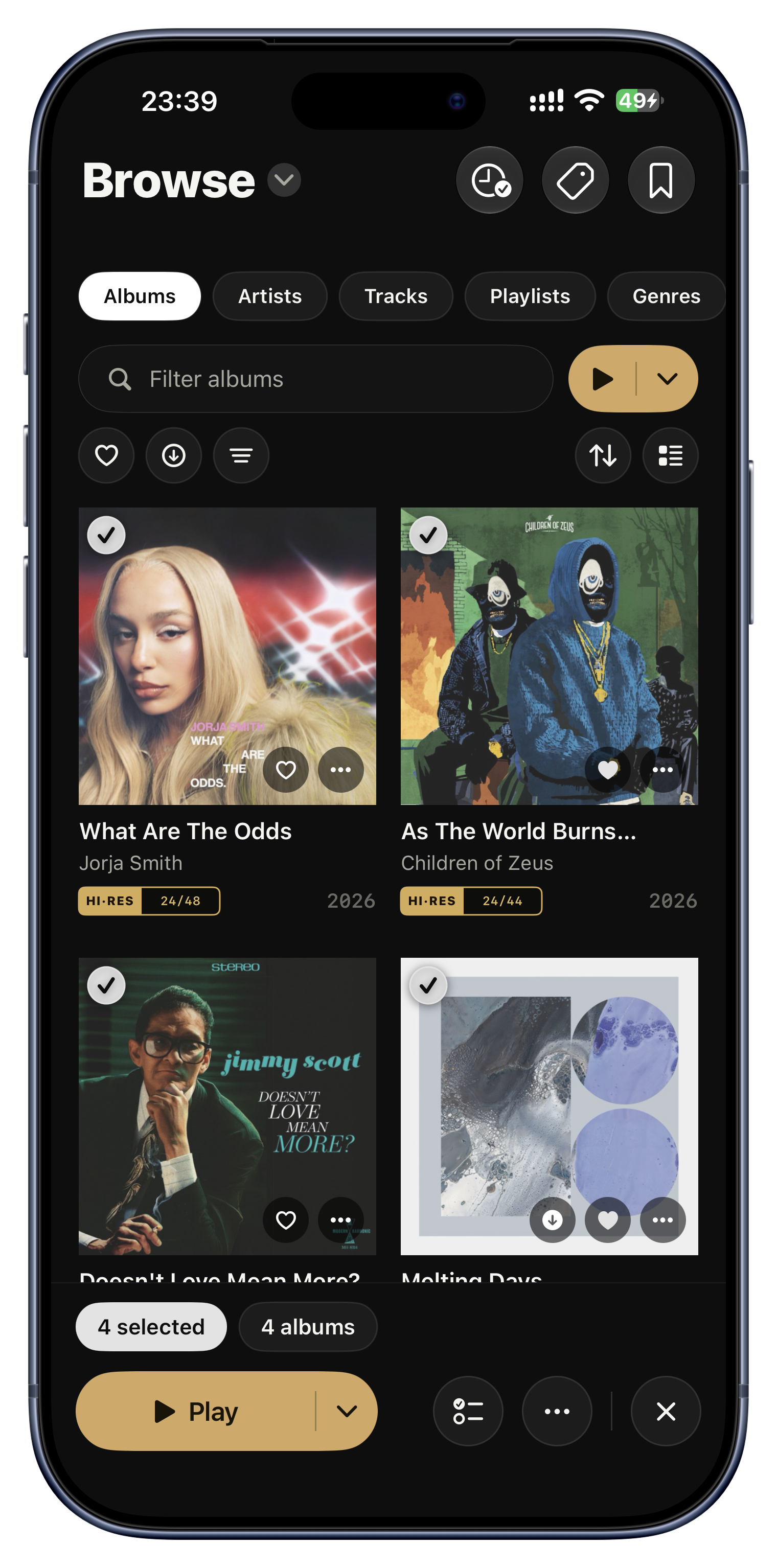
The compact Play button next to the search field plays exactly what is on screen right now, after your filters, your search text and your sort. It turns any filtered view into an instant, throwaway playlist with zero effort.

Ideas to try
  • Filter to 'Hi-Res jazz, 4 stars and up', hit Play, and that is your evening sorted.
  • Search 'live', then Play every live album at once.
  • Filter a genre, sort by Most Played, and play your top tracks in it.
The Play button next to the search field
The queue, laid bare

The queue, laid bare

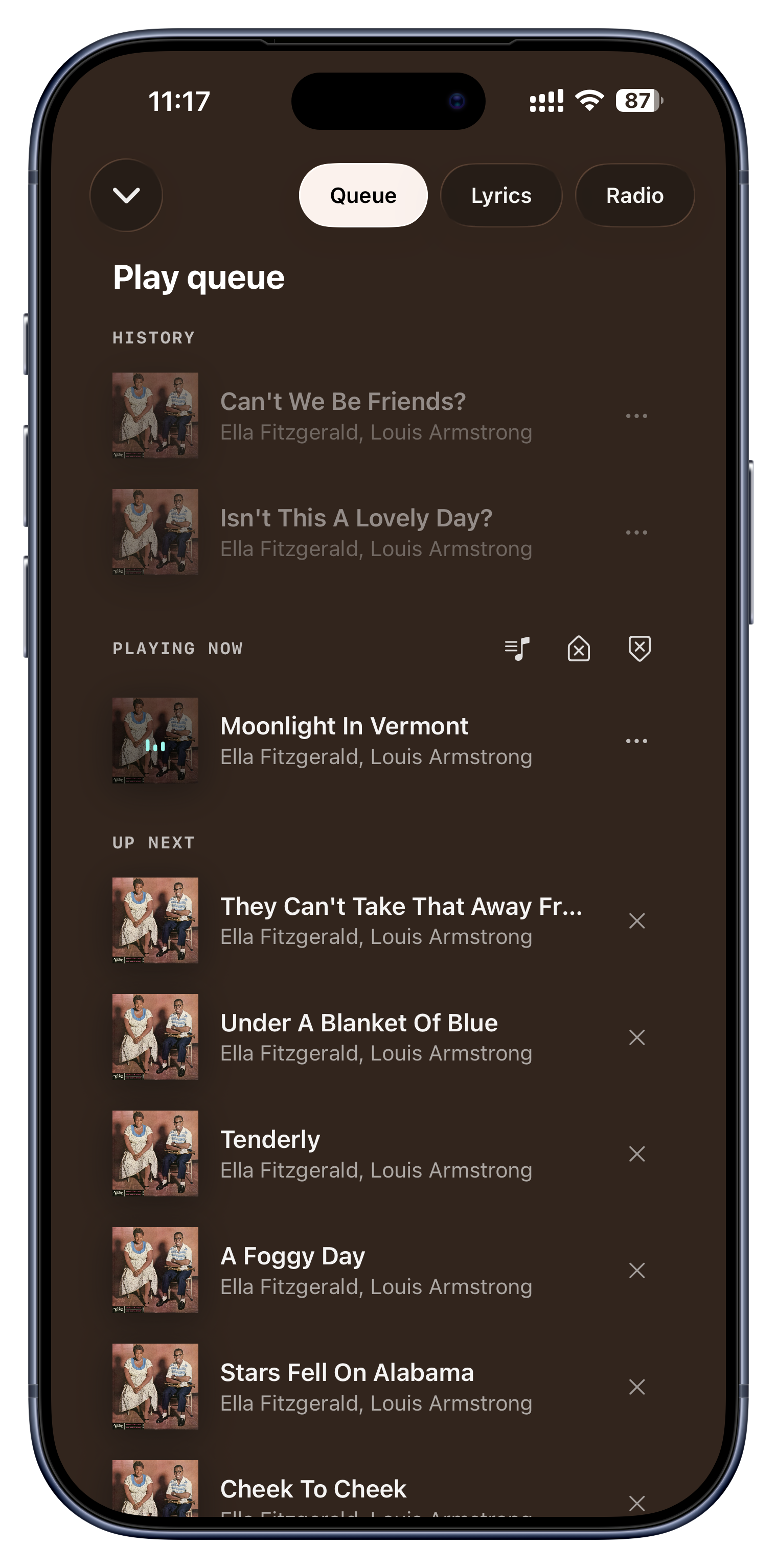
The queue panel shows three clear zones: a History of what you have already played this session, what is playing now, and Next Up. You can scroll back and replay something from earlier, remove a single upcoming track, clear the rest, or save the whole thing as a permanent playlist.

Ideas to try
  • Stumbled into a perfect sequence? Save the queue as a playlist to keep it forever.
  • Replay a song from earlier in the session without losing your place.
  • Prune a track you no longer feel like hearing from Next Up.
Now Playing › the Queue pill

Organize it like nobody else.

Genres and folders are how the files are arranged. Tags, bookmarks and playlists are how you arrange your listening, around moods, occasions, and whatever only makes sense to you.

      • Deep Work
      • Coding Late
    • Melancholy
    • Sunday Coffee
    • Japan 2024
    • Road Trips

Tap a branch to open it. Tagging “Moods” never touches “Focus” inside it. Each level is yours to control.

Organize with tags
Nested tag folders
Turn a folder into a whole tag tree
Bookmark any view
Build playlists
Favorite anything
Organize with tags

Organize with tags

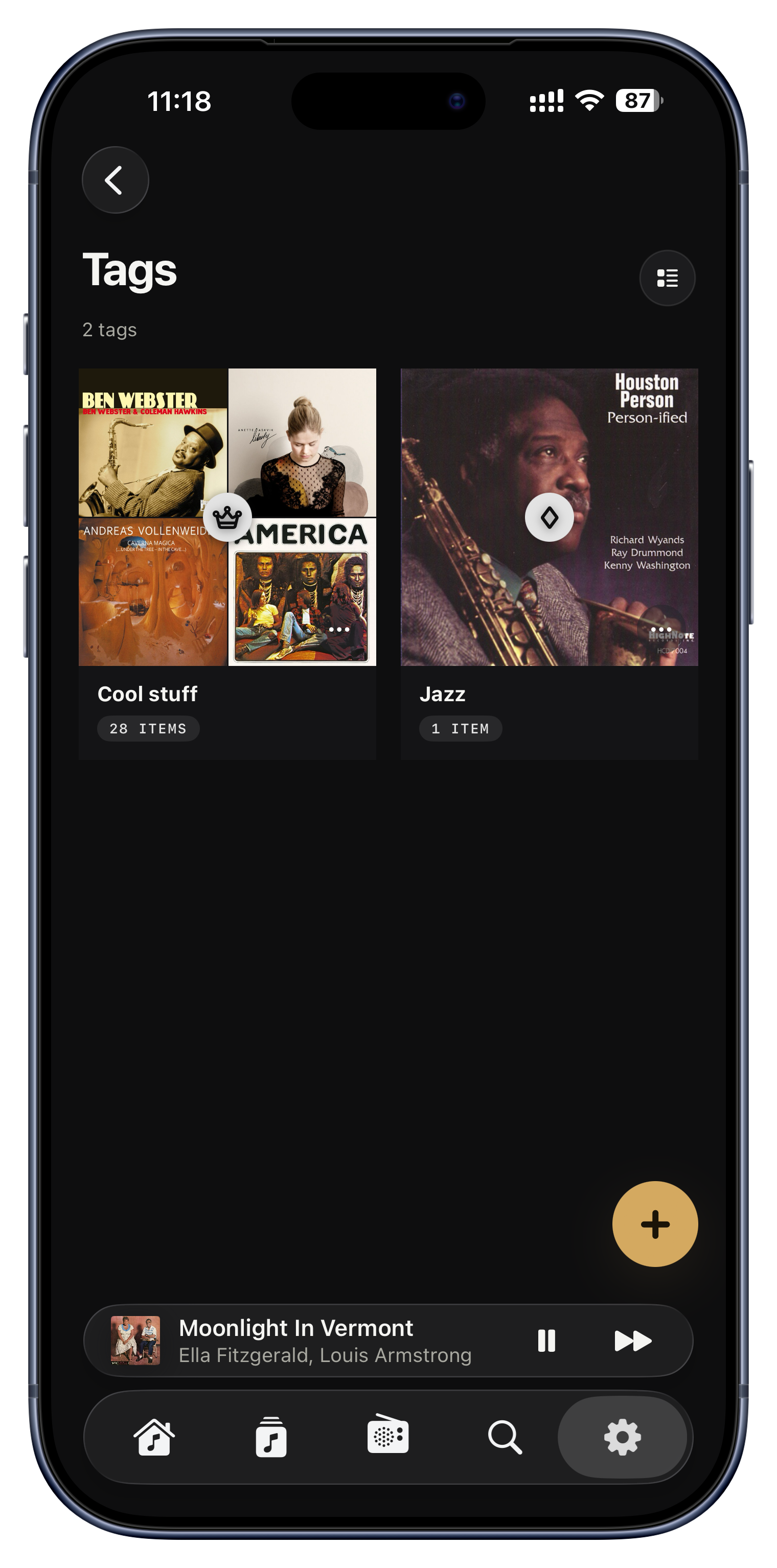
Tags are your own labels, stuck onto albums, tracks, artists, even radio stations. They cut across genre and folder entirely, so you can group music by mood, occasion, person or project, and a single album can wear as many tags as you like. When you create one you pick a name and an icon, with a live preview as you type.

Ideas to try
  • Moods like 'Late Night', 'Focus', 'Sunday Coffee'.
  • Occasions like 'Dinner Party', 'Workout', 'Road Trip'.
  • People, like 'Songs Mom Loves' or 'Dad's Vinyl'.
  • A 'Rediscover' tag for records you keep meaning to revisit.
Tags tab (iPad and Mac) or Settings › Tags (iPhone)
Nested tag folders
Most people never find this

Nested tag folders

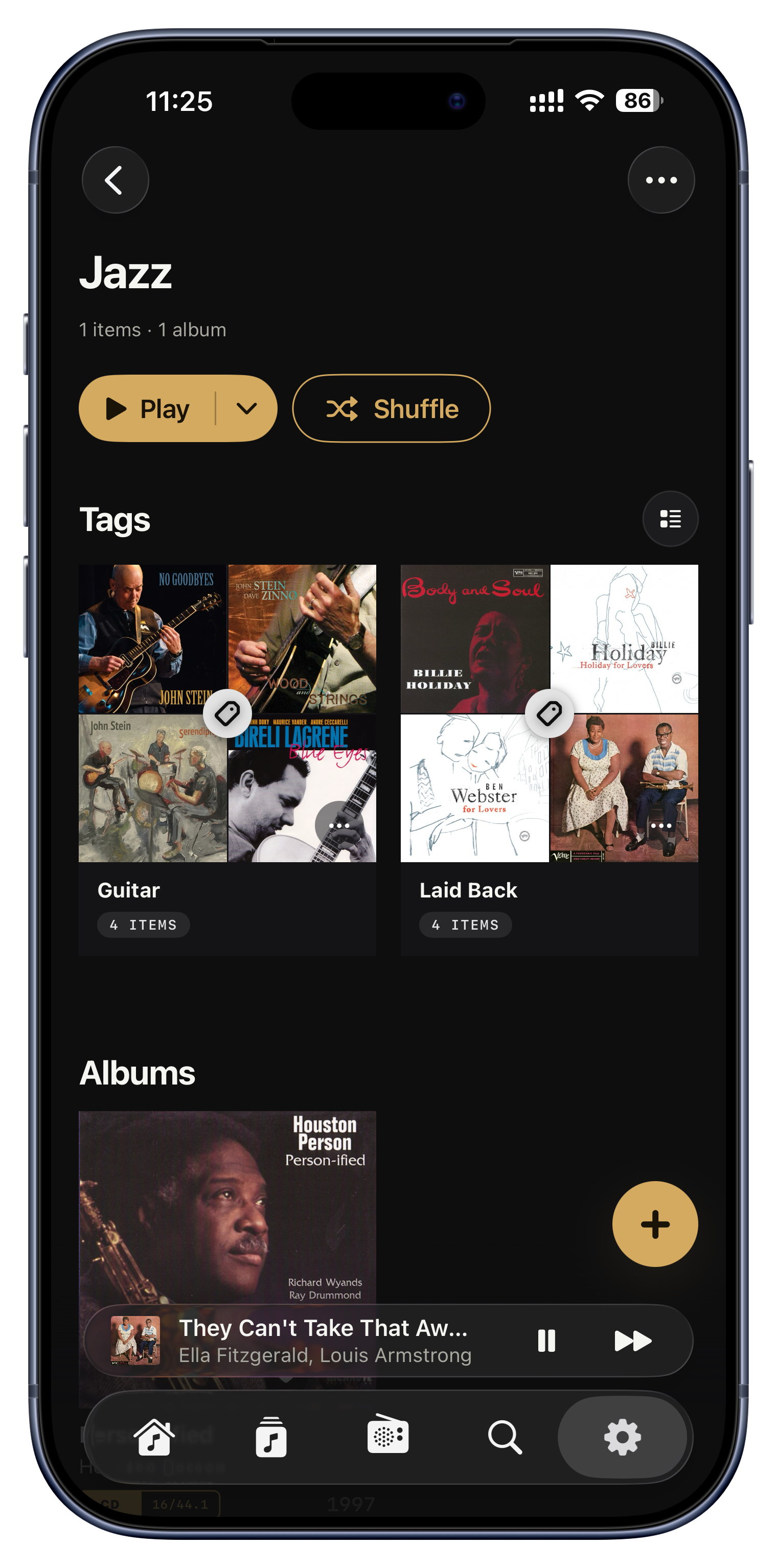
Tags can nest inside other tags, like folders within folders, to any depth. A parent like 'Travel' can hold 'Japan 2024' and 'Italy', and each of those can hold more. Crucially, tagging something to a parent does not cascade to its children, so every level stays exactly as precise as you make it.

Ideas to try
  • 'Moods' holds 'Happy', 'Melancholy' and 'Focus', each browsable on its own.
  • 'Genres I'm Exploring' holds 'Bossa Nova', which holds '70s Bossa'.
  • 'Travel' holds a sub-tag per trip, each a playable soundtrack of that journey.
Open a tag › the + button adds a child
Turn a folder into a whole tag tree
Most people never find this

Turn a folder into a whole tag tree

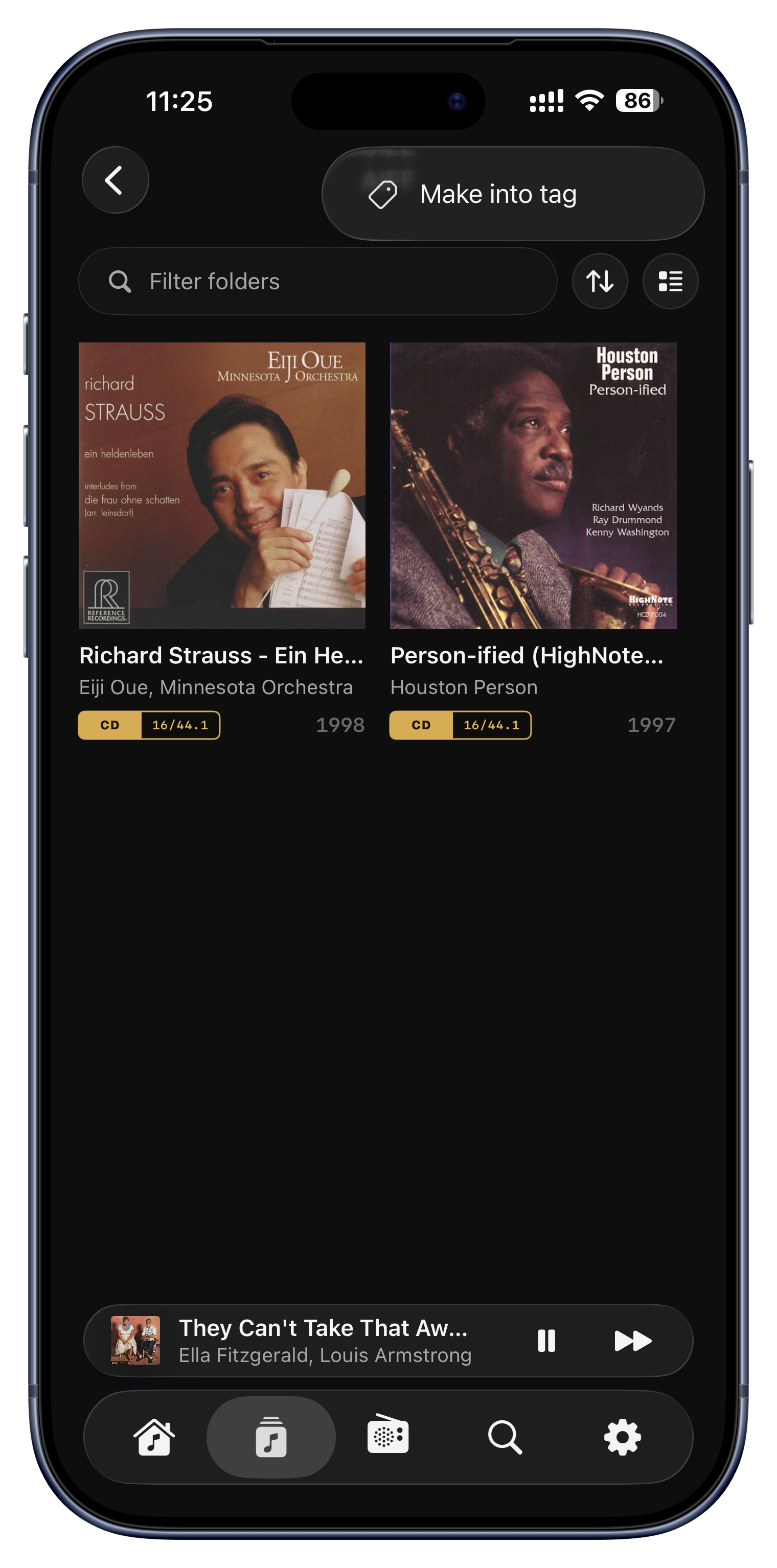
If your server is already organized into neat folders, you do not have to rebuild that structure by hand. 'Make into tag' takes a folder and everything beneath it and turns it into a matching tag hierarchy in one step: the folder becomes a parent tag, each sub-folder a nested child, and every album inside is added automatically.

Ideas to try
  • Turn 'Vinyl Rips › Jazz › Blue Note' into a browsable, playable tag tree instantly.
  • Mirror a carefully curated 'Best Of' folder into tags with no manual tagging.
  • Recreate how you already file your music, as tags, in seconds.
Browse › Folders › a folder's ⋯ › Make into tag
Bookmark any view
Most people never find this

Bookmark any view

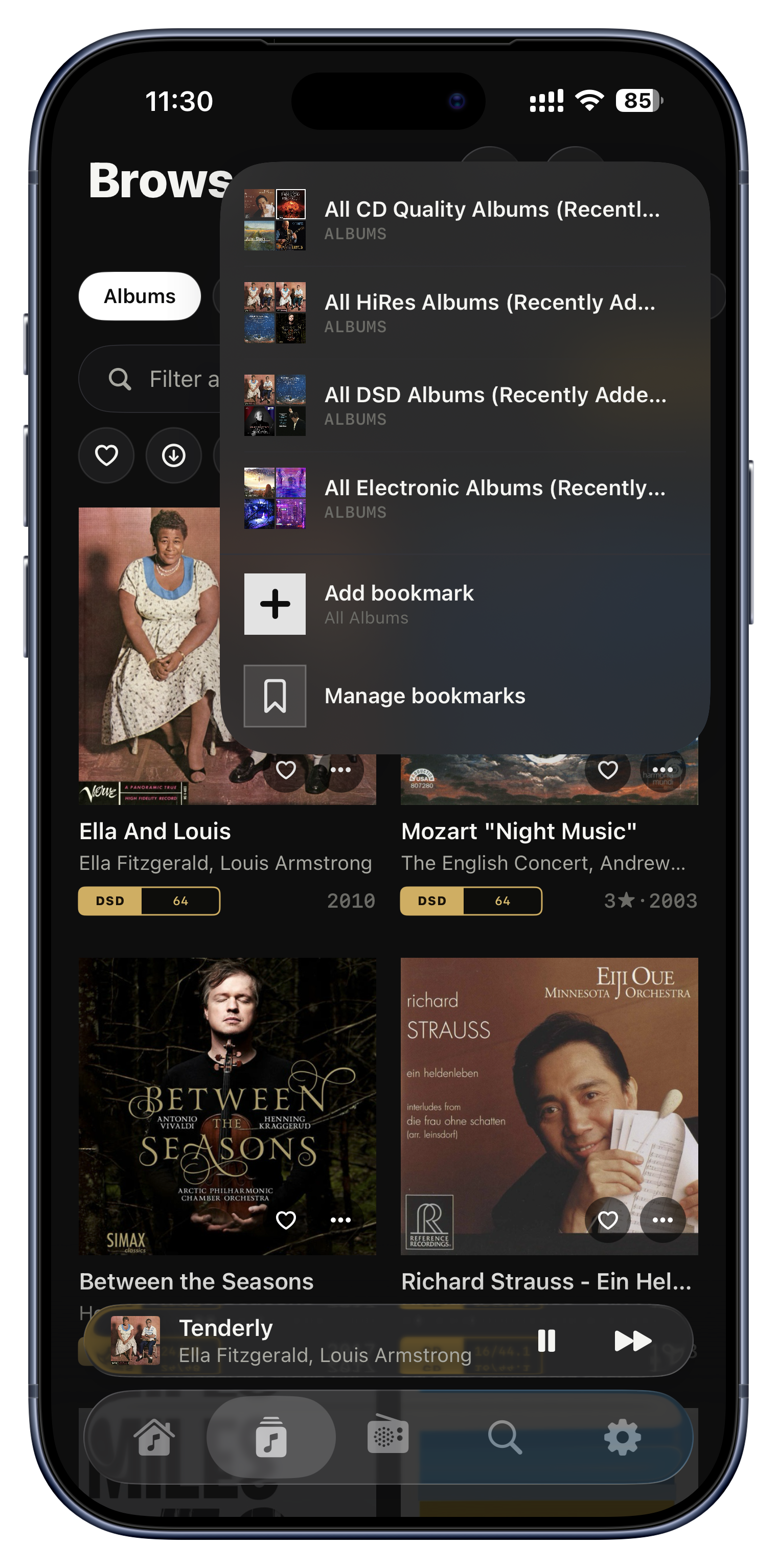
A bookmark saves the exact screen you are looking at so you can jump back to it in a single tap, from anywhere in the app. The power is twofold. First, it is always within reach: the bookmark button sits in the toolbar on almost every screen, so a saved view is never more than one tap away, no matter where you have wandered. Second, a bookmark captures a whole filtered, sorted list, not just a plain album or artist, remembering every filter and sort rule you set. In short, bookmarks are your personal presets for the views you keep coming back to.

Ideas to try
  • Sort your albums by Recently Played and bookmark it, so your rotation is one tap away from anywhere.
  • Filter to just your DSD files (or your 24-bit hi-res albums) and save that as a 'Best Quality' shelf.
  • Bookmark the single artist you are obsessed with this month for instant access.
  • Save 'Downloaded FLAC jazz, 4 stars and up' as one ready-made list before a trip.
  • Keep a 'Favorite Albums' bookmark on hand for a guaranteed-good session.
The bookmark icon in the toolbar, on almost every screen › + Add current
Build playlists

Build playlists

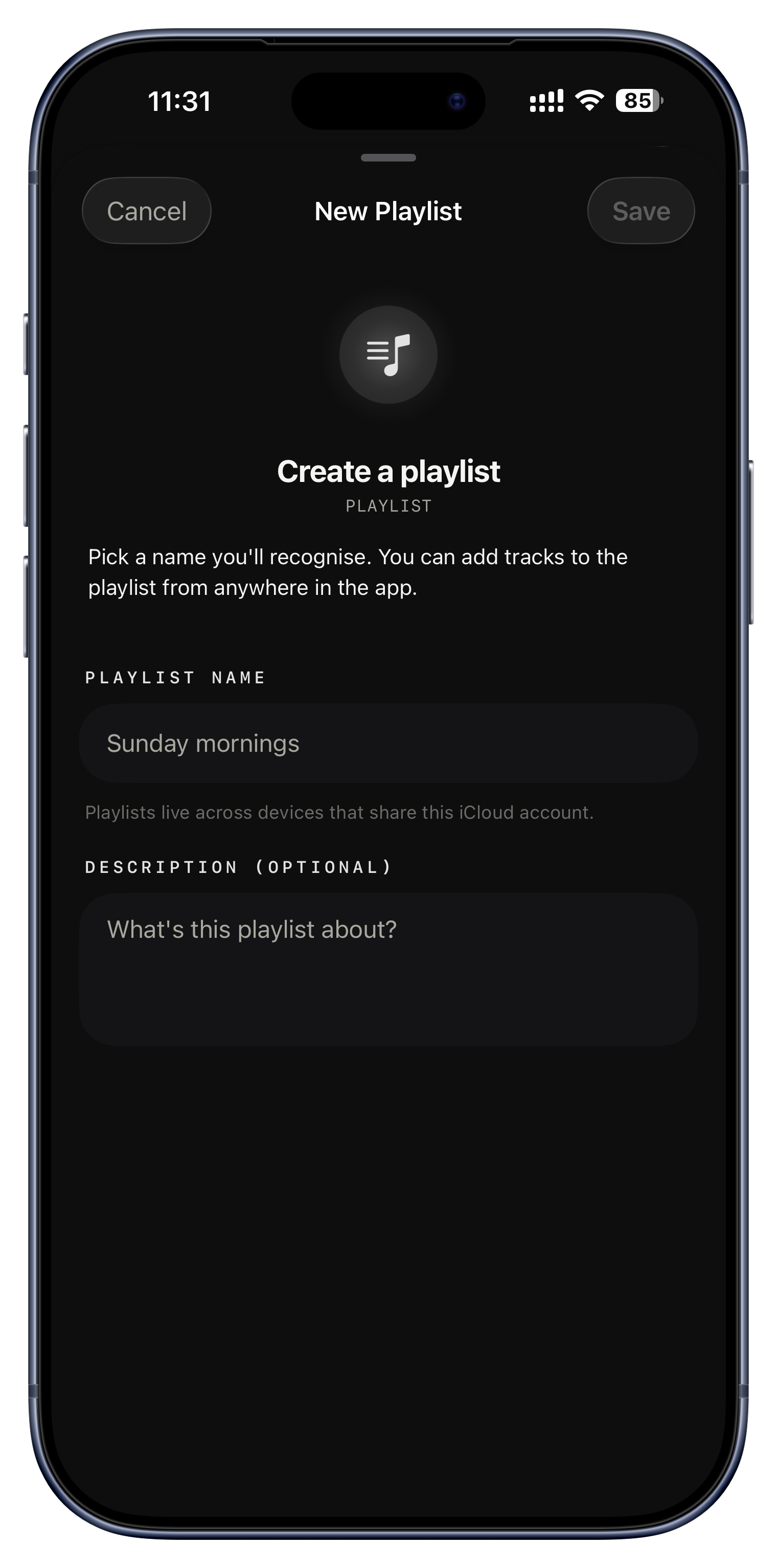
Playlists are the classic hand-made mixtape: your own named collection of tracks, with an optional description to remind yourself what it is for. Drag to reorder, remove tracks freely, and it all syncs to every device. You can even build one straight from your current queue.

Ideas to try
  • 'Sunday Mornings', 'Gym 2026', 'Songs for the Drive'.
  • Save a great queue you stumbled into as a permanent playlist.
  • A 'House Favorites' playlist everyone in the home keeps adding to.
Browse › Playlists › the + button
Favorite anything

Favorite anything

The heart marks anything you love; albums, artists, tracks, playlists and radio stations each keep their own favorites. It is a personal 'best of' across your whole library, and it composes with everything else: filter any list to just favorites, or combine it with a tag for the best of the best inside a mood.

Ideas to try
  • Heart your desert-island albums and filter the library to just those.
  • Inside a 'Focus' tag, play only the tracks you have favorited there.
  • Favorite a handful of radio stations for one-tap tuning.
The heart on detail screens and ⋯ menus

Rediscover what you already own.

A big library hides forgotten corners. Serento gently steers you back into them, using only your own music, never a streaming catalogue.

Weekly Smart Mixes
Similar artists and albums
Serento Radio, endless and yours
Recently played and Most Played
Listen Later
Weekly Smart Mixes

Weekly Smart Mixes

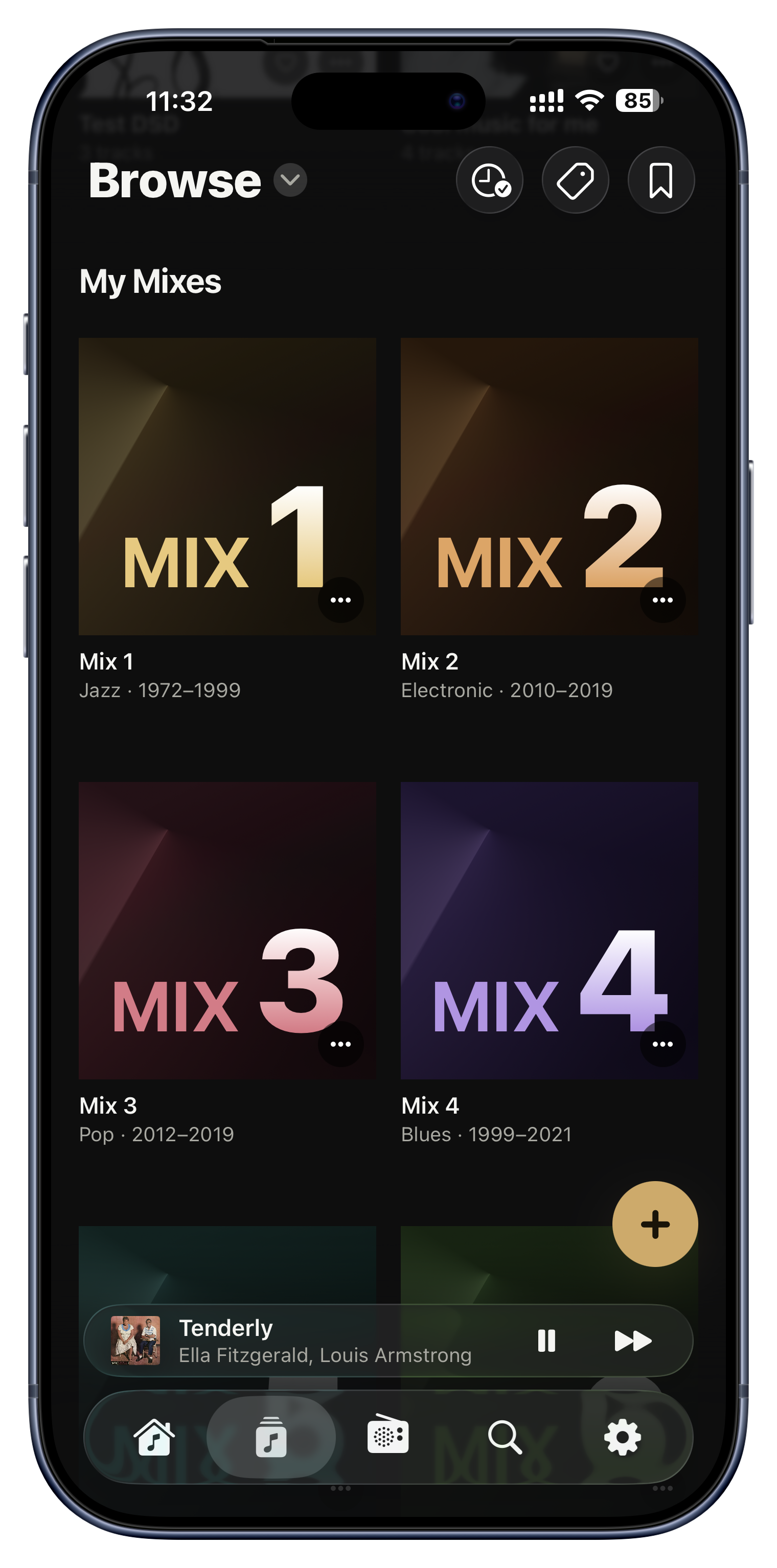
Each week Serento quietly assembles a few ready-made mixes from your own listening. Every mix focuses on a single genre from a single era and blends roughly two-thirds familiar favorites with one-third songs you own but have never played, so it feels comfortable yet keeps surprising you. They refresh weekly and are identical on all your devices; if you love one, save it as a playlist before it expires.

Ideas to try
  • A fresh '70s soul' or '90s trance' mix pulled entirely from your shelves.
  • Rediscover forgotten corners of a big collection with no effort at all.
  • Tag this week's 'Focus Jazz' mix into your 'Deep Work' tag before it's gone.
Home, and Browse › Playlists › My Mixes
Similar artists and albums

Similar artists and albums

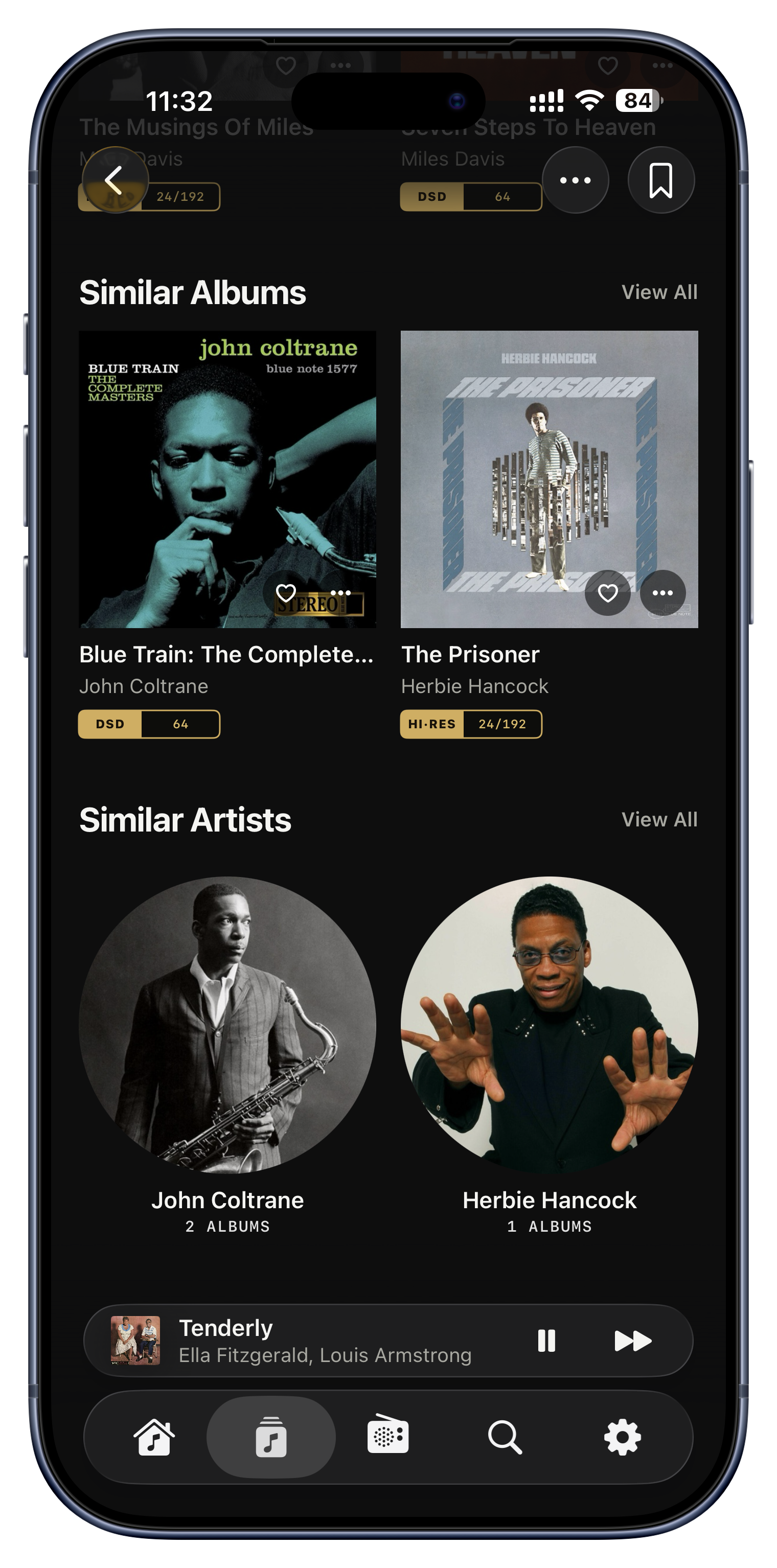
On any artist or album, a 'Similar' row surfaces others you already own that pair naturally, based on how listeners connect them, with a same-genre fallback. It is discovery that never leaves your library: a doorway back into music you had forgotten was on your shelves, not a nudge to buy something new.

Ideas to try
  • Finish an album and immediately find three more in the same vein you already own.
  • Love an artist? See which of your other artists their fans also love.
  • Work outward from one favorite to rebuild a whole evening.
Artist or Album detail › the Similar rows
Serento Radio, endless and yours
Most people never find this

Serento Radio, endless and yours

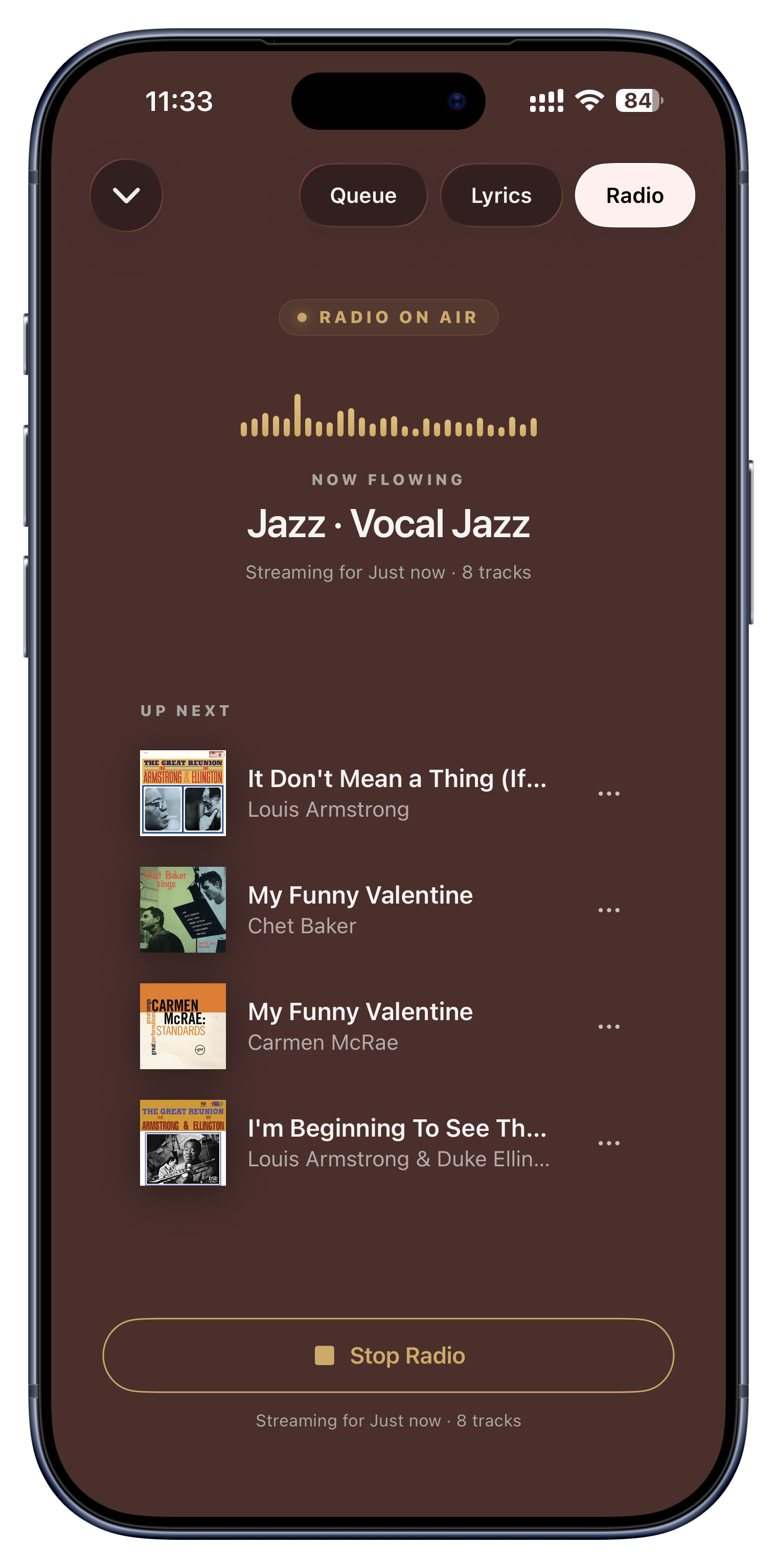
Switch on Serento Radio and the music never stops. When your queue runs dry, it keeps playing by pulling more tracks from your library in the genres you have been listening to, an endless personal station built only from music you own. A panel shows the genres it detected from your current queue, with percentages, so you can see exactly why it chooses what it chooses.

Ideas to try
  • Put on a couple of jazz albums, wander off, and jazz keeps flowing all evening.
  • Perfect for background listening that never falls silent mid-dinner.
  • Its on/off state syncs across devices, so you control it from wherever the music is.
Now Playing › Radio pill › Start Radio
Recently played and Most Played

Recently played and Most Played

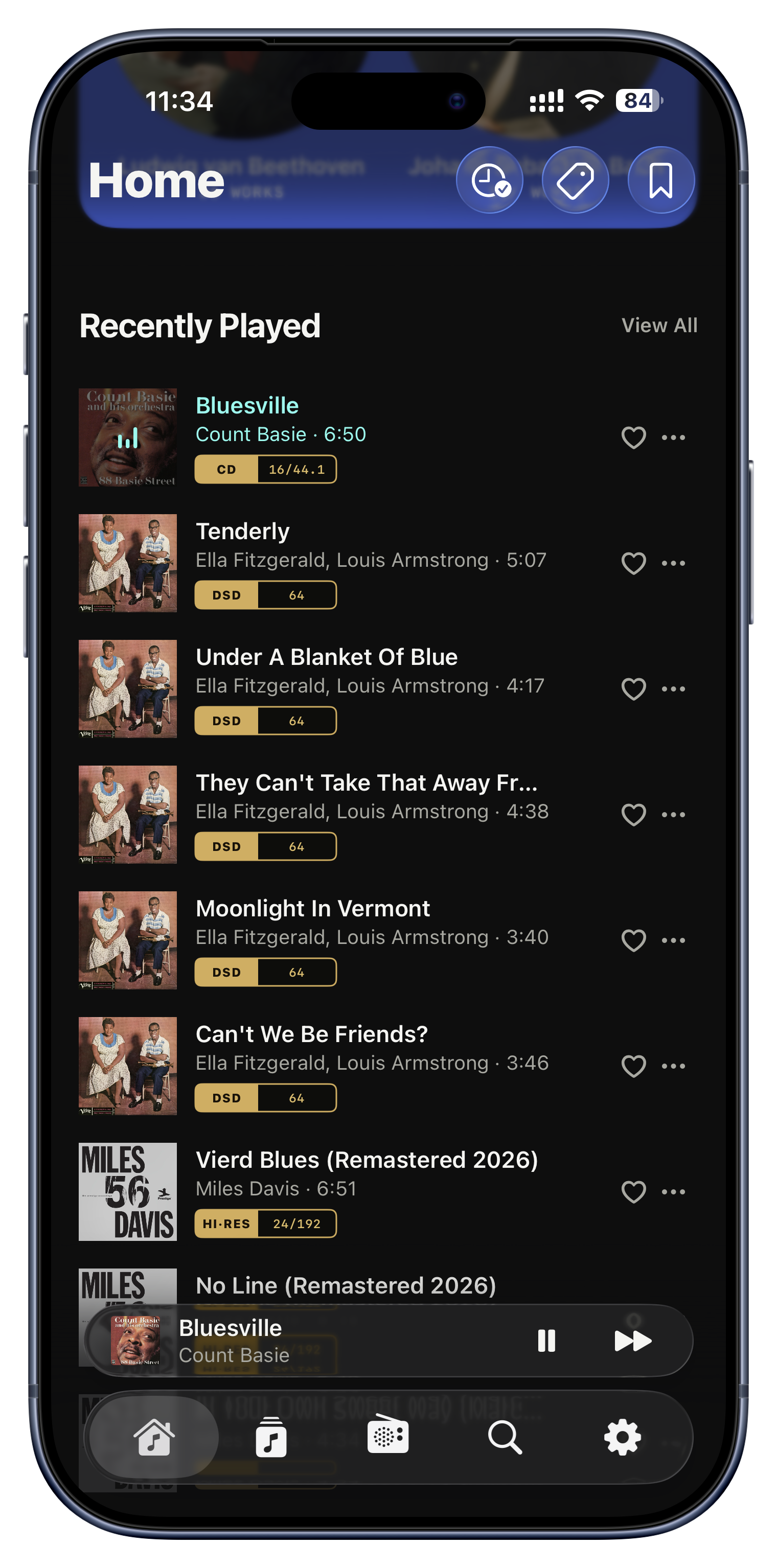
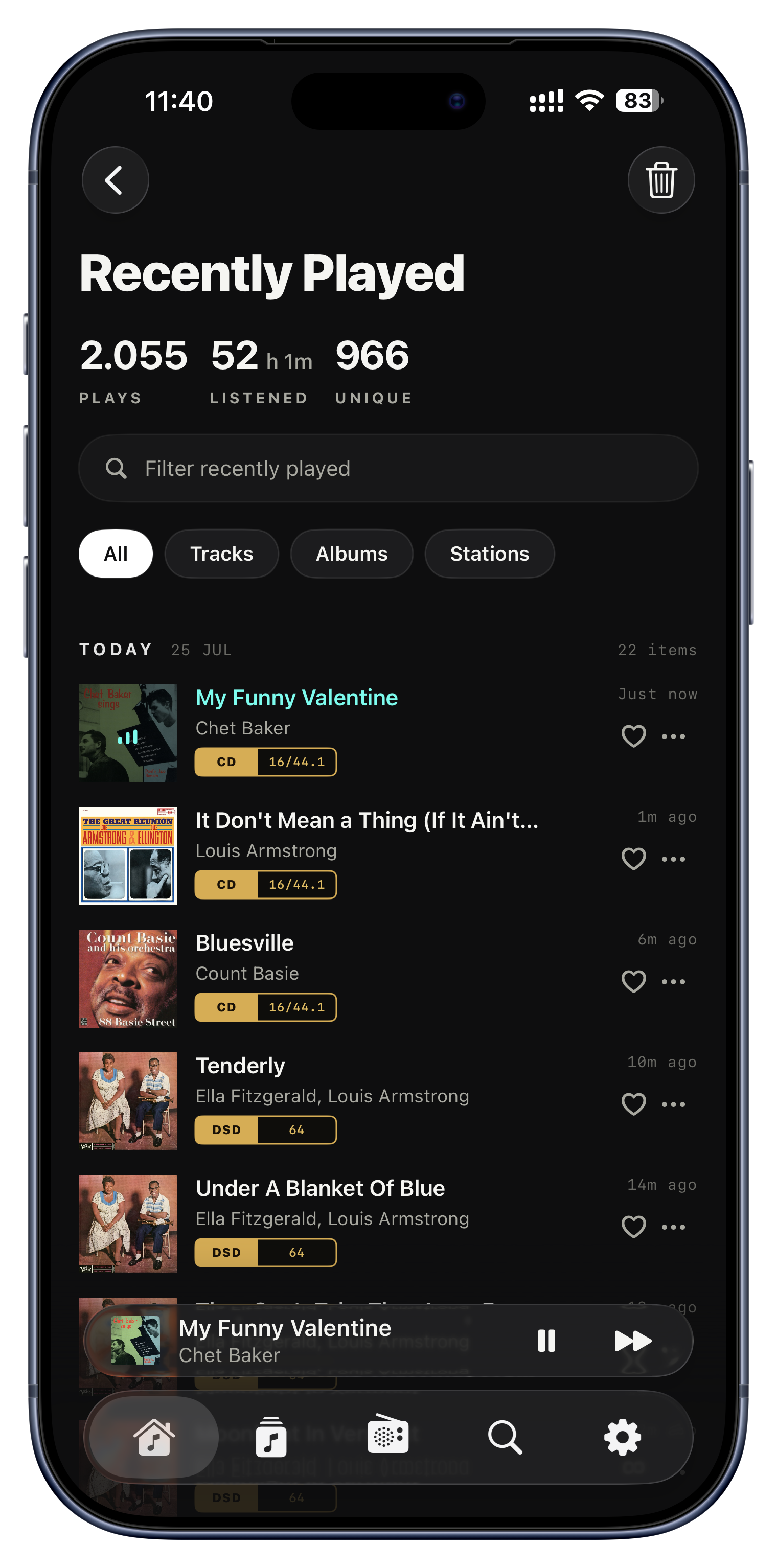
Serento keeps a running history of everything you play, grouped by day, and turns it into two useful things: a Recently Played screen to answer 'what was that song this morning?', and a Most Played sort that floats your genuine favorites, the albums and tracks you keep returning to, straight to the top of any list.

Ideas to try
  • Re-open last night's discovery from Recently Played in one tap.
  • Sort your library by Most Played to see your real all-time favorites.
  • Remove a stray play so it doesn't skew your stats or recommendations.
Home › Recently Played, and the sort in Browse
Listen Later

Listen Later

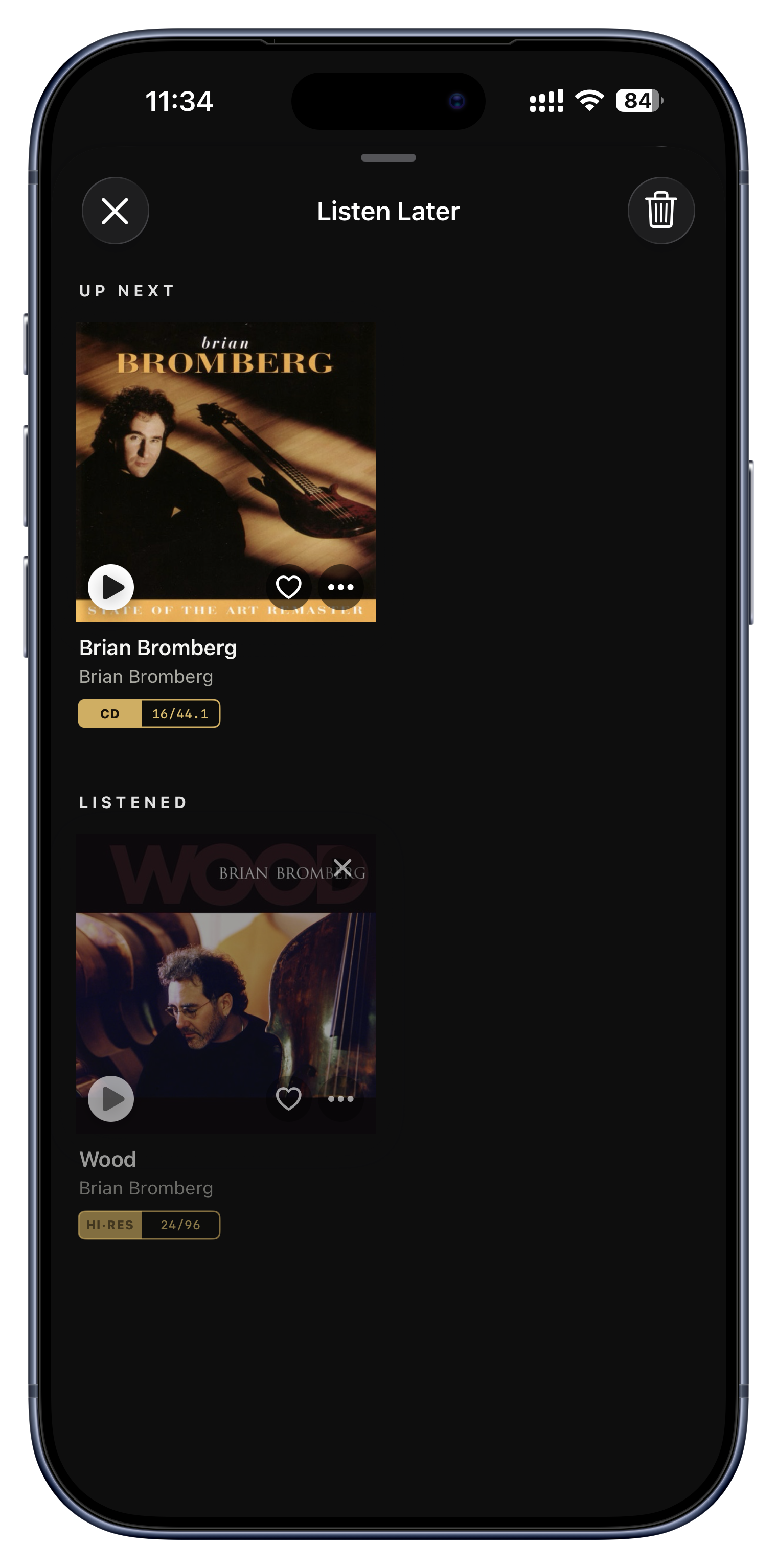
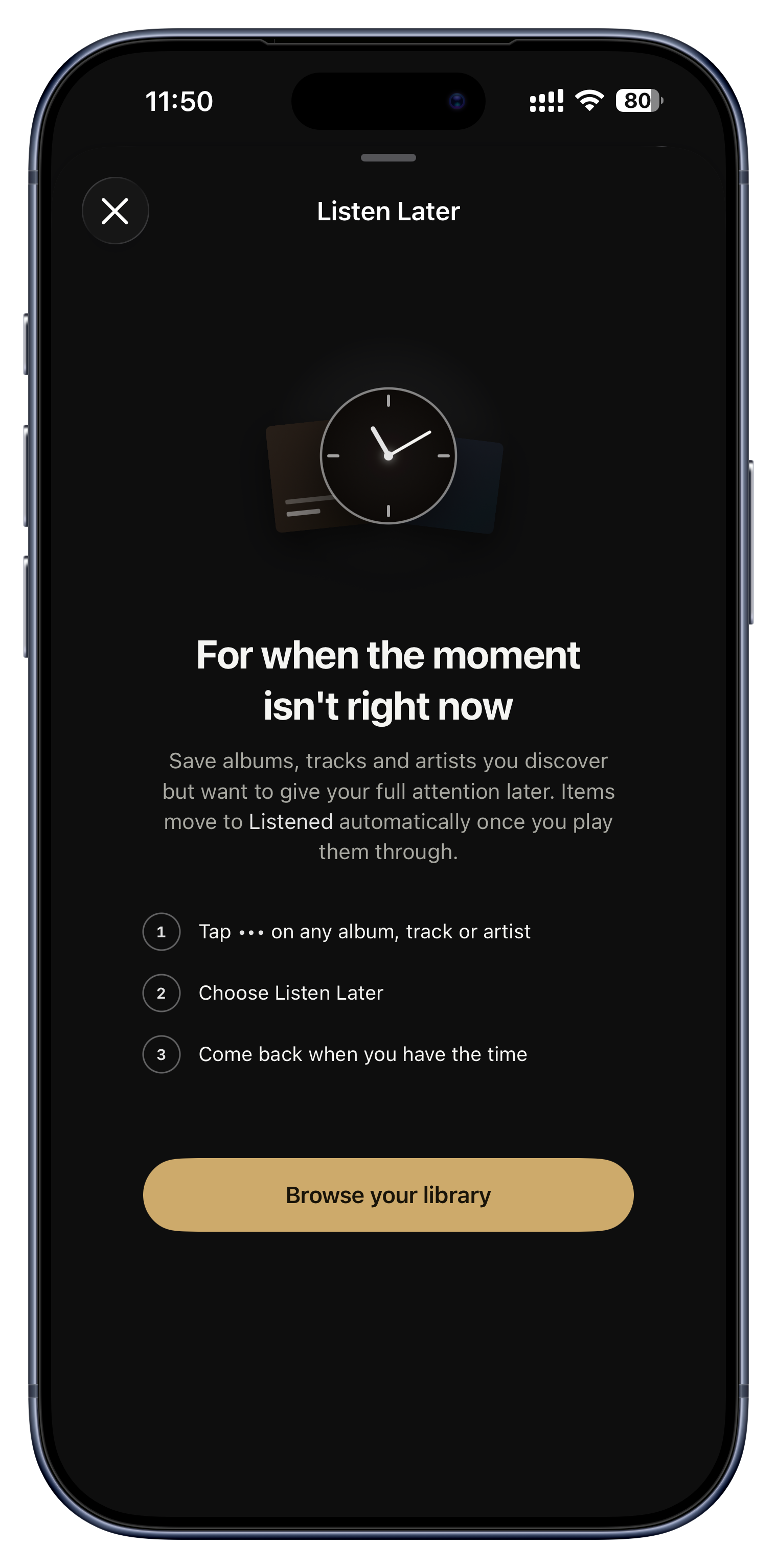
Listen Later is a 'get to it' shelf: park an album, track, artist, playlist or mix there without adding it to the queue right now. When you eventually play something from the shelf, it quietly moves itself from 'Up Next' to 'Listened', so your intentions clear themselves as you work through them.

Ideas to try
  • A friend recommends an artist mid-conversation; shelve them and actually remember this weekend.
  • Queue up albums to try, guilt-free, and watch the list shrink as you listen.
  • Shelve a whole artist, not just a song, to explore later.
The clock-with-check icon in the toolbar

Radio, in full quality.

Internet radio is usually where a hi-fi quietly gives up: a thin, heavily compressed stream played through a system built for lossless. The Radio tab exists to fix exactly that.

A station list hand-picked for lossless
Add your own stations
A station list hand-picked for lossless
Most people never find this

A station list hand-picked for lossless

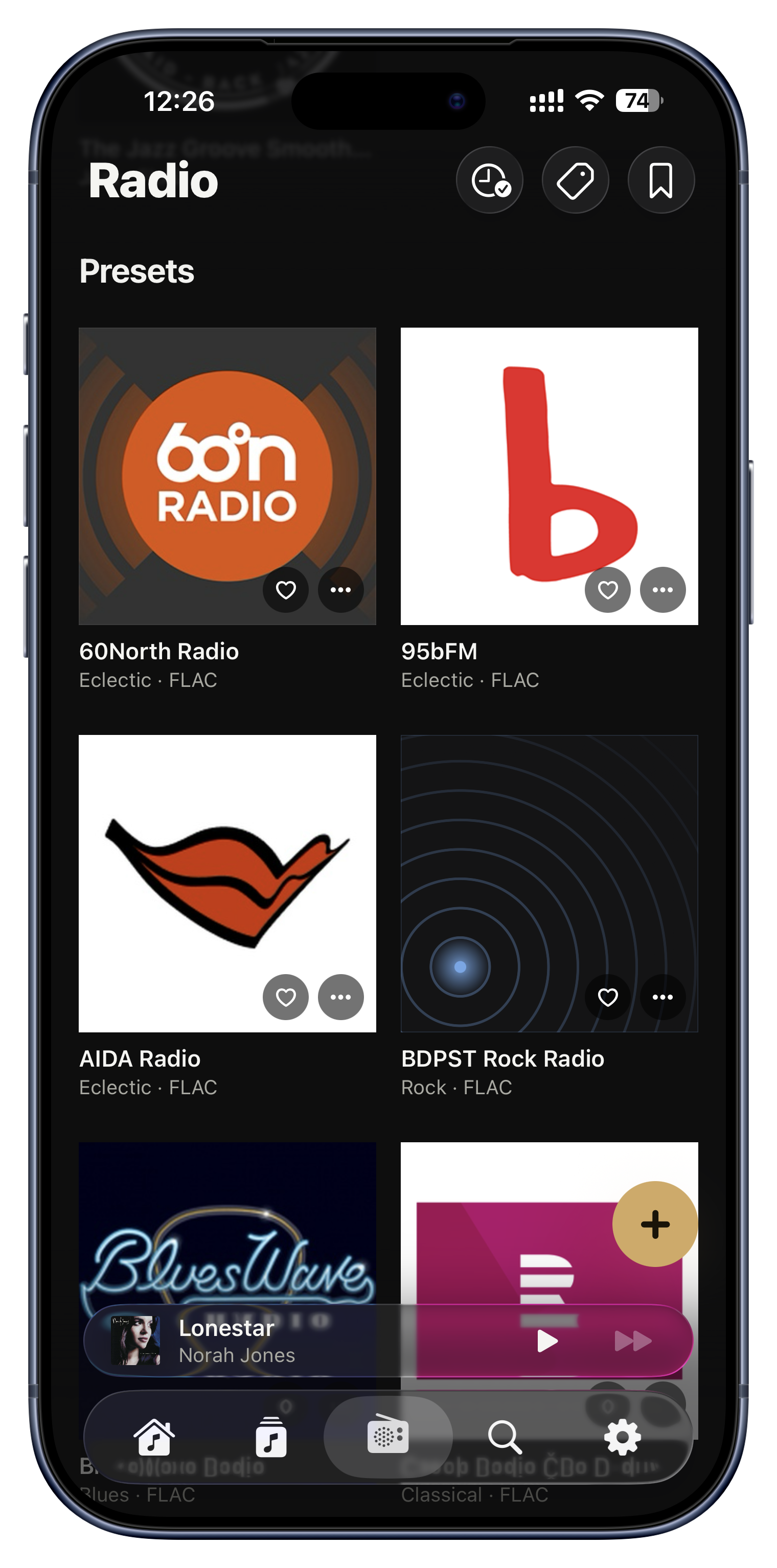
Serento ships with a curated list of internet radio stations, chosen one at a time, by hand, against a single rule: the stream has to be genuinely lossless FLAC. Nothing compressed dressed up as 'HD'. The list is deliberately small, because very few stations in the world actually broadcast in lossless, and the whole point is that every one you tap is worth the system you built.

Ideas to try
  • Put on a lossless jazz or classical station and hear it at the same quality as your own files.
  • Find stations you would never have come across, already filtered for sound quality.
  • Heart the ones you love so they sit up top, and tag them like anything else in the app.
The Radio tab
Add your own stations

Add your own stations

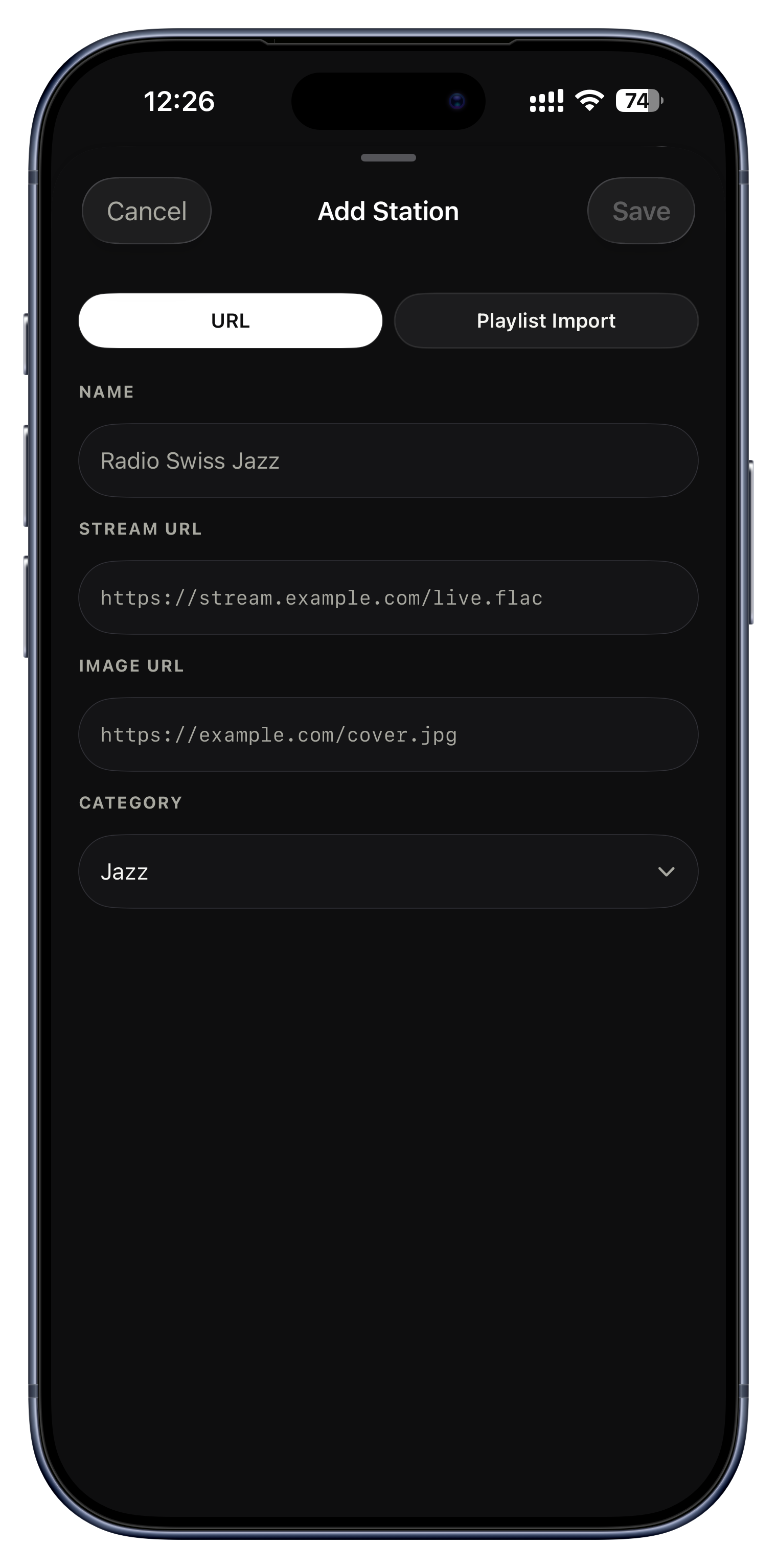
The curated list is a starting point, not a fence. Add any station you like: paste its stream address, give it a name, a logo and a category, and it sits right alongside the built-in ones. Already keep your stations in an M3U playlist file? Import the whole file at once instead of typing them in one by one. A station with no logo simply gets the animated broadcast waves, so your list never looks half-finished.

Ideas to try
  • Add your local or national broadcaster's lossless stream.
  • Import a whole M3U of stations you have collected over the years in one go.
  • Keep your own category of stations for late-night listening.
Radio › Add Station

Take it everywhere.

Your server lives at home. Your music doesn't have to. Downloads put whatever you like on the device itself, for flights, subways, and cabins off the grid.

Download for offline
Your downloads, in one place
A real download queue
Set a storage limit
Downloaded only, for the plane
Your phone becomes the source
Download for offline

Download for offline

Downloading saves the actual audio to your device so it plays with no server and no internet. You can download at any level, a single track, a full album, a whole playlist, even a weekly Smart Mix, and offline copies play automatically whenever you are away from your server, with no 'offline mode' to remember to flip.

Ideas to try
  • Load a few albums the night before a long-haul flight.
  • Download your commute playlist so the subway dead zones don't matter.
  • Grab just the one single you want instead of the whole album to save space.
Any ⋯ menu › Download
Your downloads, in one place

Your downloads, in one place

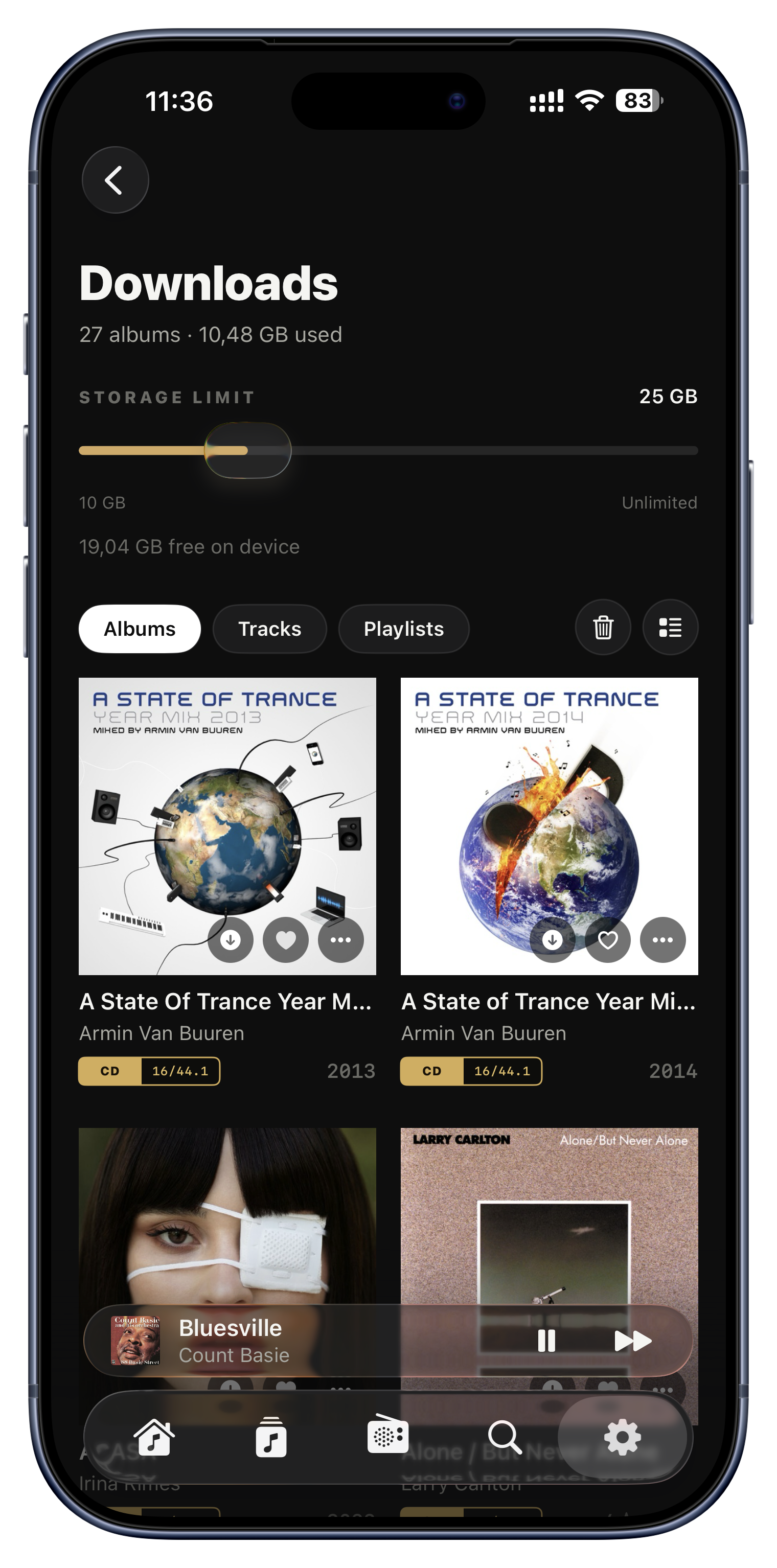
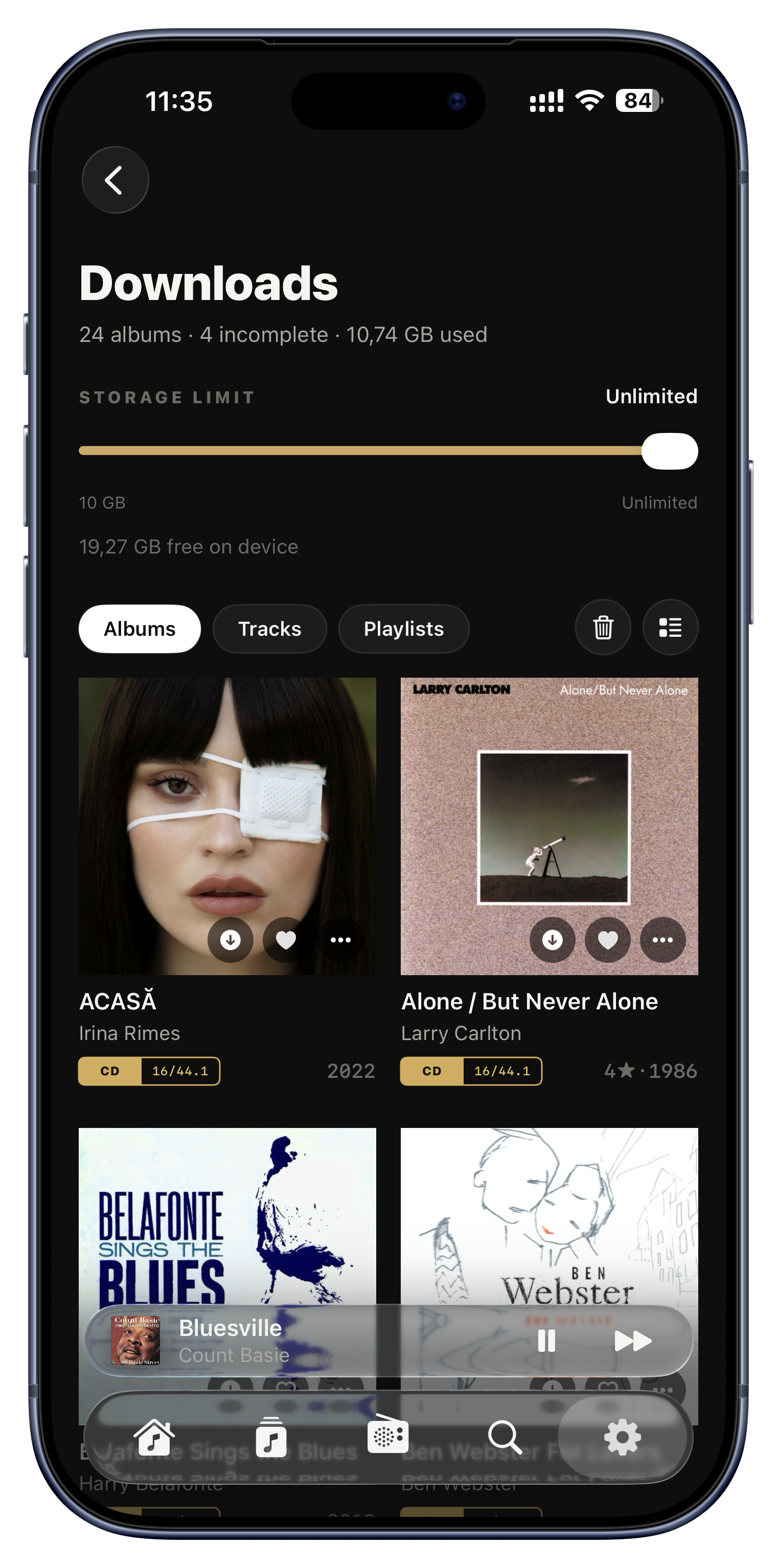
Everything you have saved offline lives in one hub, split into Albums, Tracks and Playlists, with the space used spelled out plainly. It is not a stripped-down list either: tap any tile and you land on the real album or playlist page, fully playable, with a grid or compact layout toggle.

Ideas to try
  • See at a glance that downloads are using 1.4 GB across three albums.
  • Jump from a downloaded tile straight into Play, Shuffle or Add to Queue.
  • Spot partially-downloaded albums grouped under 'Incomplete' and finish them.
Settings › Downloads
A real download queue

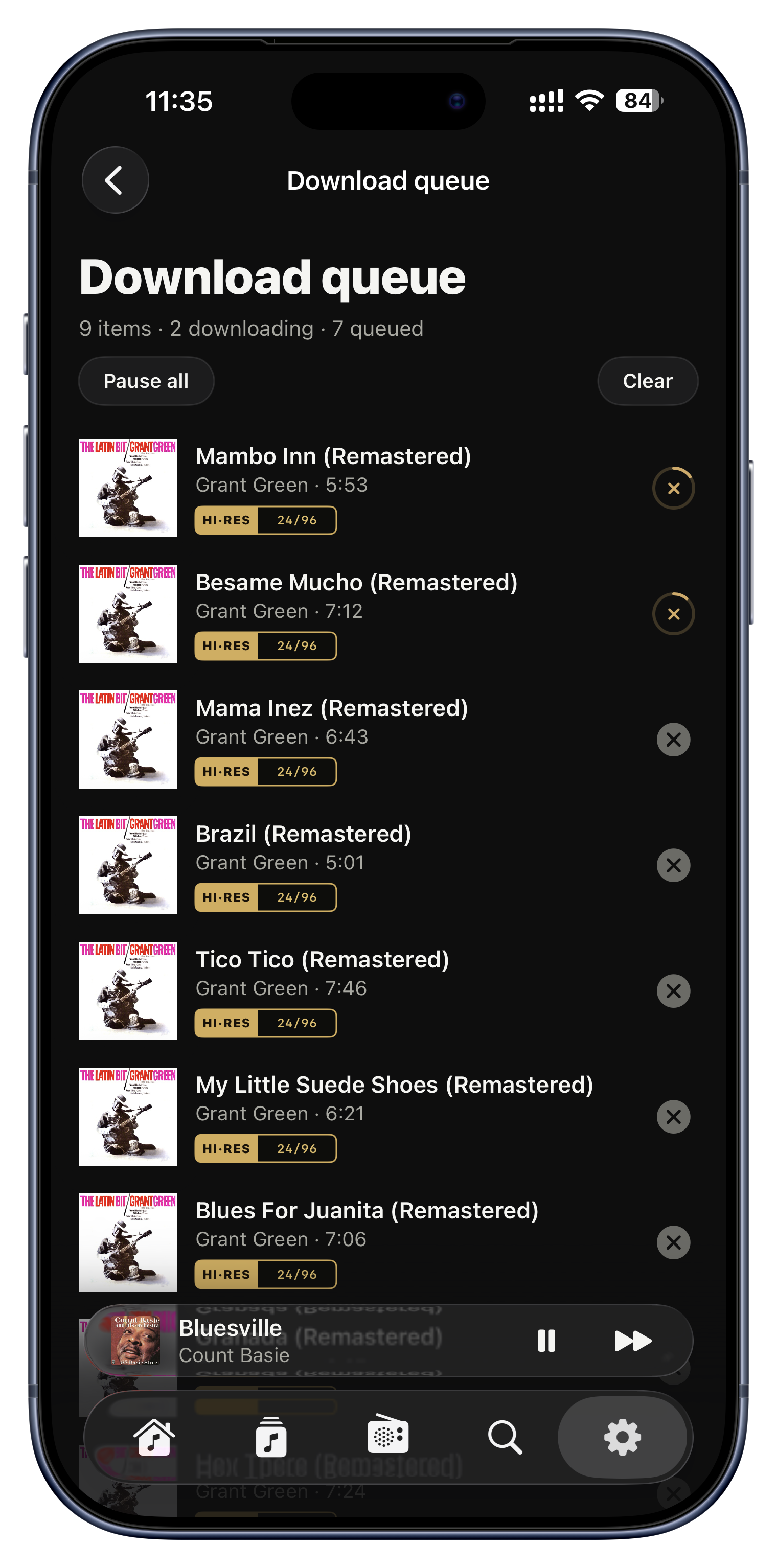
A real download queue

Downloads are not fire-and-forget: a live queue shows everything in progress, waiting, paused or failed, each with its own progress ring. You can pause everything and resume later, retry only what failed on a shaky connection, or cancel a single item mid-transfer.

Ideas to try
  • Start five albums before you leave the house and watch them finish.
  • One album failed on hotel Wi-Fi? Retry just that one.
  • Pause all downloads to save data, then resume on Wi-Fi later.
Settings › Downloads › Download queue
Set a storage limit

Set a storage limit

A simple slider caps how much space downloads may use, from 10 GB up to Unlimited, and shows how much free space your device has so you can choose sensibly. It even survives a reinstall, so your limit sticks.

Ideas to try
  • Cap it at 25 GB so Serento never eats your whole phone.
  • Set Unlimited on a roomy device and download with abandon.
  • Check free space before a big pre-trip download.
Settings › Downloads › Storage limit
Downloaded only, for the plane

Downloaded only, for the plane

One switch hides everything except what you have saved offline, turning your whole library into an offline-safe view. It stacks with the Favorites filter too, so you can show only music that is both loved and downloaded.

Ideas to try
  • On a plane with no signal, flip it on and only playable music remains.
  • Combine with Favorites to see just your downloaded, hearted albums.
  • Confirm at a glance what will work before you lose connection.
Browse, next to the Favorites filter
Your phone becomes the source
Most people never find this

Your phone becomes the source

This is the trick almost nobody expects. When you are away from home and your server is unreachable, Serento can turn your phone into the music source for a network speaker, streaming your downloaded tracks from the device to the speaker over local Wi-Fi. A downloaded album can therefore play on any UPnP system anywhere, not just through your headphones.

Ideas to try
  • At a friend's place, play your downloaded albums through their network speaker.
  • In a hotel with a UPnP soundbar, stream from your phone to it.
  • Away from your NAS entirely, still fill a room with your own music.
Automatic when the server isn't reachable

Every screen, in sync.

Serento runs on your iPhone, iPad and Mac, and treats them as one. Your listening, and everything you've organized, follows you from room to room.

Start on iPhone, keep listening on Mac
See what's playing, even from another account
Everything syncs through iCloud
Your searches follow you
Start on iPhone, keep listening on Mac
Most people never find this

Start on iPhone, keep listening on Mac

All your Serento devices act as one. Your queue, current track, exact position in the song, and your shuffle, repeat and radio states follow you between iPhone, iPad and Mac over Wi-Fi, instantly. Whichever device you last pressed play on takes the lead, so control always follows you, and it heals itself after Wi-Fi blips or a device waking from sleep.

Ideas to try
  • Start a song in the kitchen on your phone, walk to your desk, and your Mac is already on it at the same second.
  • Pick up your iPad and take over transport for what is playing, no fiddling.
  • Tap Play Next on one device without a stale update from another undoing it.
Automatic on the same Wi-Fi
See what's playing, even from another account

See what's playing, even from another account

In a home where people share one streamer, every Serento device on the network can see and reflect what is currently playing, complete with cover art, title and format, even across entirely different iCloud accounts and libraries. It is display-only: seeing a shared now-playing never makes your own device start playing on its own.

Ideas to try
  • Two people, two libraries, one living-room speaker; everyone's phone shows the same track.
  • Glance at your phone to see what someone put on downstairs.
  • Take over the controls of a shared session from your own device.
The Now Playing surfaces, automatically
Everything syncs through iCloud

Everything syncs through iCloud

Everything personal syncs through your own private iCloud: favorites, playlists, tags, album and track ratings, bookmarks, Listen Later, recently played, smart mixes and saved stations. Nothing is tied to a single device or server. And because changes also fly directly across your local network, they appear on your other devices almost instantly, without waiting for the cloud to catch up.

Ideas to try
  • Heart an album on your iPad and it is already favorited on your iPhone and Mac.
  • Rate a record at your desk and the stars are on your phone in seconds.
  • Build a tag on one device and browse it on another moments later.
Everywhere, quietly in the background
Your searches follow you

Your searches follow you

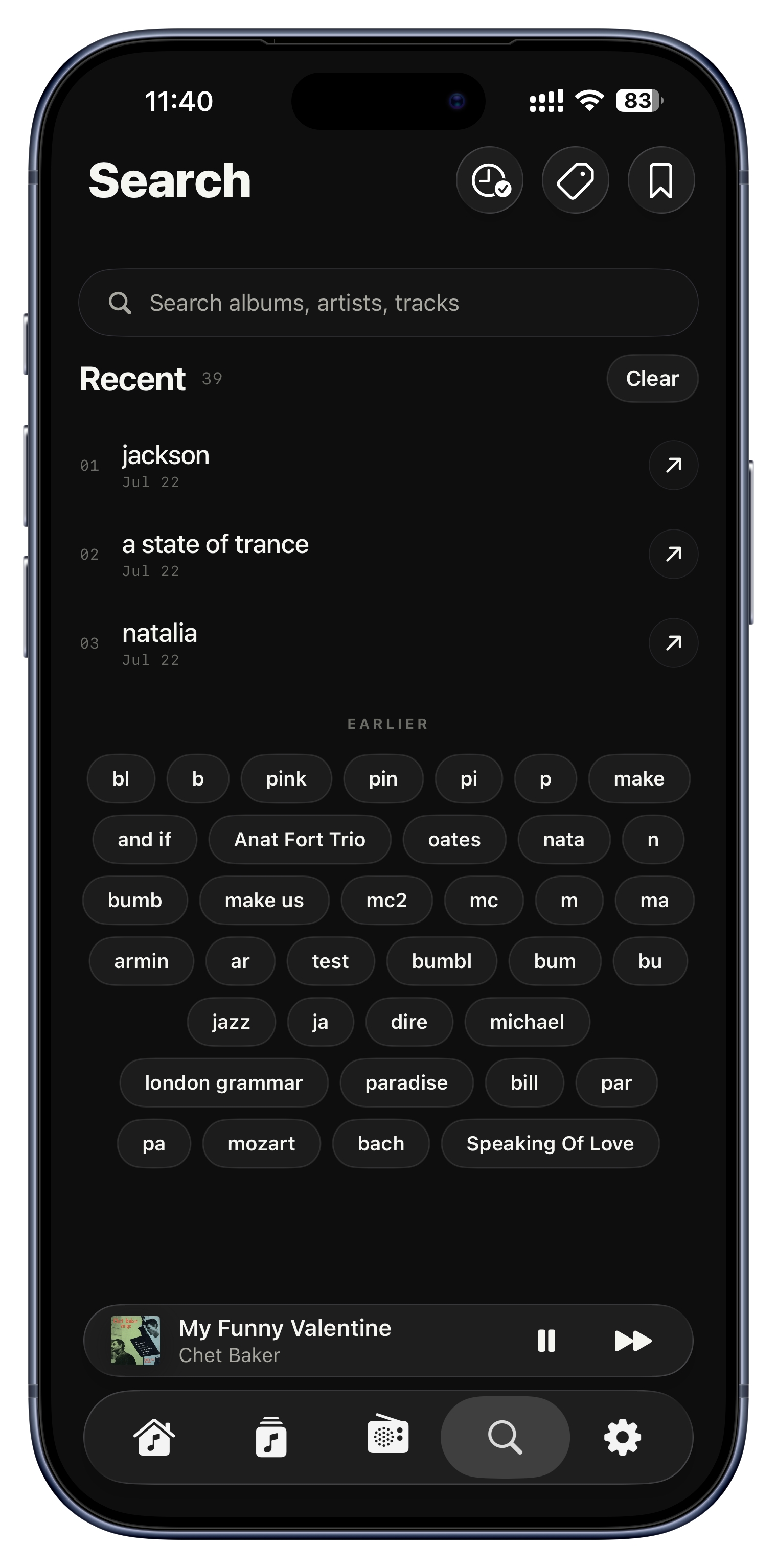
Your recent searches are a single shared list across all your devices, so you never re-type. Search for an artist on your Mac and it is waiting in Recents on your iPhone, and deleting a search is respected everywhere, so it won't quietly reappear from another device.

Ideas to try
  • Look something up at your desk, then continue on your phone on the couch.
  • Clear a search once and it is gone from every device.
Search › Recent

Heard as it was recorded.

This is where Serento is uncompromising. Your files reach your hi-fi exactly as they are, and the app shows you, at a glance, that nothing was touched.

Hover it on a Mac, or tap it on a phone. The badge reveals the guarantee, exactly like in the app.

Format badges that mean something
The bit-perfect proof
Send it to any hi-fi
Play through a USB DAC
Volume you can trust
Format badges that mean something

Format badges that mean something

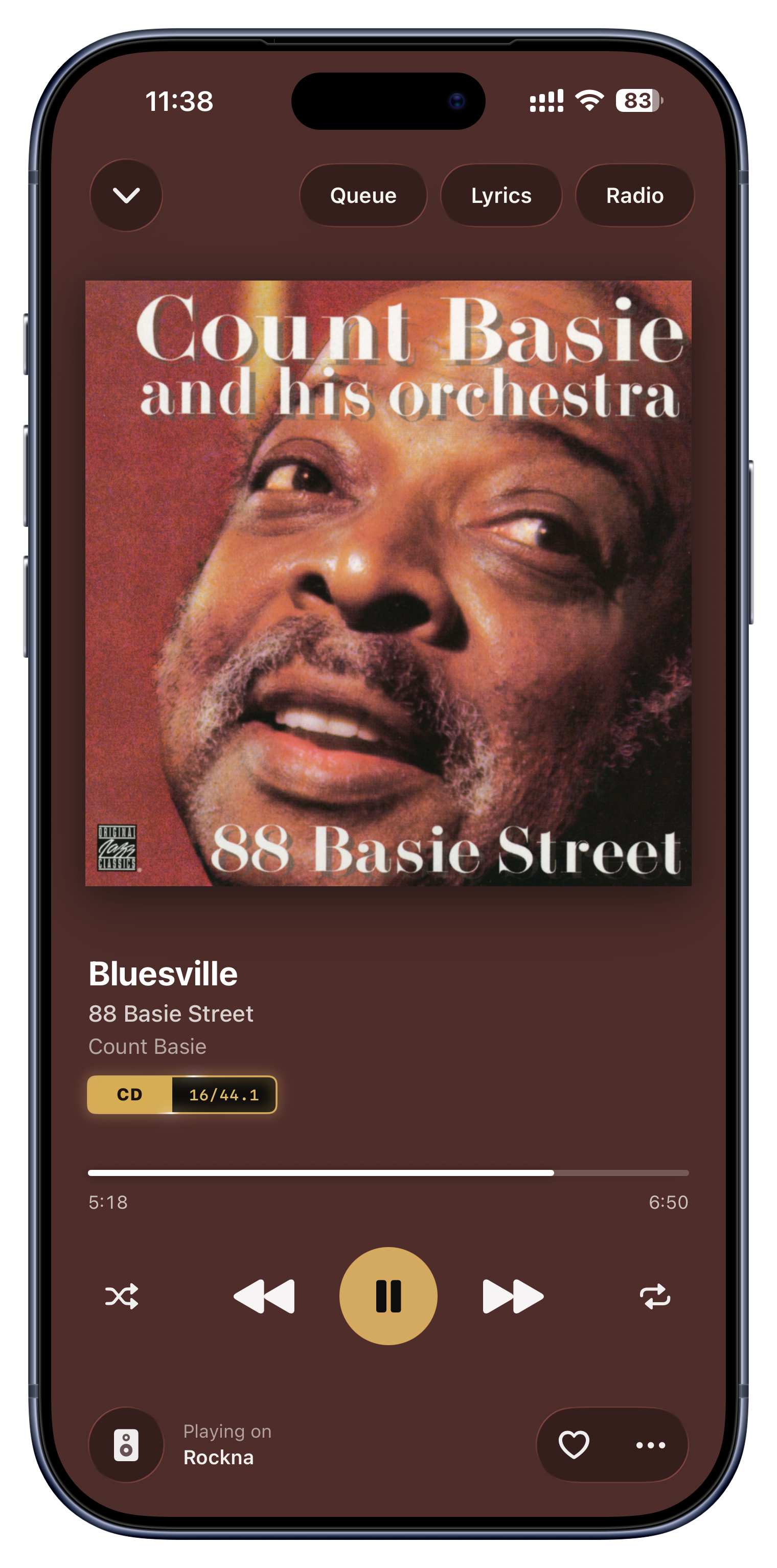
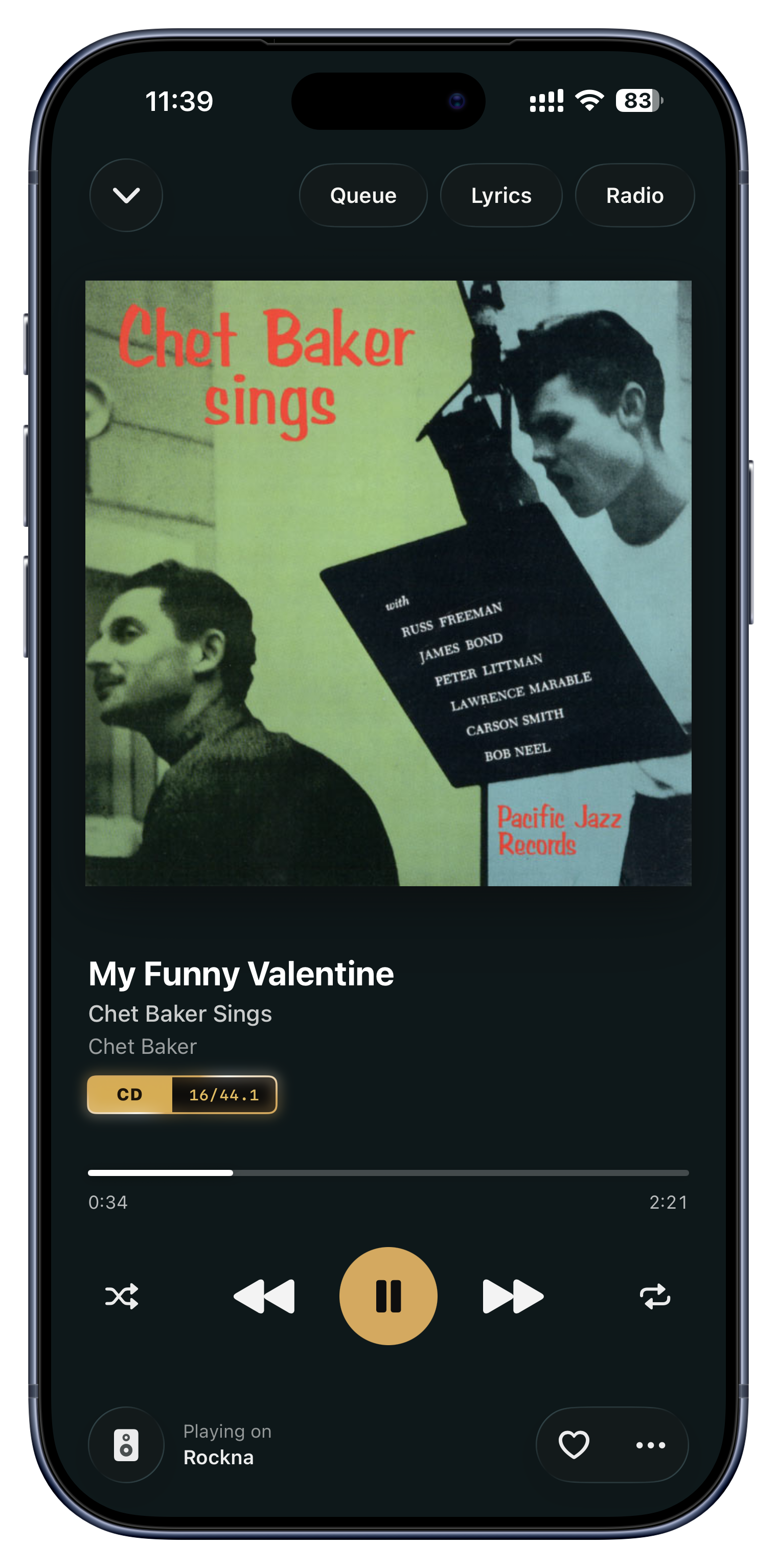
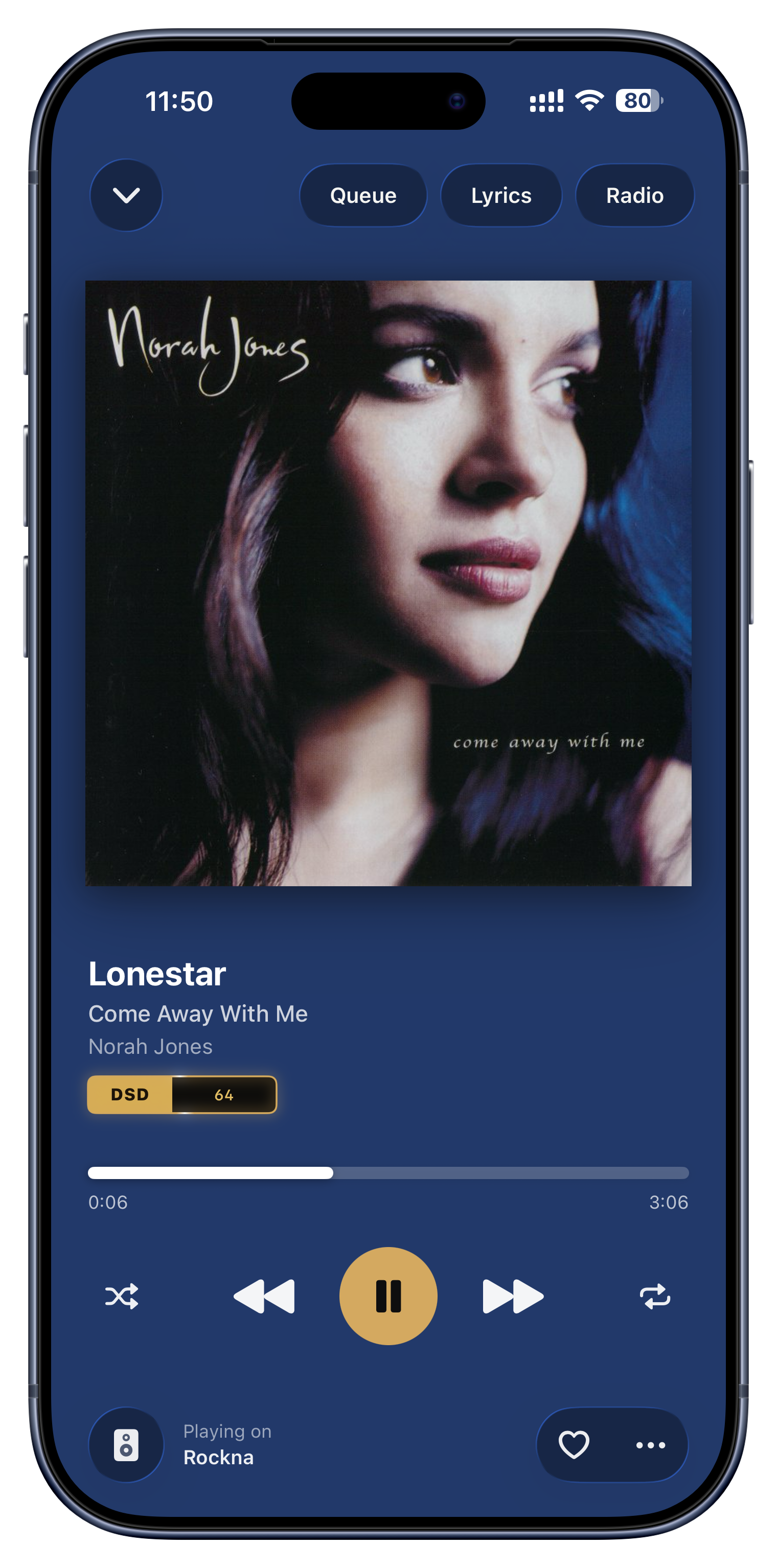
Every track and album carries a two-part badge showing its tier and exact rate, so you always know what you are hearing: HI·RES 24/192, DSD 128, CD 16/44.1, MP3 320. Color carries meaning too; everything CD-quality and up is gold, and only sub-CD lossy files are silver. File type alone does not decide it: a 16-bit FLAC reads 'CD', a 24-bit FLAC reads 'Hi-Res'.

Ideas to try
  • Confirm at a glance that a rip is really 24-bit hi-res, not lossy.
  • Spot the one MP3 hiding in an otherwise lossless album.
  • Compare the exact sample rate of two versions of the same album.
Next to titles, on tiles, in the player
The bit-perfect proof
Most people never find this

The bit-perfect proof

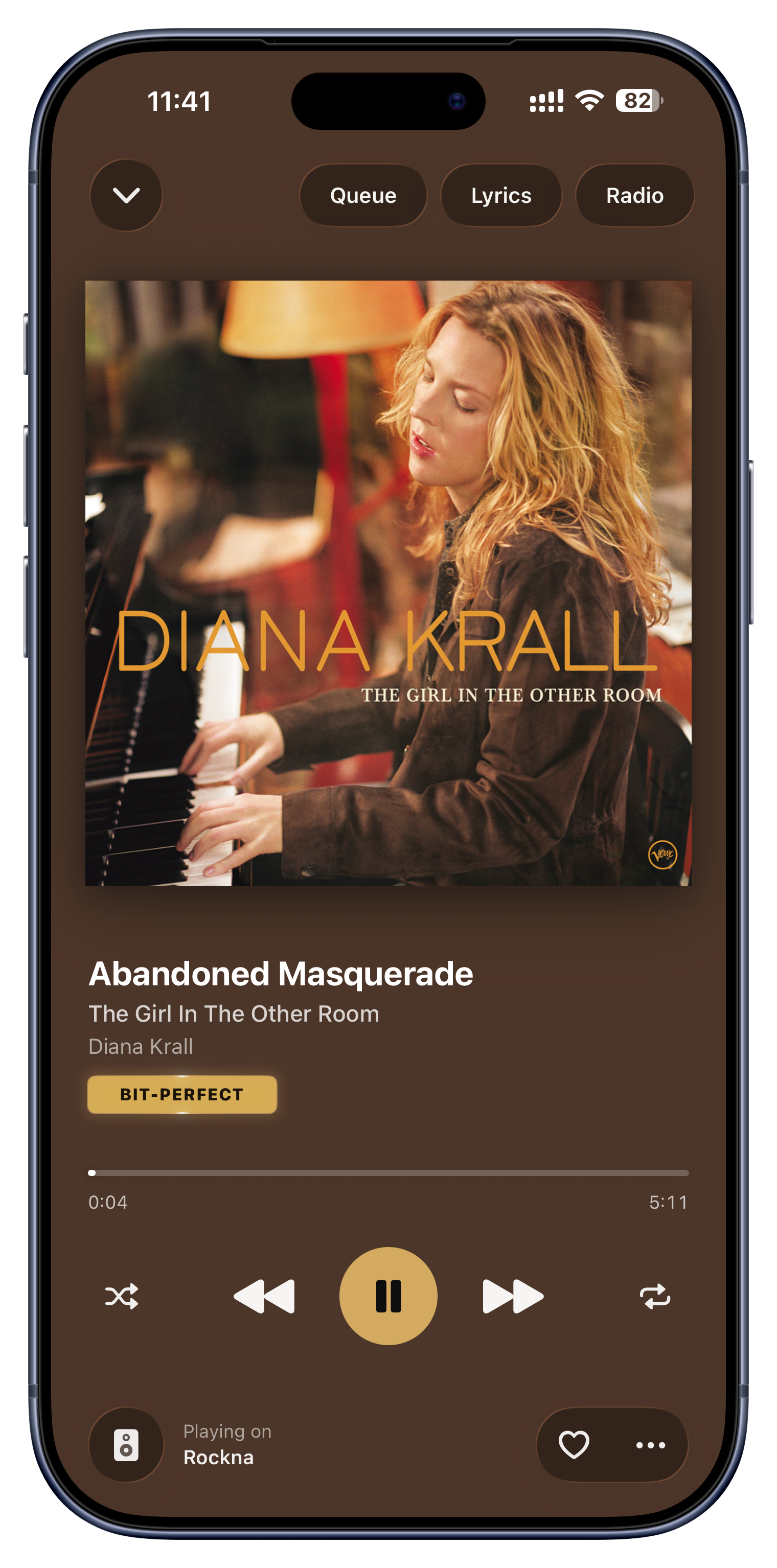
When audio is flowing to your output completely untouched, the quality badge earns a slow, rotating gold glow and, when revealed, spells out BIT-PERFECT (or DoP, or the exact output rate). It is a live guarantee that Serento is not secretly resampling or processing your music, the whole point of a personal hi-fi library. Tellingly, the glow only runs while music is actually playing; paused, there is no claim to make.

Ideas to try
  • See BIT-PERFECT light up when a streamer pulls your FLAC straight from the server.
  • On a Mac, hover the badge to morph it into the words; on iPhone, tap to reveal it.
  • Watch the glow freeze the moment you pause, an honest little detail.
The quality pill (hover on Mac, tap on iPhone)
Send it to any hi-fi

Send it to any hi-fi

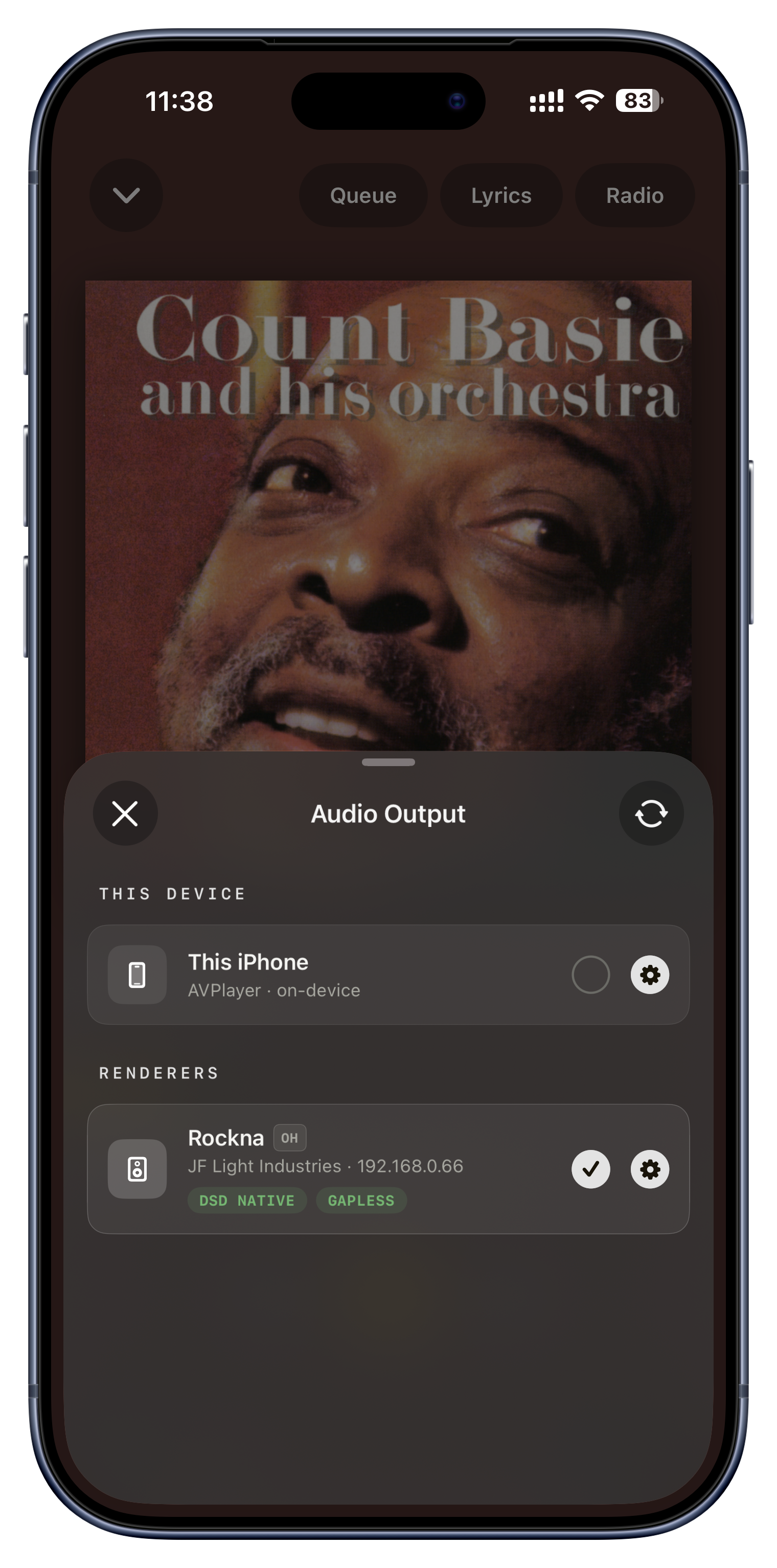
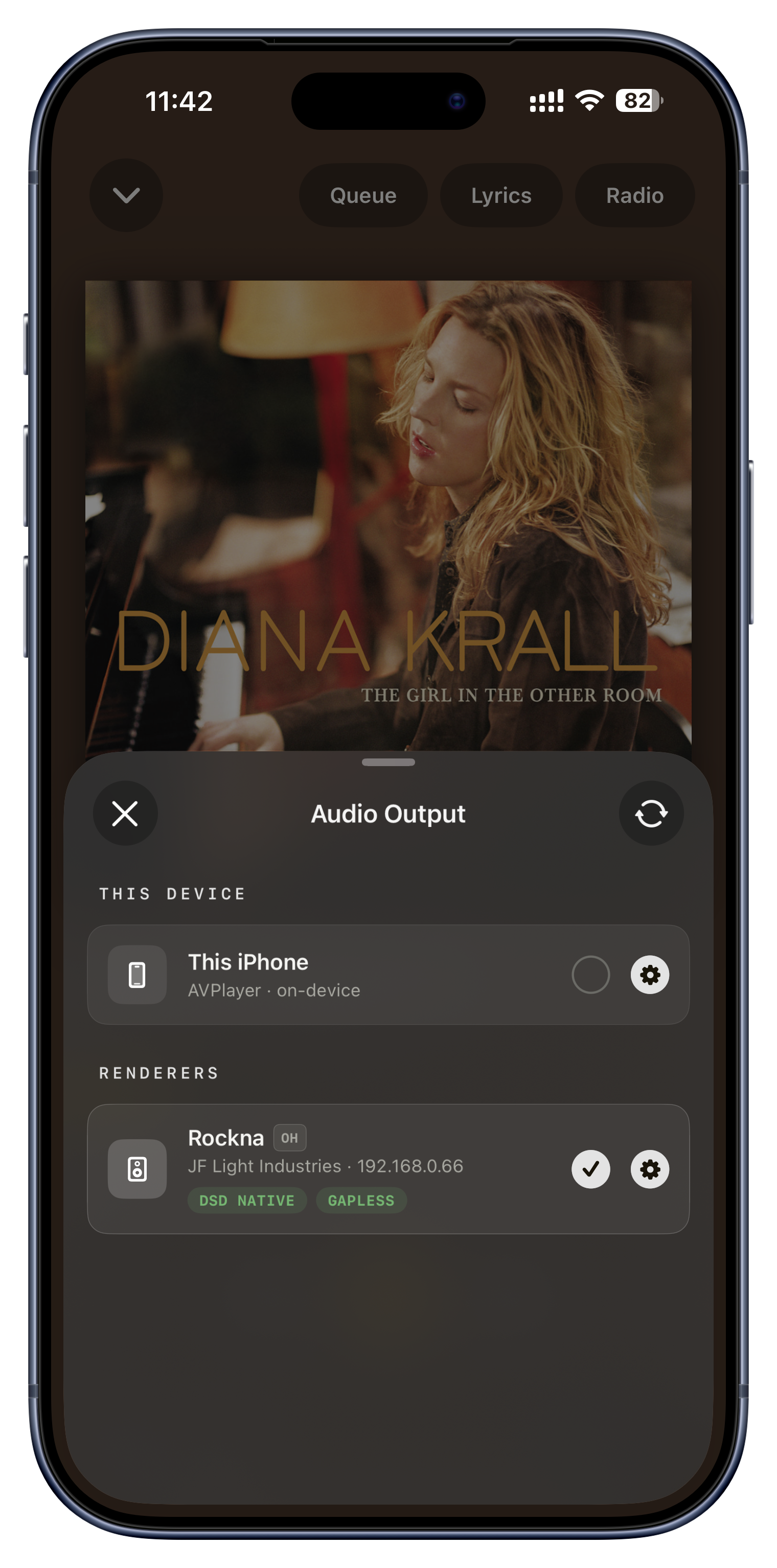
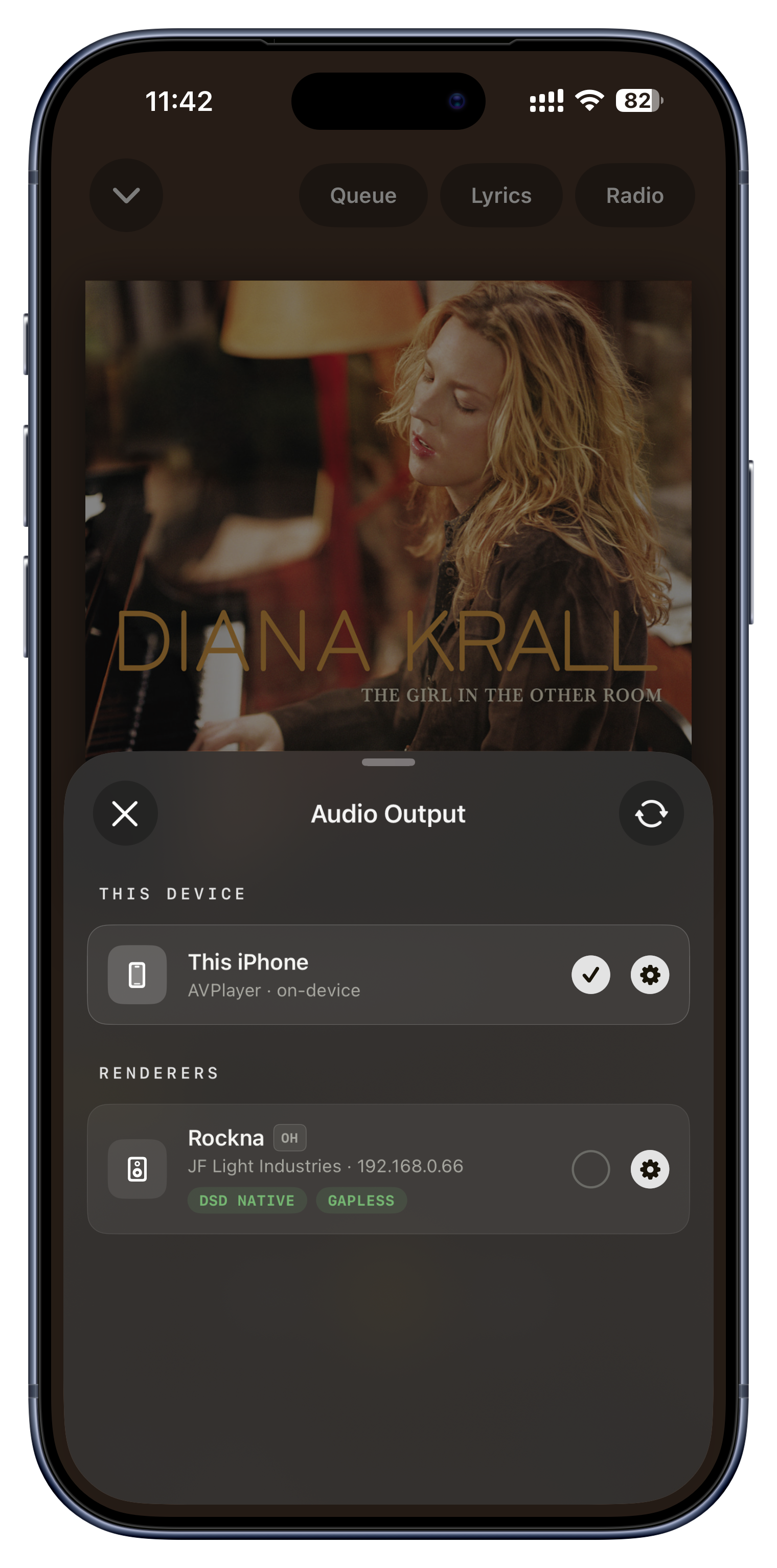
Choose where the sound comes out: your own device, or any UPnP or DLNA streamer, amplifier or network speaker discovered on your Wi-Fi. Switching output is a true handoff; you can move a playing song from your headphones to the living-room system mid-track, and a manual rescan finds gear that just came online.

Ideas to try
  • Move the music from your phone to the hi-fi as you walk into the room.
  • Send a whole evening to a network streamer and lock your phone.
  • Audition two speakers quickly; the picker stays open so you can flip between them.
The output button in Now Playing or the mini player
Play through a USB DAC

Play through a USB DAC

Plug a USB DAC into your iPhone, iPad or Mac and Serento plays through it with no special setup. On a Mac, you select the DAC the normal way, from the system's audio output, so it fits right into how you already route sound on your desktop.

Ideas to try
  • Feed a portable USB DAC from your phone for better sound on the go.
  • Use your desktop USB DAC on the Mac via the system sound output.
  • Keep a clean wired path to your headphone amp.
Any device's USB output (Mac: system sound output)
Volume you can trust

Volume you can trust

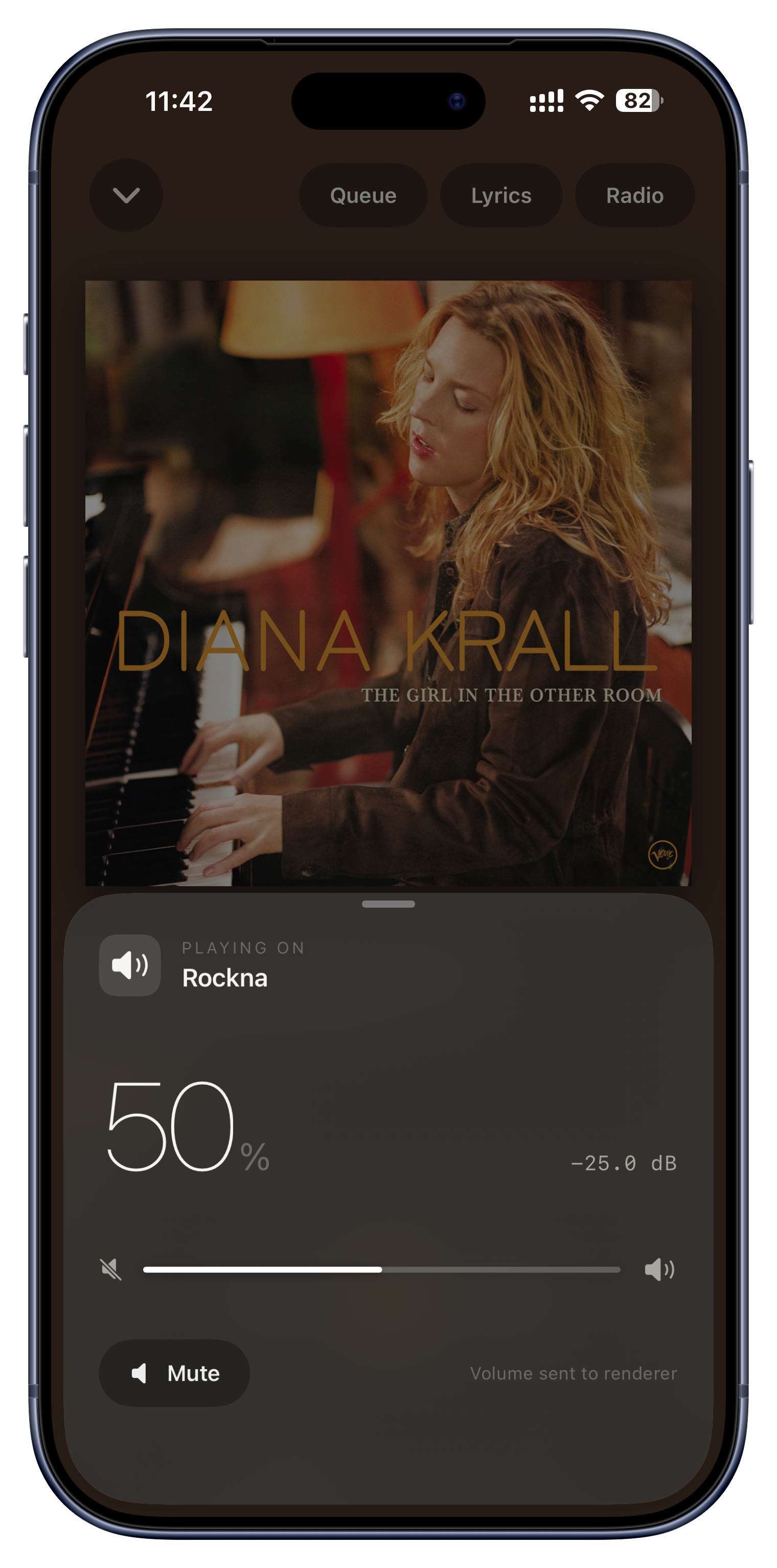
The volume control is deliberately careful. When it controls a networked device, the slider stays locked and shows a dash until Serento has actually read that device's real volume, so you can never accidentally slam a hi-fi to full because the app guessed a starting value. For preamp-style gear it even shows a decibel readout.

Ideas to try
  • Grab the volume on a streamer without fear of a sudden blast.
  • See the real dB level on a preamp instead of a vague percentage.
  • The control only appears when the active output actually allows volume changes.
The volume button in Now Playing

Get every detail right.

A home library is only as good as its labels and covers. Serento can fix the wrong ones and fill in the missing ones, and never rewrites your actual files to do it.

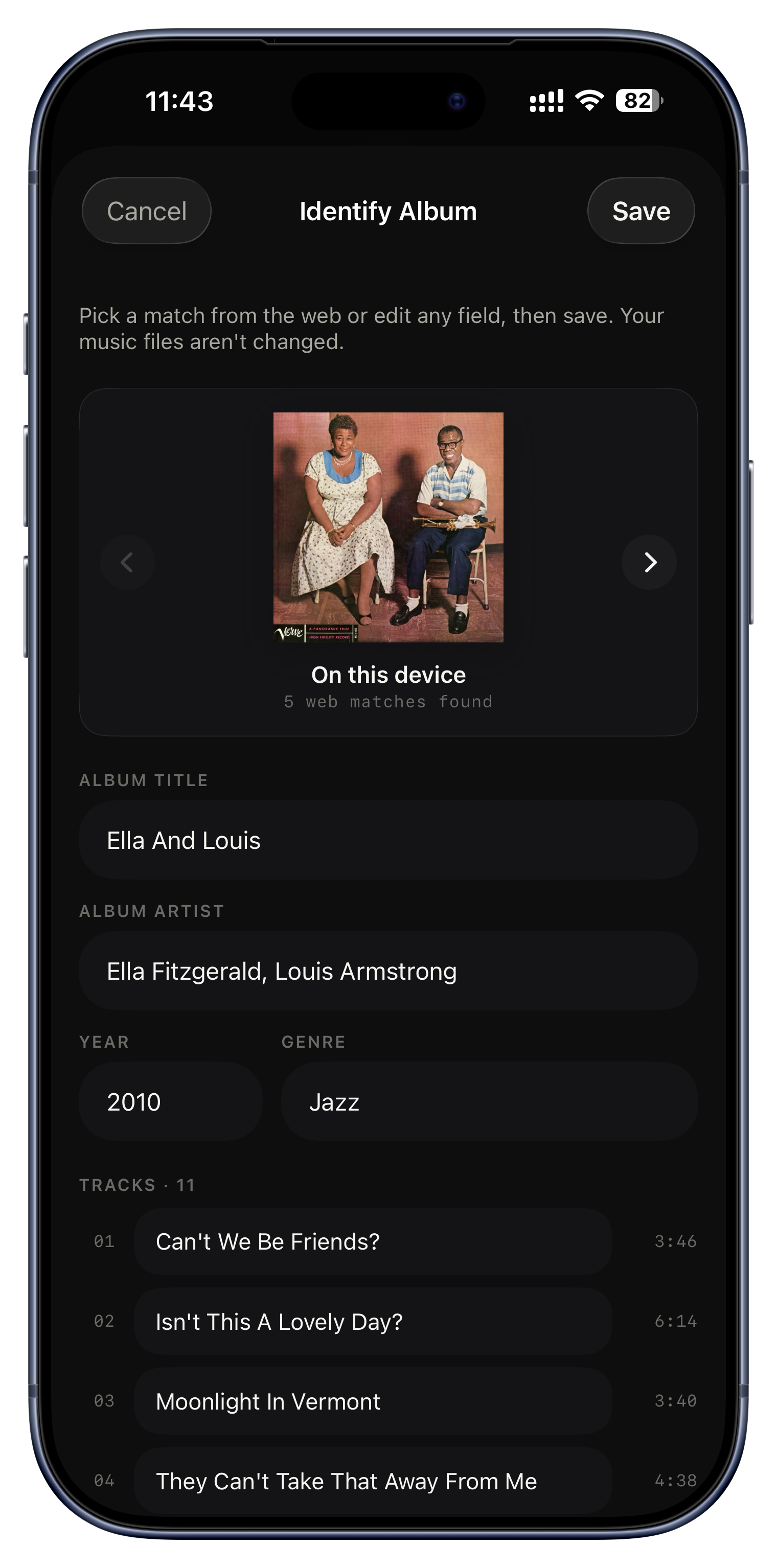
Arrow through the matches Serento found. Position 0 is what you have now; the rest are corrected releases from the web.

Fix a mislabeled album
Let Serento fill the gaps
Refresh on your schedule, in the background
Reviews, bios and credits
Karaoke-style lyrics
Never an ugly blank cover
Fix a mislabeled album
Most people never find this

Fix a mislabeled album

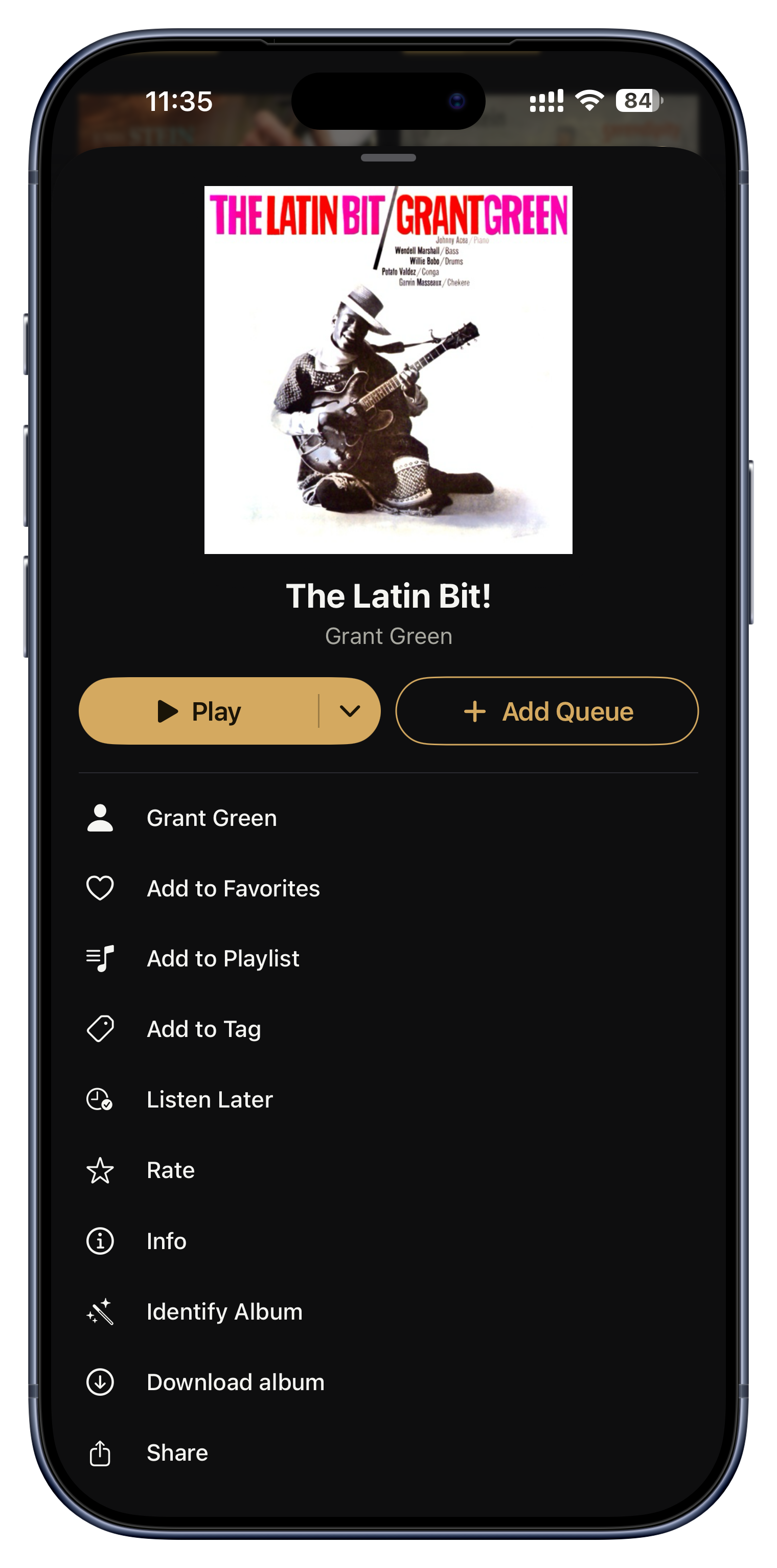
Identify Album is the fix for a messy rip, and most people never discover it. It searches the web for every known release of the album in front of you and lets you arrow through the matches; picking one instantly fills in a corrected title, artist, year, genre, cover and every track name. You can also hand-type any field. Nothing is written to your files, it is all layered on top, and a one-tap 'Restore Original Metadata' undoes it any time.

Ideas to try
  • Turn a rip that shows 'Unknown Album' and 'Track 01' into 'Miles Davis, Kind of Blue, 1959', cover and all.
  • Fix a compilation with the wrong front cover in a couple of taps.
  • Correct just the album's year while leaving everything else as it was.
Album ⋯ menu › Identify Album
Let Serento fill the gaps

Let Serento fill the gaps

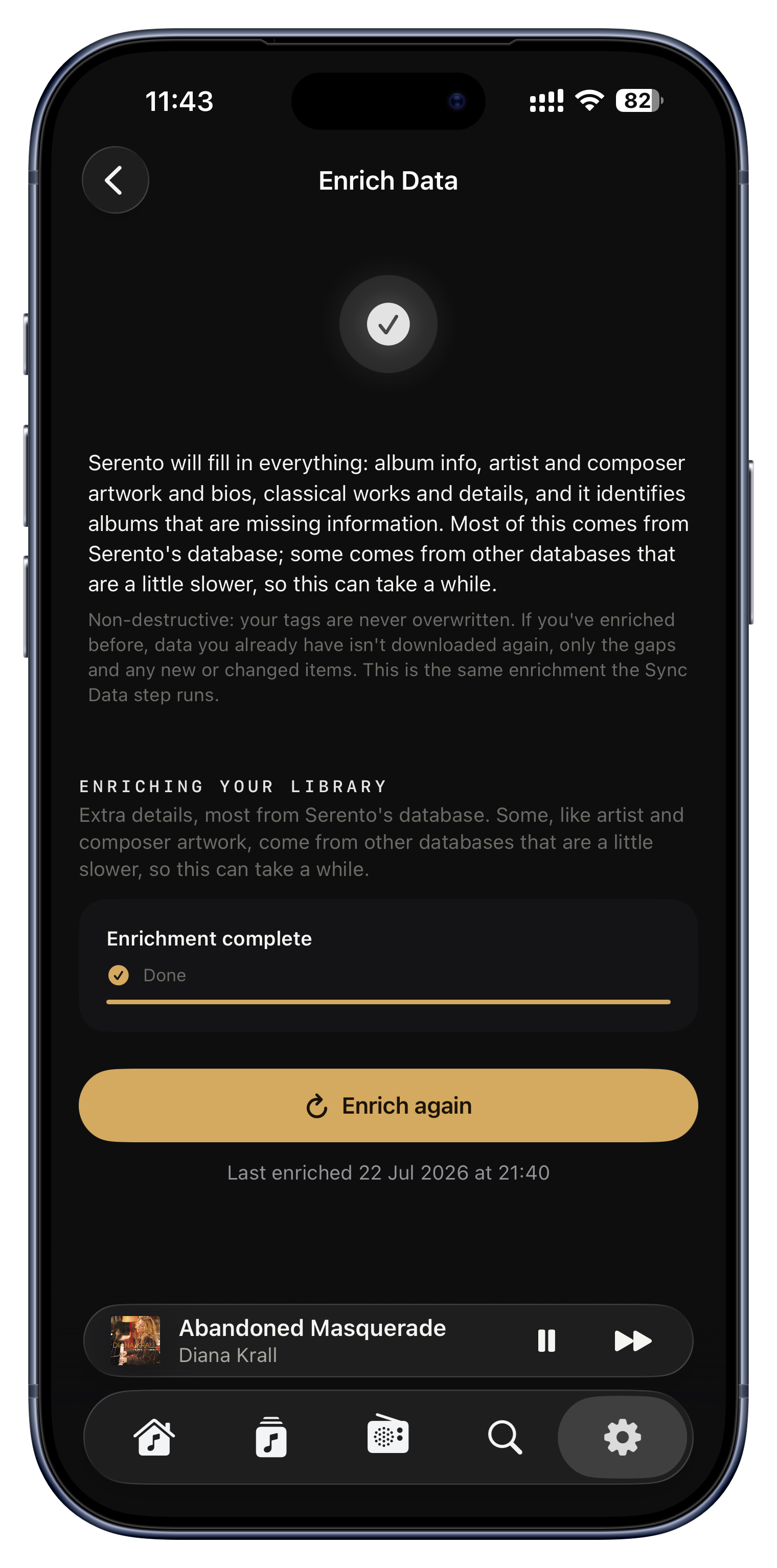
Turn on Enrich Data and, during a sync, Serento looks at every album that is missing information, no title, no year, no genre, no cover, and quietly fills only the blanks from online sources, plus a front cover for anything that has none. It never overwrites what you already have, and it remembers what it has checked, so it is a one-time pass rather than a repeated scan.

Ideas to try
  • A decade-old library with hundreds of blank years and genres fills in over your next syncs.
  • Missing covers finally appear instead of placeholder art.
  • Your own careful tags always win; only the genuine gaps get filled.
Settings › Libraries › server › Enrich Data
Refresh on your schedule, in the background
Most people never find this

Refresh on your schedule, in the background

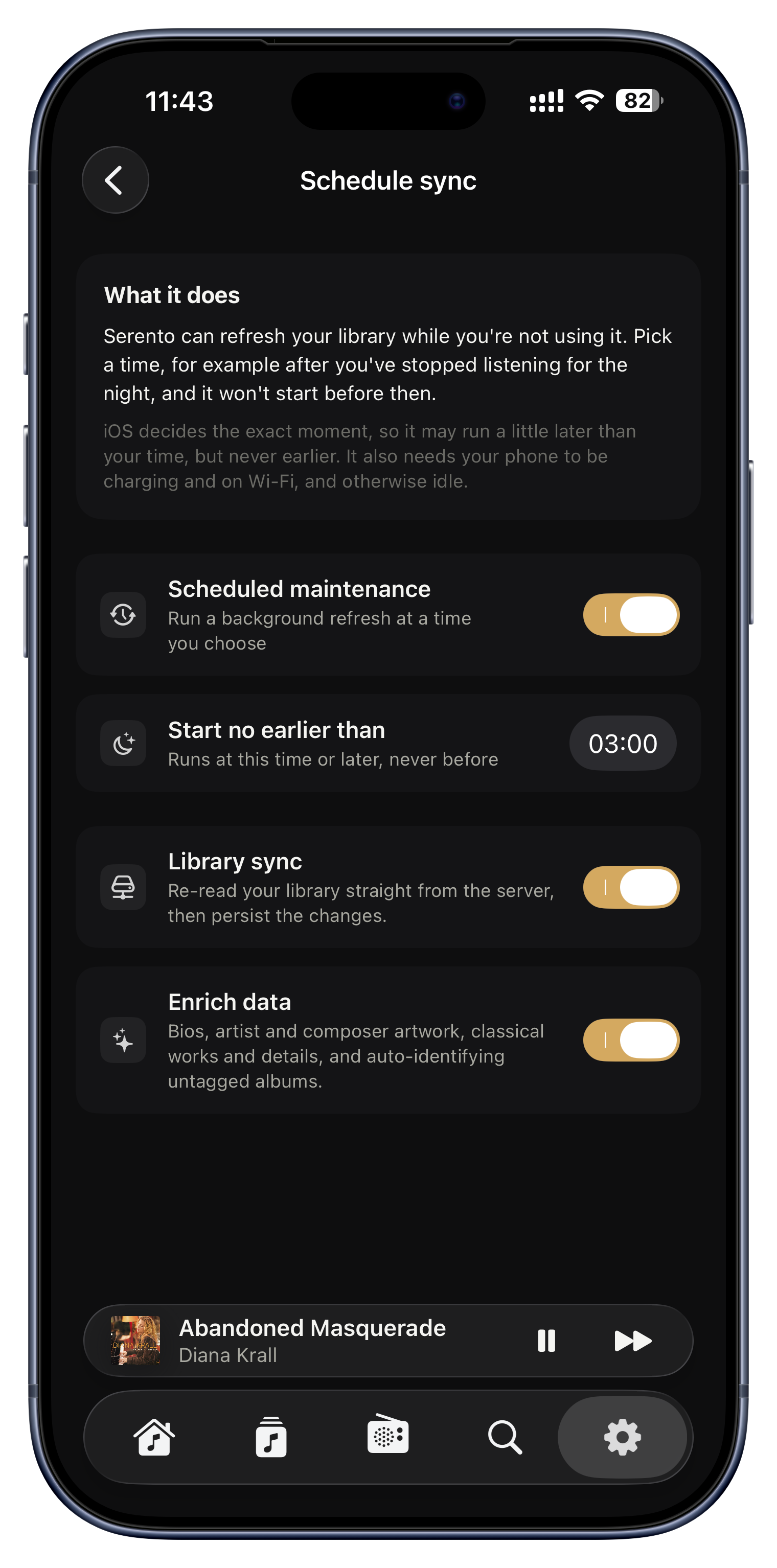
A big library sync or a full metadata enrich can take a while, so Serento no longer makes you sit and watch it. Leave the app mid-run and it carries on in the background, then picks up exactly where it left off instead of starting over. You can also set it and forget it: choose an hour, say after you have stopped listening for the night, pick whether it syncs your library, enriches its metadata, or both, and Serento runs it on its own. It never begins before your chosen time, and only while the phone is charging and on Wi-Fi, so it never fights you for battery or bandwidth mid-listen.
Ideas to try
  • Point it at 3am so a huge library refreshes overnight while you sleep.
  • Start an enrich, lock your phone, and let it finish in your pocket instead of holding the screen open.
  • Schedule 'enrich only' to top up covers and bios without re-walking the whole server.
  • On a charger overnight, a fresh sync and full enrich are both done by morning.
Settings › Manage › Schedule sync
Reviews, bios and credits

Reviews, bios and credits

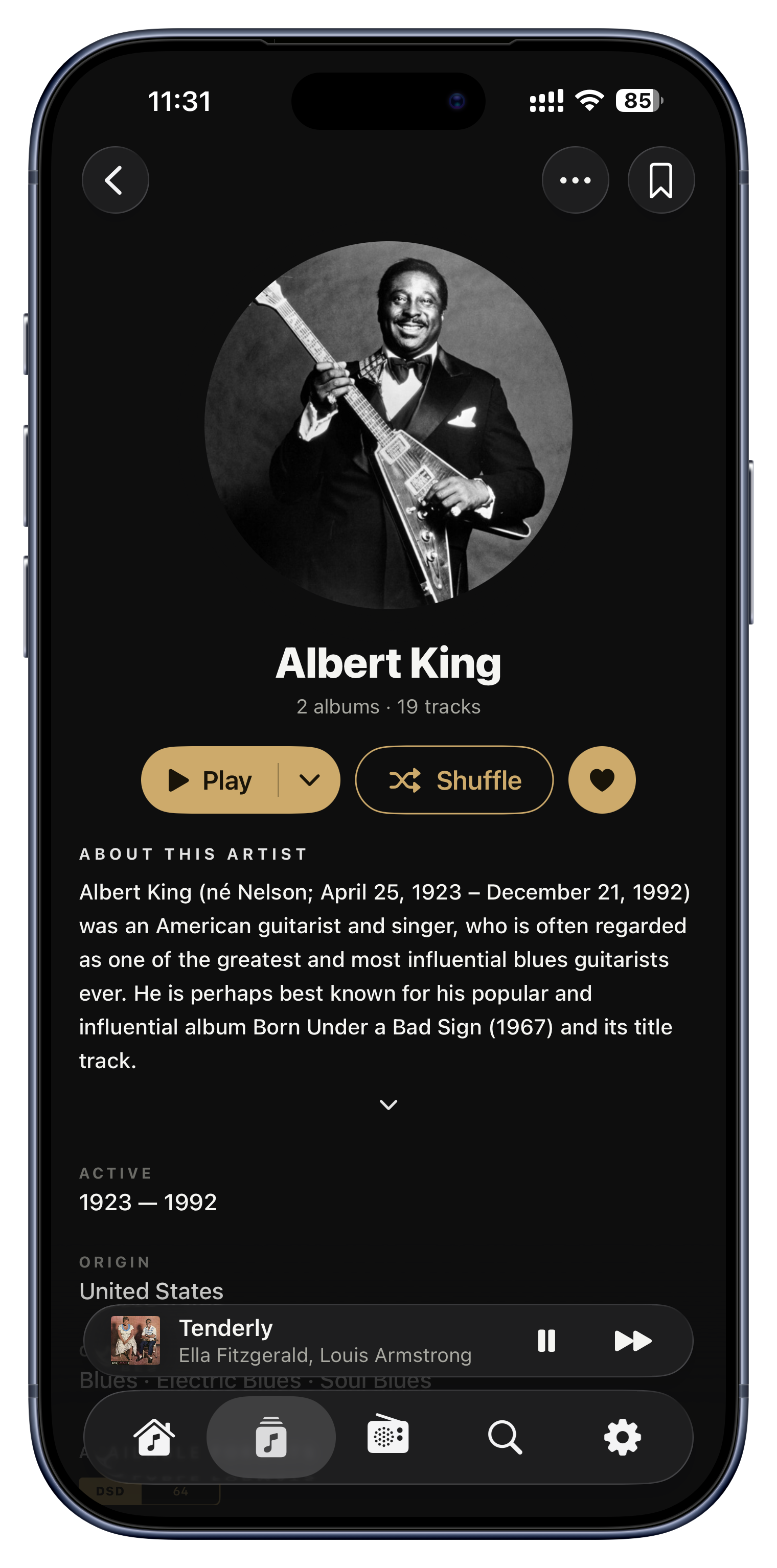
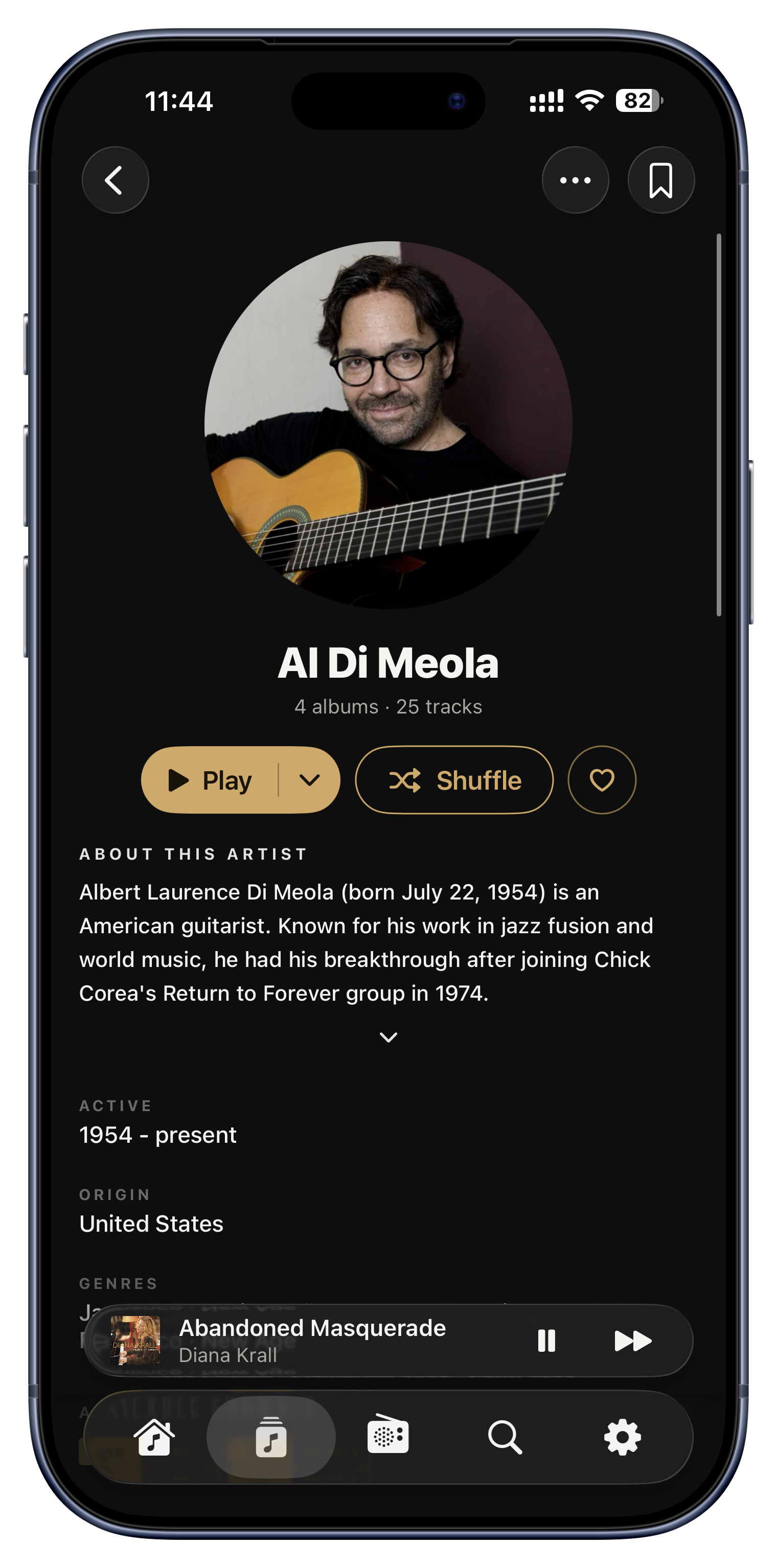
Serento layers editorial context on top of your library: a write-up about an album with a 'Read more' expander, a proper artist biography and portrait drawn from Serento's database, and per-track credits naming the performers, composers and lyricists. All of it is stored separately and cached, so it loads instantly and never touches your files.

Ideas to try
  • Read a paragraph on an album's background right under its cover.
  • Get a real photo and bio for an artist you just discovered, instead of a blank tile.
  • See who actually wrote and played each track on a compilation.
Album and Artist detail screens
Karaoke-style lyrics
Most people never find this

Karaoke-style lyrics

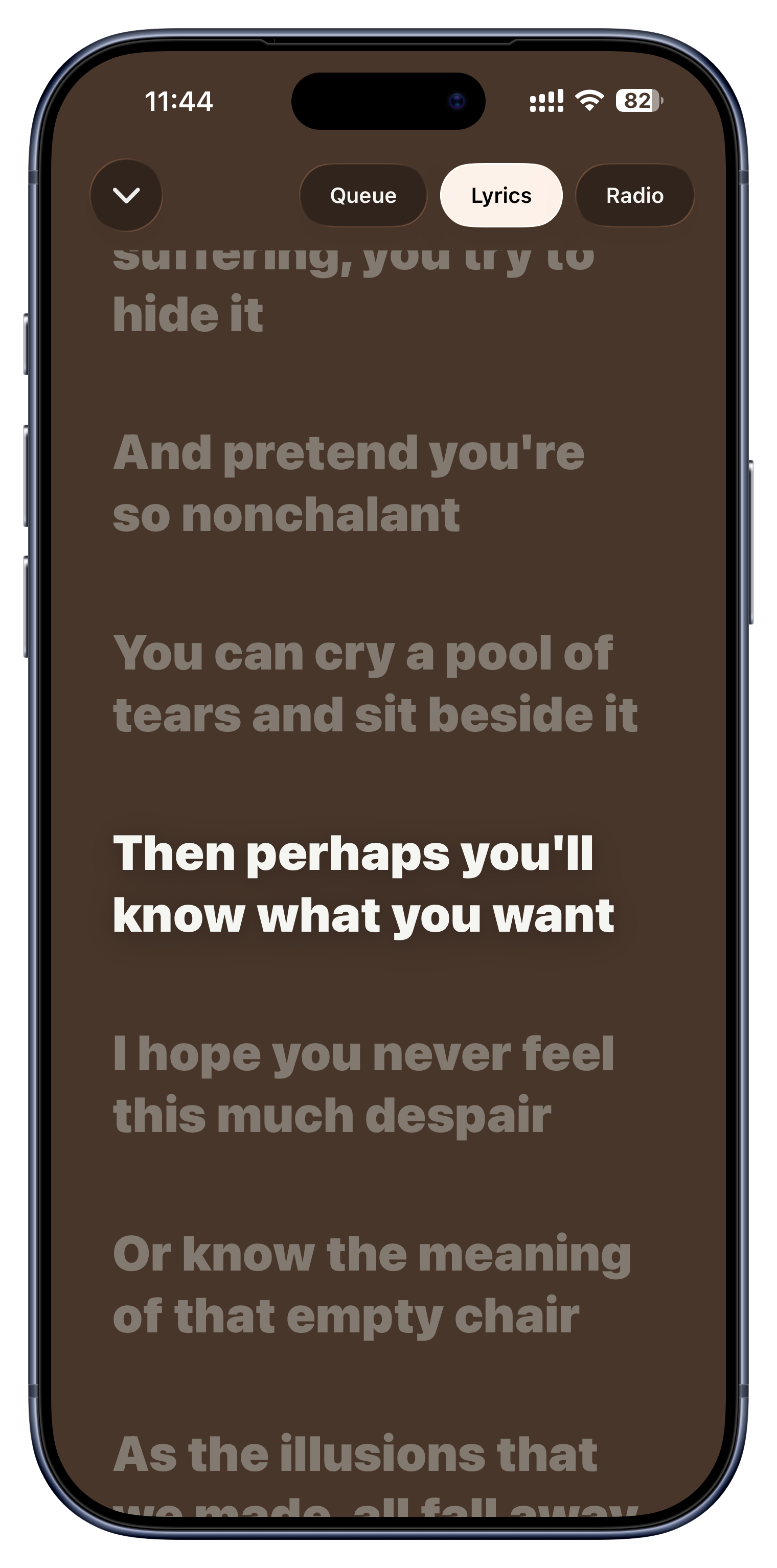
Serento shows time-synced lyrics that scroll and highlight the current line in time with the music, and you can tap any line to jump the song straight to that moment. The screen paints itself in colors drawn from the album cover, and if a song only has plain unsynced lyrics it shows those instead.

Ideas to try
  • Sing along in Now Playing with the current line always highlighted.
  • Tap straight to your favorite verse instead of scrubbing for it.
  • Watch the lyrics, colors and scroll all swap instantly when the next track starts.
Now Playing › the Lyrics panel
Never an ugly blank cover

Never an ugly blank cover

An album with no artwork anywhere does not get a broken-image box. Instead Serento draws a spinning vinyl record, colored deterministically from the album's own name so it always looks the same, and radio stations without a logo get animated broadcast waves. A library full of missing art still looks intentional and calm.

Ideas to try
  • Home-ripped albums that never had covers still look like part of the set.
  • A wall of default covers reads as a designed motif, not a wall of errors.
  • The same untitled album is always the same color, so you learn to recognize it.
Everywhere covers appear

A whole world for classical.

Classical music doesn't fit a pop shelf, so Serento gives it its own, organized the way the repertoire actually works. It stays completely hidden unless your library contains classical music.

Browse the way classical works
It knows what's classical
Whole works, kept whole
People, split by role
Periods, forms and histories
Browse the way classical works

Browse the way classical works

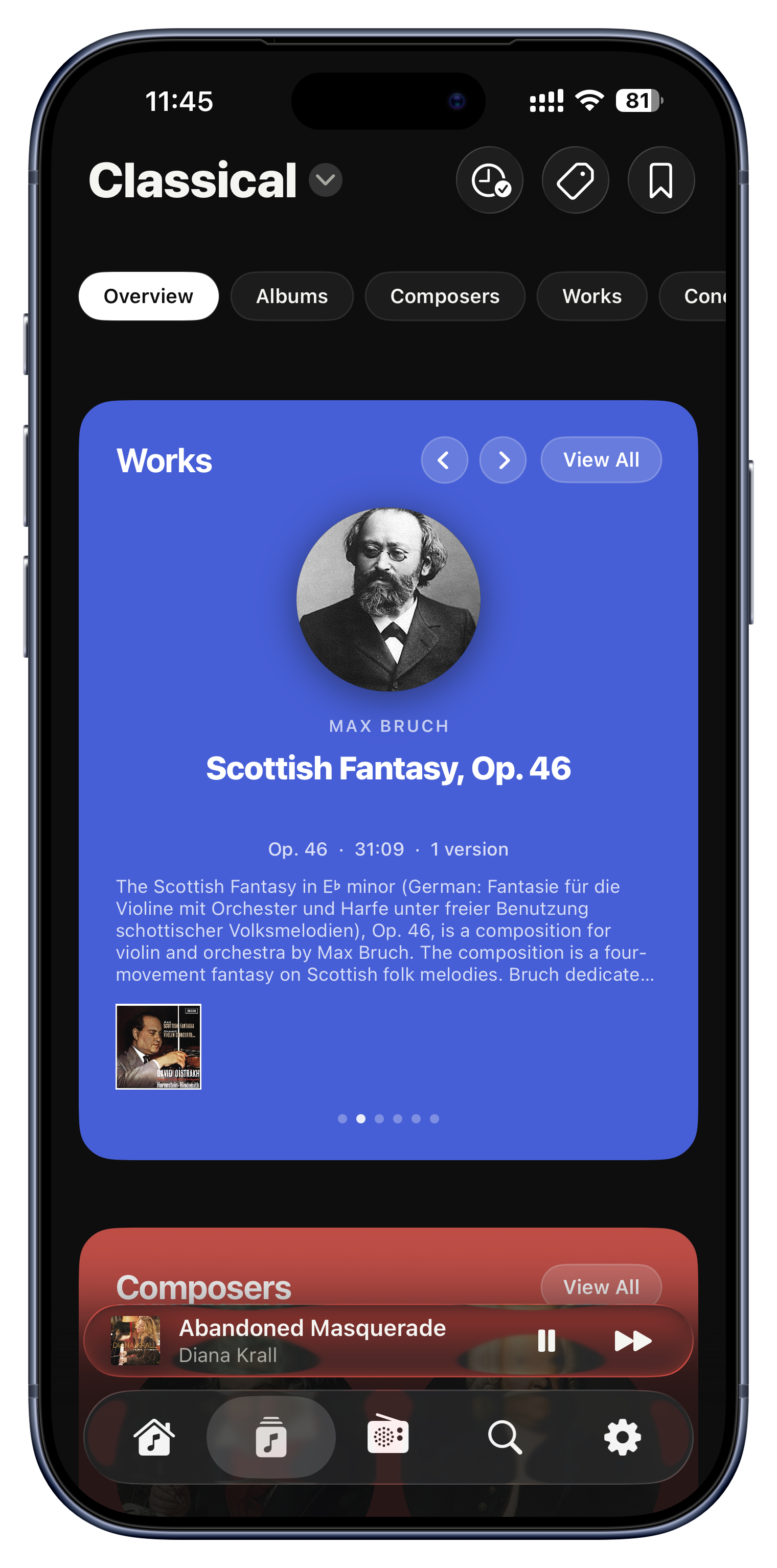
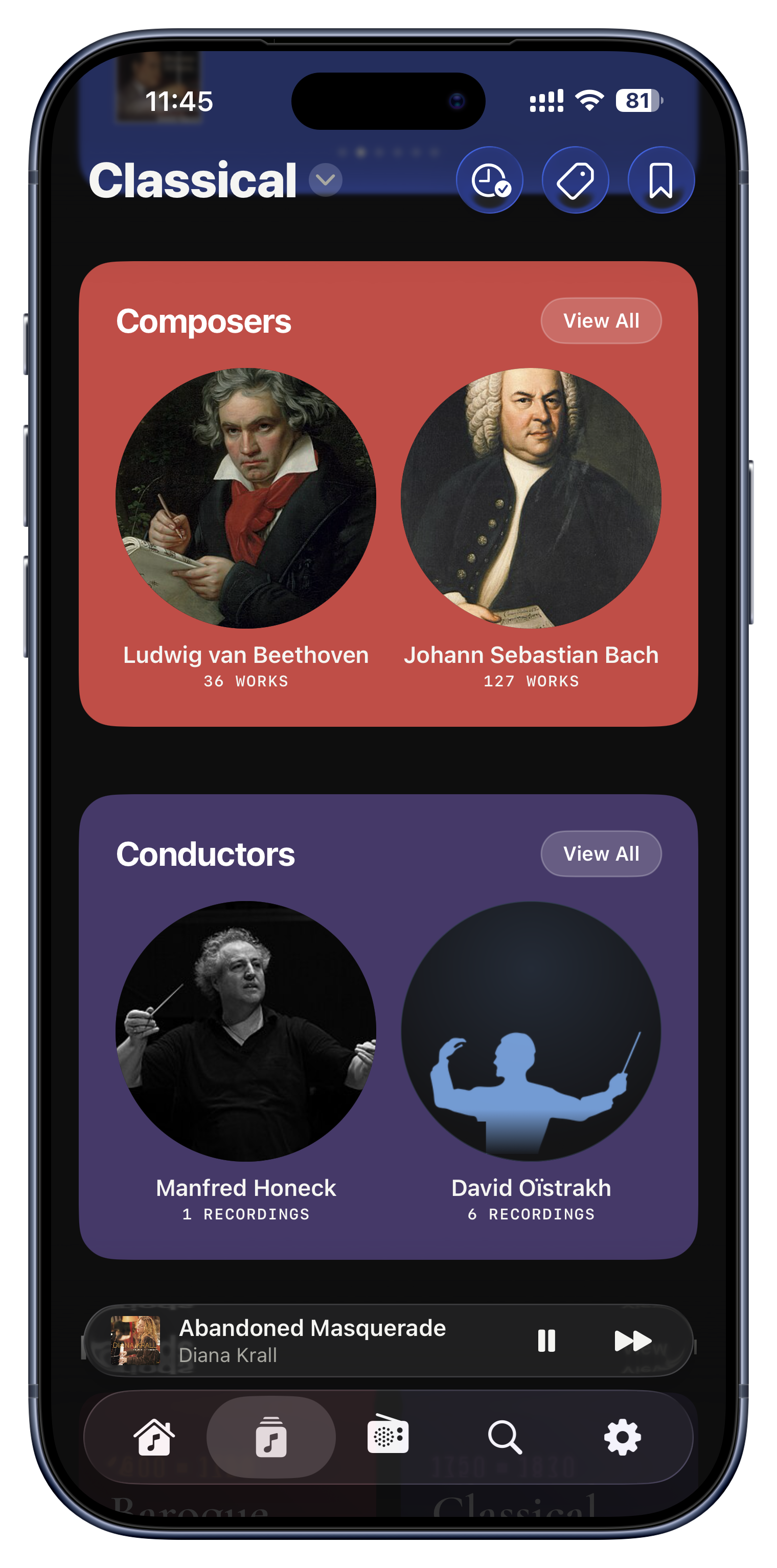
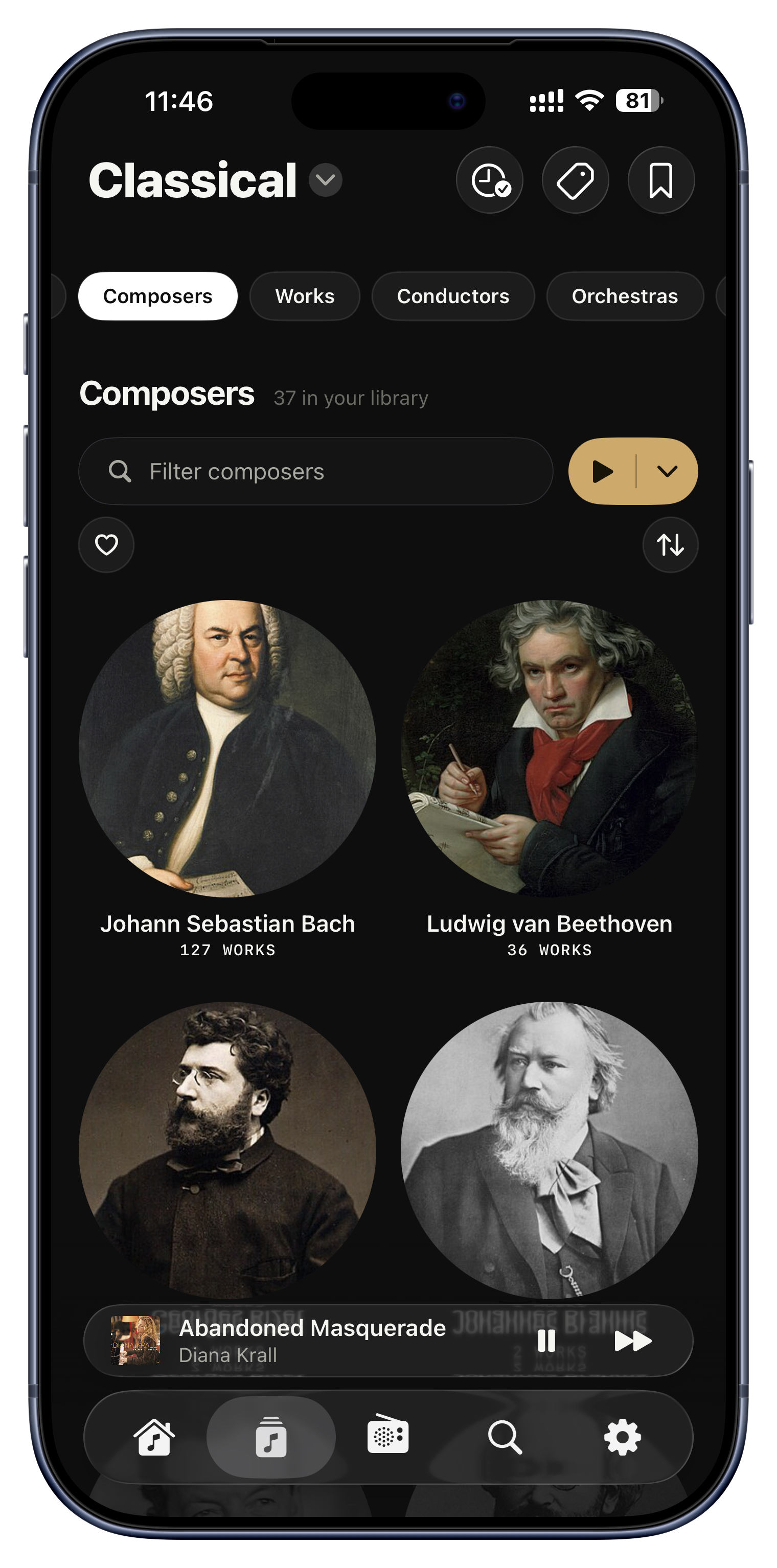
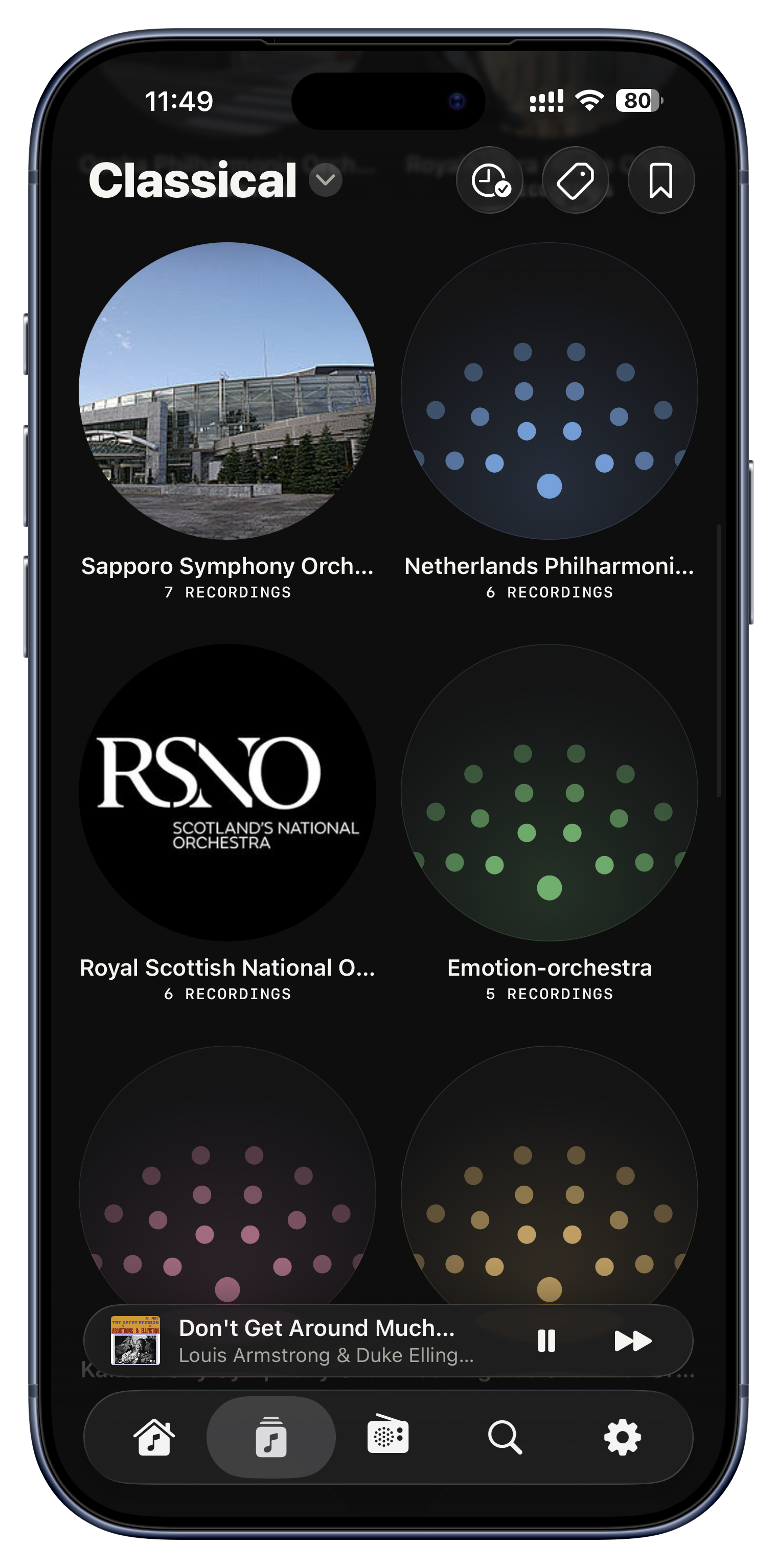
Classical music is organized the way the repertoire actually works, not crammed into one flat artist list. Instead of scrolling past forty 'Karajan' entries, you browse by Composer, Work, Conductor, Orchestra, Soloist, Period and Form, each its own section, with an Overview that gradually reorders itself around what you play most. Each sub-section is even independently bookmarkable.

Ideas to try
  • See every recording of Beethoven's 5th you own gathered side by side.
  • Browse by conductor to find all your Karajan or Bernstein performances.
  • Bookmark 'Classical › Composers' to land right back on that tab.
The Classical tab or section
It knows what's classical

It knows what's classical

You do not tag anything special. Serento decides which of your albums are classical by combining several signals, the genre tag, recognized composer names, and the structure of track titles like catalog numbers and keys, so your Bach and Mozart simply appear in the Classical section. It is careful about false positives too: an explicit 'Jazz' or 'Folk' genre keeps an album out, so a songwriter-credited Louis Armstrong record never lands in 'Composers'.
Ideas to try
  • A well-tagged classical library populates the whole section automatically.
  • A poorly-tagged one still works, because titles and composers are read too.
  • Your non-classical music correctly stays out of the classical world.
Automatic, behind the scenes
Whole works, kept whole
Most people never find this

Whole works, kept whole

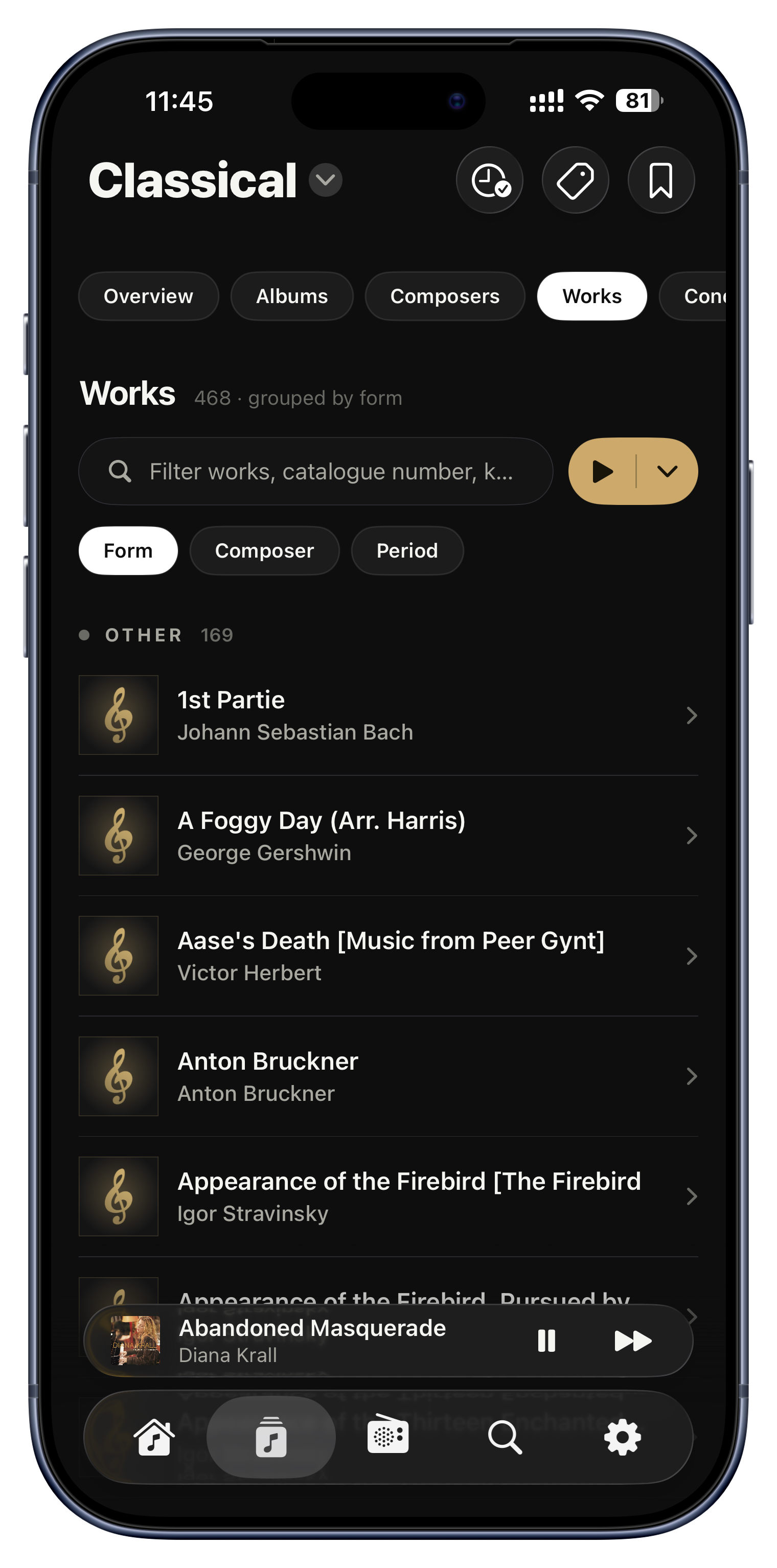
A 'work' is a complete composition, and its tracks are its movements. Serento intelligently regroups scattered movement-tracks back into the whole work they belong to, keeps them in order, and gathers every recording of that work you own together. So a multi-movement symphony never appears shredded into fake one-track 'works', and if your files carry proper Work and Movement tags, those are treated as authoritative.

Ideas to try
  • 'I. Allegro', 'II. Andante' and the rest reunite into one Symphony No. 5.
  • Compare two recordings of the same work side by side.
  • Read a history of the piece on the work's own page.
Classical › Works
People, split by role

People, split by role

Classical is about performers as much as composers, so Serento gives them proper browsers. Open a conductor and see the works they have recorded; each recording shows its credits split cleanly by role, Conductor, Orchestra or ensemble, Soloist and Choir, never mashed into one 'artist' string. You can favorite conductors, orchestras and soloists on their own heart lists, too.

Ideas to try
  • Find every recording in your collection conducted by a favorite maestro.
  • Follow a pianist across every album they play on, regardless of composer.
  • Heart ten favorite conductors and 'Play Favorites' across their recordings.
Classical › Conductors, Orchestras, Soloists
Periods, forms and histories

Periods, forms and histories

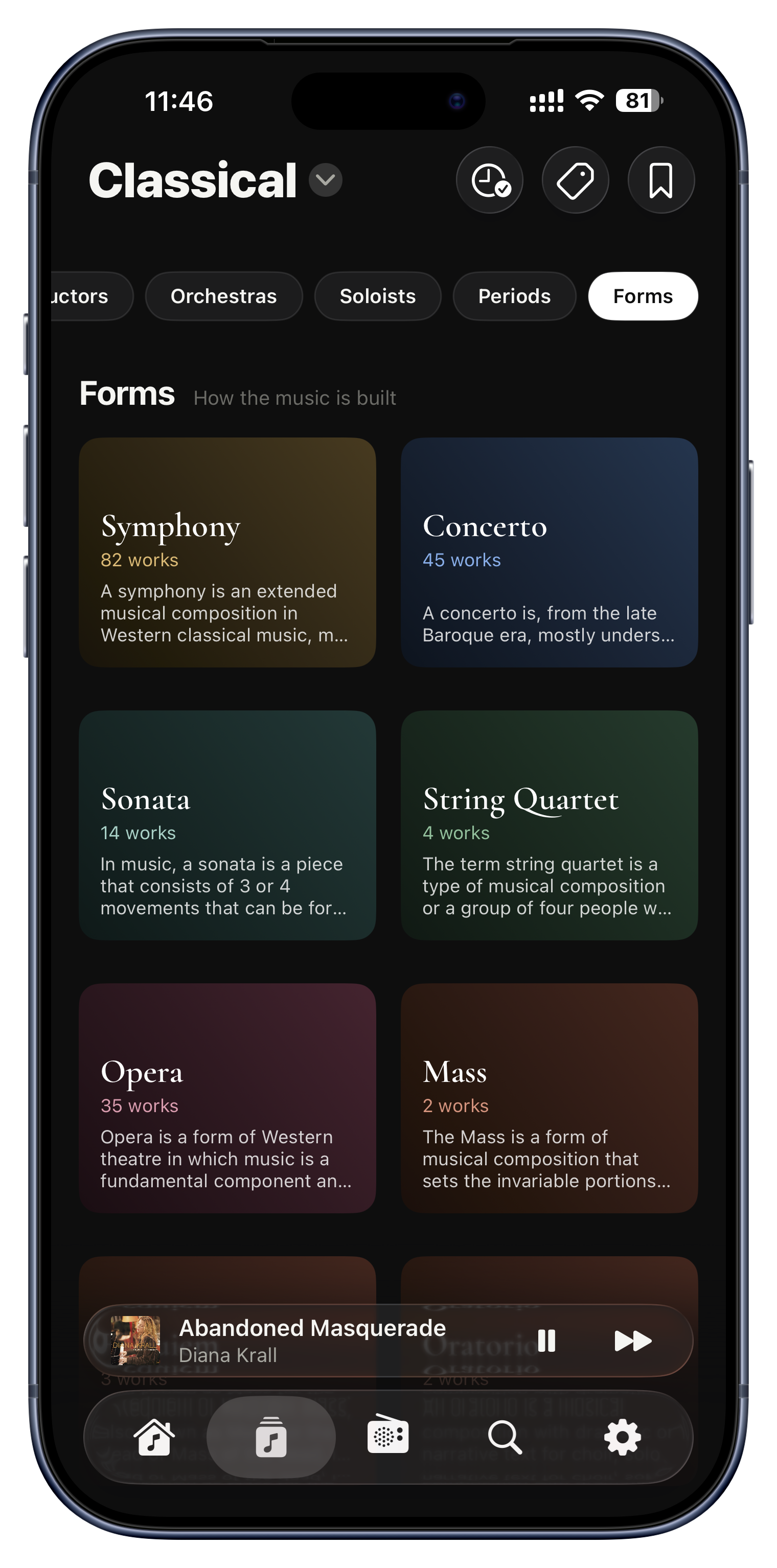
Two more lenses that actually mean something in classical. Periods group your music by era, Medieval, Renaissance, Baroque, Classical, Romantic, Modern, each with dates and a short description; Forms group by how the music is built, Symphony, Concerto, Sonata, Opera, Requiem, Nocturne. Only populated periods and forms appear, so you never tap into an empty tile.

Ideas to try
  • In the mood for Baroque? Tap the Baroque period and settle in.
  • Want only concertos tonight? Tap the Concerto form.
  • See your collection's shape across the centuries at a glance.
Classical › Periods, Forms

Your listening story.

Because this is your library, no streaming service keeps score for you. Serento does, a private record of what you play, and a place to say what you think of it.

Listening this month
0h 0%vs last

Your year in music, filled in a cell a day. One of two dozen views in the Statistics dashboard.

A Wrapped, any day of the year
Records and a year in music
Rate your albums
See and filter by rating
Share your stats
A Wrapped, any day of the year

A Wrapped, any day of the year

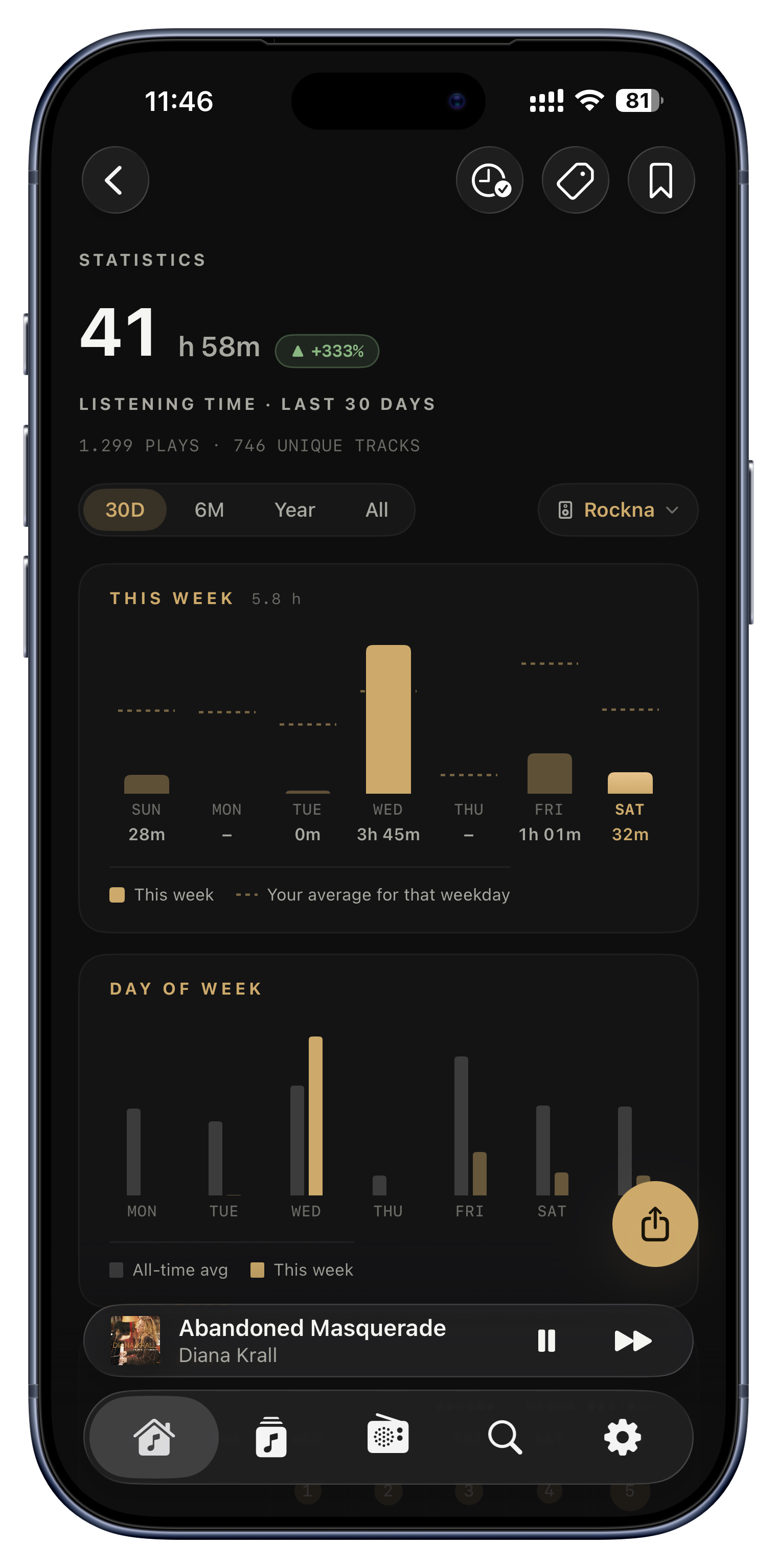
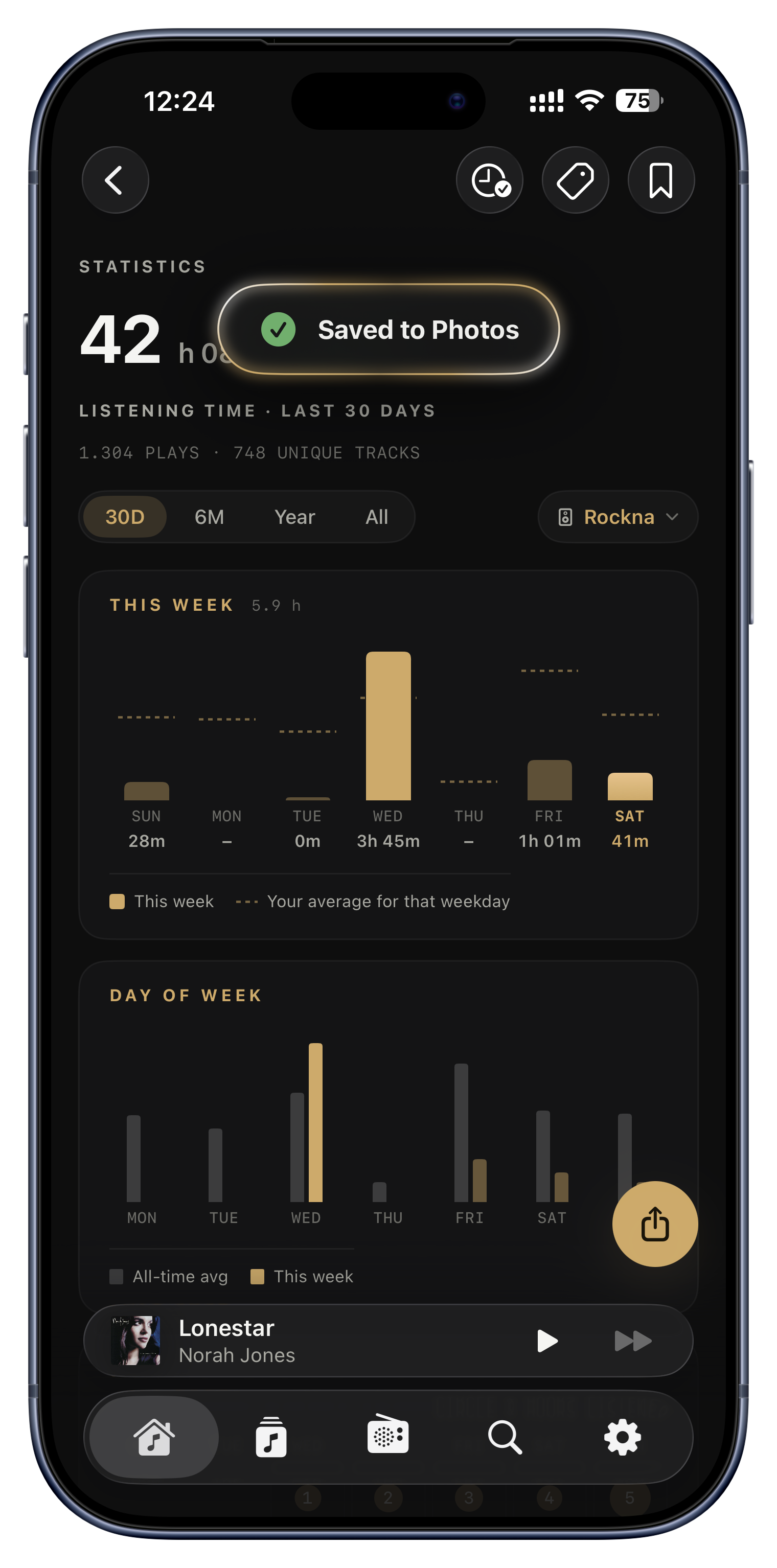
Because it is your own library, no streaming service tallies your year, so Serento does, privately. A rich dashboard shows your total listening time with a trend arrow against the previous period, your top tracks, artists and albums, and a heatmap of which hours of the day you listen most. You can scope the whole thing to a single speaker, and it opens already focused on whatever you are playing on.

Ideas to try
  • Discover you listened 42 hours this month, up 18 percent.
  • Settle the 'what is my number one album this year' question with real data.
  • Find out you are a night owl whose peak is 11pm.
  • See how many hours went through the living-room hi-fi versus your headphones.
Statistics tab (iPad and Mac) or Settings › Statistics
Records and a year in music

Records and a year in music

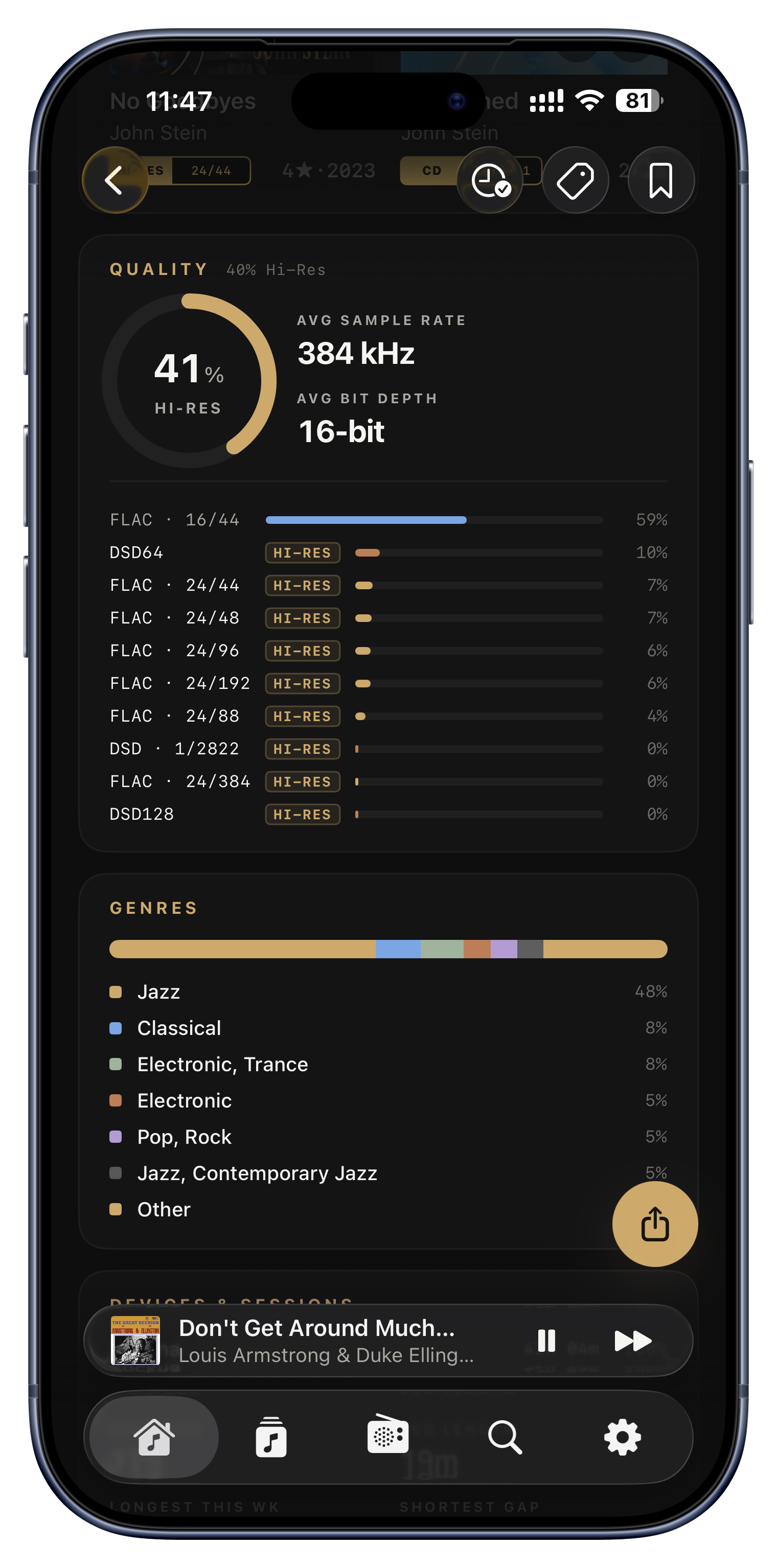
Beyond the charts, Serento surfaces your personal bests and a picture of your whole year. Records include your biggest listening day, longest single session, longest and current streaks, and most-repeated track; a Quality card shows what share of your listening is genuinely hi-res; and a calendar heatmap paints your entire year in music in one glance.

Ideas to try
  • Brag about a 47-day listening streak, or one song played 22 times in a day.
  • Confirm that 78 percent of your listening is real hi-res FLAC.
  • See your whole year as a single filled-in calendar.
The Records, Quality and This Year cards
Rate your albums
Most people never find this

Rate your albums

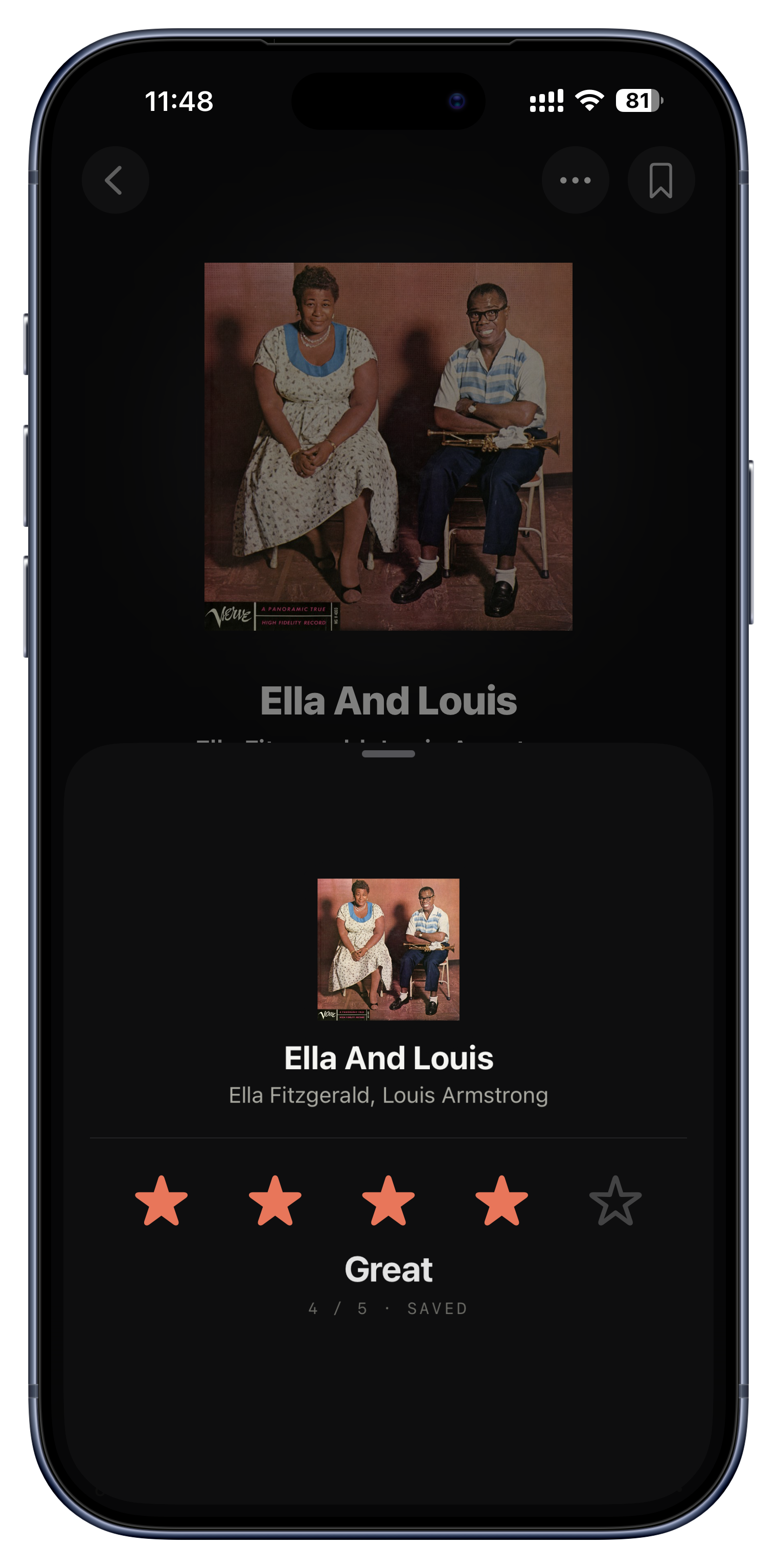
You can give any album a one-to-five-star rating, and each score even has a word, from 1 (Poor) to 5 (Masterpiece), so you build your own critical archive of your collection over time. On iPhone and iPad it is a compact star card; on Mac it is a beautiful VU-meter dial you drag with a needle, with a satisfying tick as each star lands and a slide-to-zero gesture to clear it.

Ideas to try
  • Mark a reissue a five-star 'Masterpiece' so future-you remembers it was worth it.
  • Rate a standout single track five stars on an otherwise average album.
  • Slide the Mac dial to zero to clear a rating you have changed your mind about.
Album ⋯ menu › Rate
See and filter by rating

See and filter by rating

Your ratings are not write-only. Show them as a small '4-star' chip right on album tiles so you can spot your best records across the whole library, and filter the library to a chosen rating, or exclude the ones you rated low, for a guaranteed-great session.

Ideas to try
  • Show only your five-star albums when you want a sure thing.
  • Hide everything you rated one or two stars.
  • Show rating and year together on tiles, like '4★ · 2015'.
Settings turns on the chip; filter in Browse
Share your stats

Share your stats

Turn your statistics into a shareable image in a tap, so your year in music can leave the app. It saves straight to Photos on iOS, or lets you pick a location on Mac.

Ideas to try
  • Post your top artists of the year to friends or socials.
  • Save a snapshot of a milestone streak.
The Share button in Statistics

The little things.

None of these will show up on a feature list. Together, they're most of why the app feels the way it does.

Living default covers
Skeletons that look like covers
Empty states that teach
Haptics tuned per action
Built for everyone
Living default covers

Living default covers

Missing artwork is never a broken box. Albums and tracks without covers show a hand-drawn spinning vinyl record, radio stations without a logo pulse animated broadcast waves, and artists get a round instrument motif, each in a color chosen from the item's own name, so the same album always looks identical.

Ideas to try
  • A library with lots of missing art still looks like a designed set.
  • You start recognizing untitled albums by their consistent color.
  • Radio stations without logos still feel alive, not blank.
Everywhere
Skeletons that look like covers

Skeletons that look like covers

While artwork is loading, the slot already shows that vinyl or wave motif with a subtle shimmer sweeping across it, and the real cover simply fades in on top. There are only ever two states, loading and loaded, so you never see a jarring gray placeholder box.

Ideas to try
  • Fast scrolling stays smooth and calm instead of flashing gray.
  • Covers arrive with a gentle fade, never a pop.
All grids, rows and the player
Empty states that teach

Empty states that teach

Empty screens teach instead of just sitting blank. Bookmarks, Tags and Listen Later each greet you with a small illustration, a headline and a numbered 'how it works', so a feature you have not used yet explains itself the moment you arrive.

Ideas to try
  • A brand-new Tags screen shows you exactly how to make your first tag.
  • The no-server screen offers 'Scan again' and the setup guide.
  • Listen Later explains what the shelf is for before you have added anything.
Any list before you've added anything
Haptics tuned per action

Haptics tuned per action

Feedback is tuned to each action rather than one generic buzz: light taps for buttons, a selection click for toggles, a success buzz when you favorite or queue something, a firm pulse when you release the scrub bar, and a gentle tick as you cross each rating star. On a MacBook it even maps to the Force Touch trackpad.

Ideas to try
  • Feel each star as you drag across a rating.
  • A reassuring success buzz confirms a favorite or a queue add.
  • The whole app feels physical and responsive, not flat.
Throughout the app
Built for everyone

Built for everyone

Serento is built to be usable by everyone. VoiceOver reads each row as one clean, self-contained announcement instead of five disconnected fragments, with helpful hints like 'double tap to change audio output', and every animation respects Reduce Motion, showing calm static versions for anyone who prefers them.

Ideas to try
  • A row announces 'Playing on living room, connected' as one clear phrase.
  • Reduce Motion turns the equalizer and shimmer into static versions.
  • Full keyboard and VoiceOver navigation throughout.
System-wide

That's the tour.

Now the fun part: go find your own favorites. Everything here is one tap away inside the app, and every list has a helpful empty state to get you started.