Serento 下載
文章 · 部落格

開發筆記。

版本說明,以及那些從外部難以看見的決策理由。

Serento on Apple TV

Serento 1.1.3 comes to Apple TV: what your streamer plays, on the big screen, with the queue, synced lyrics and radio, controlled from the sofa with the Siri Remote.

New Features New Version

Hello everyone,

A lot of you listen in the living room, with the streamer in the rack under the TV. Until now the music lived on your phone: to see what was playing, or to skip a track, you reached for it. Serento 1.1.3 puts it on the big screen.

Serento for Apple TV is a companion to Serento on your iPhone, iPad and Mac. It does not play music itself. It shows what your streamer is playing and lets you control it with the Siri Remote, while your iPhone, iPad or Mac does the work, exactly as it does today.

Pick your streamer

Open Serento on Apple TV and it lists the streamers on your network. A streamer that is asleep says so. Choose one and Now Playing fills the screen.

Now Playing

The cover, the title, the album and the artist, with the same format plate you see on your iPhone, and the bit-perfect ring when the music plays bit-perfect.

Below them is the bar: select it, move through the track with left and right, ten seconds at a time, and select again to jump there. Under the bar sit shuffle, previous, play and pause, next and repeat. The Play/Pause button on the Siri Remote works from anywhere on the screen.

At the bottom, "Playing on" names your streamer. From there you can move the music to another streamer in the house, and the heart adds the track to your favorites.
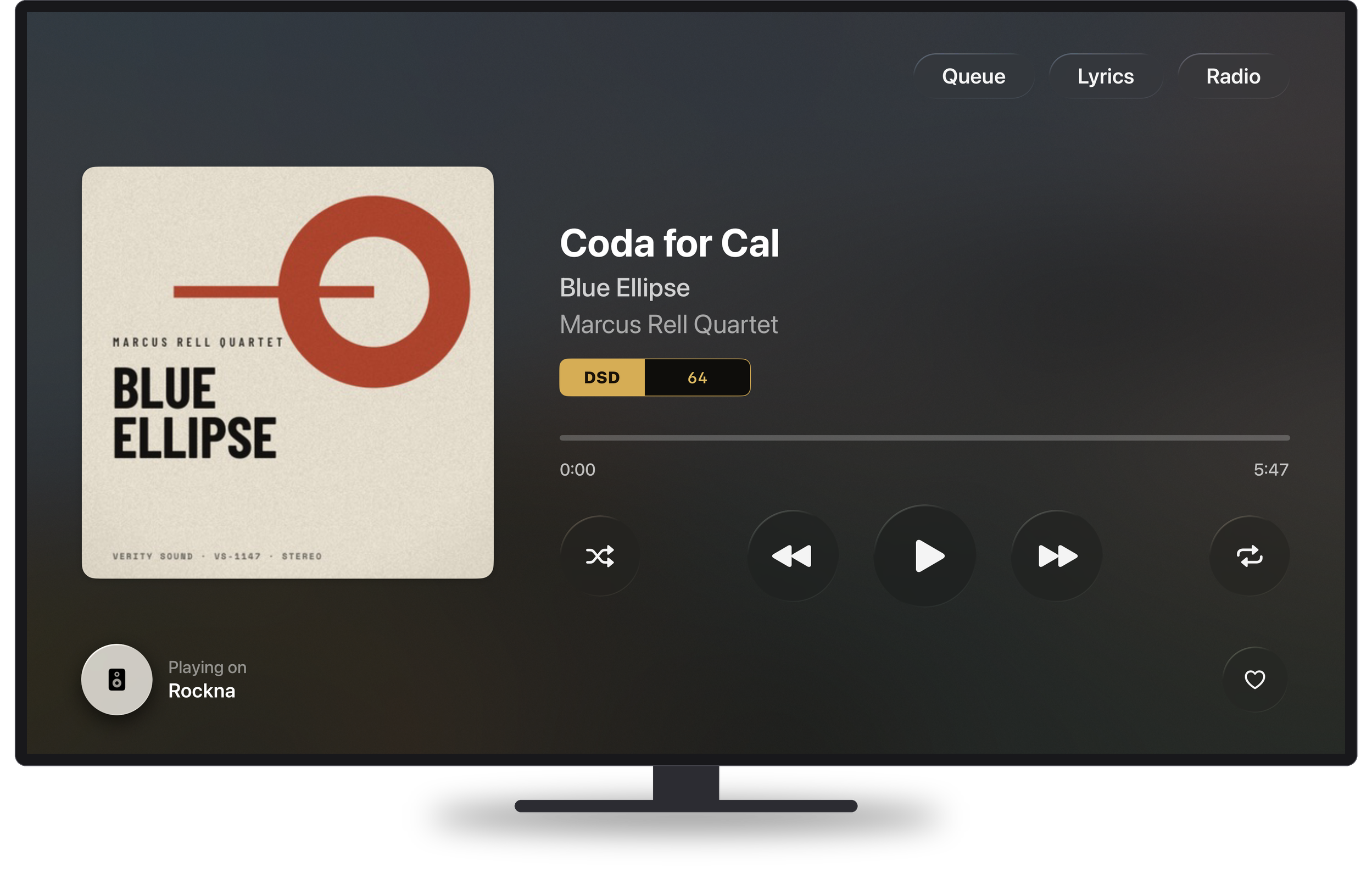
Now Playing on Apple TV
Now Playing: the cover, the format and the controls

Queue, Lyrics and Radio

The three tabs you know from Now Playing on your iPhone are here too, and each one opens across the whole screen.

Queue shows what played, what plays now and what comes next, with the covers. Select a track to play it, remove one from Up Next, or clear the history or everything still to come.
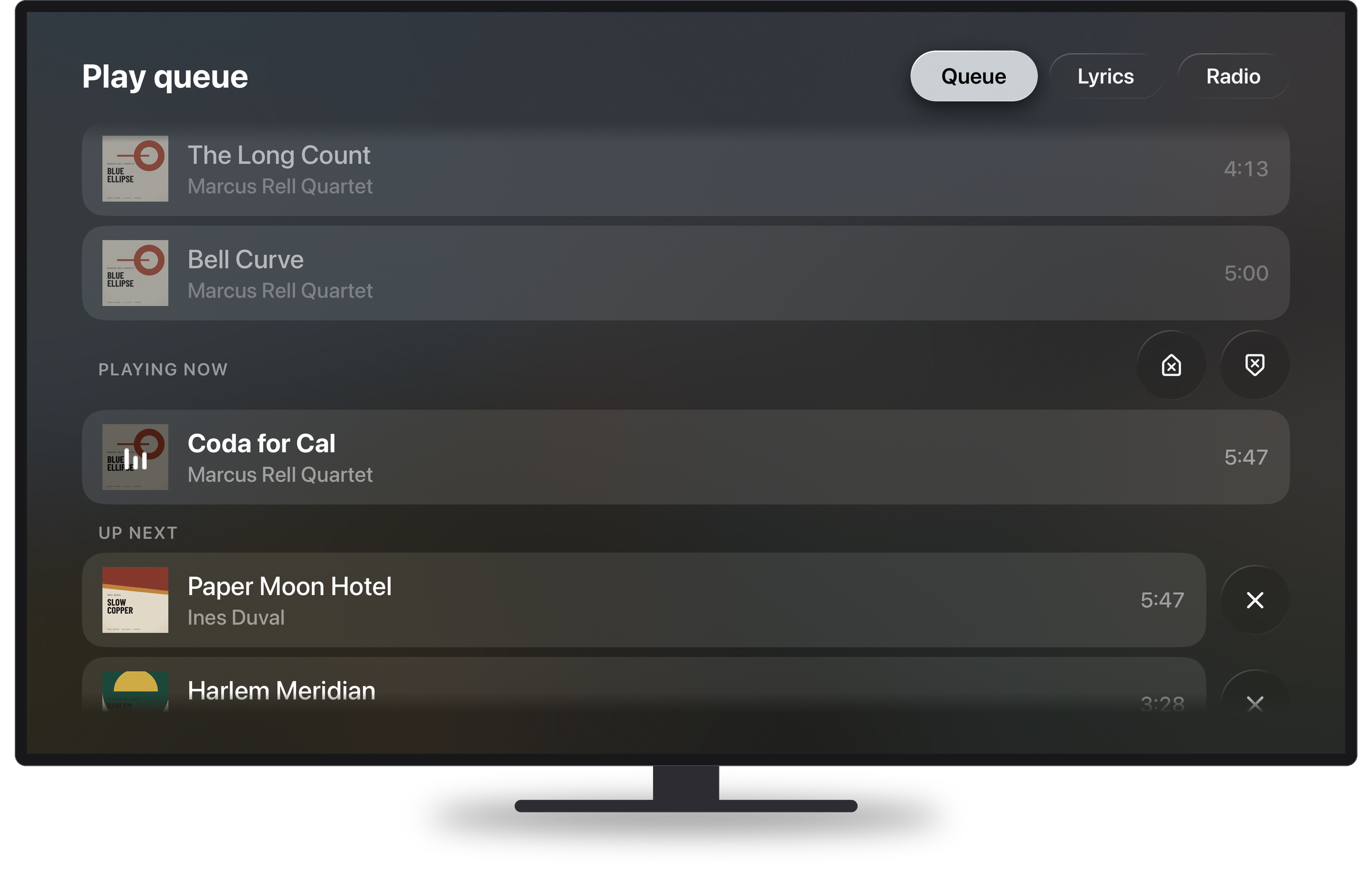
The queue on Apple TV
The queue: what played, what plays and what comes next

Lyrics shows synced lyrics in large type, easy to read from the sofa, following the music line by line. If you calibrated the lyrics for your streamer on the iPhone, the TV uses the same calibration.

Radio starts and stops Serento Radio. You see the genres it found in your queue and, once it runs, the tracks it picked to play next.
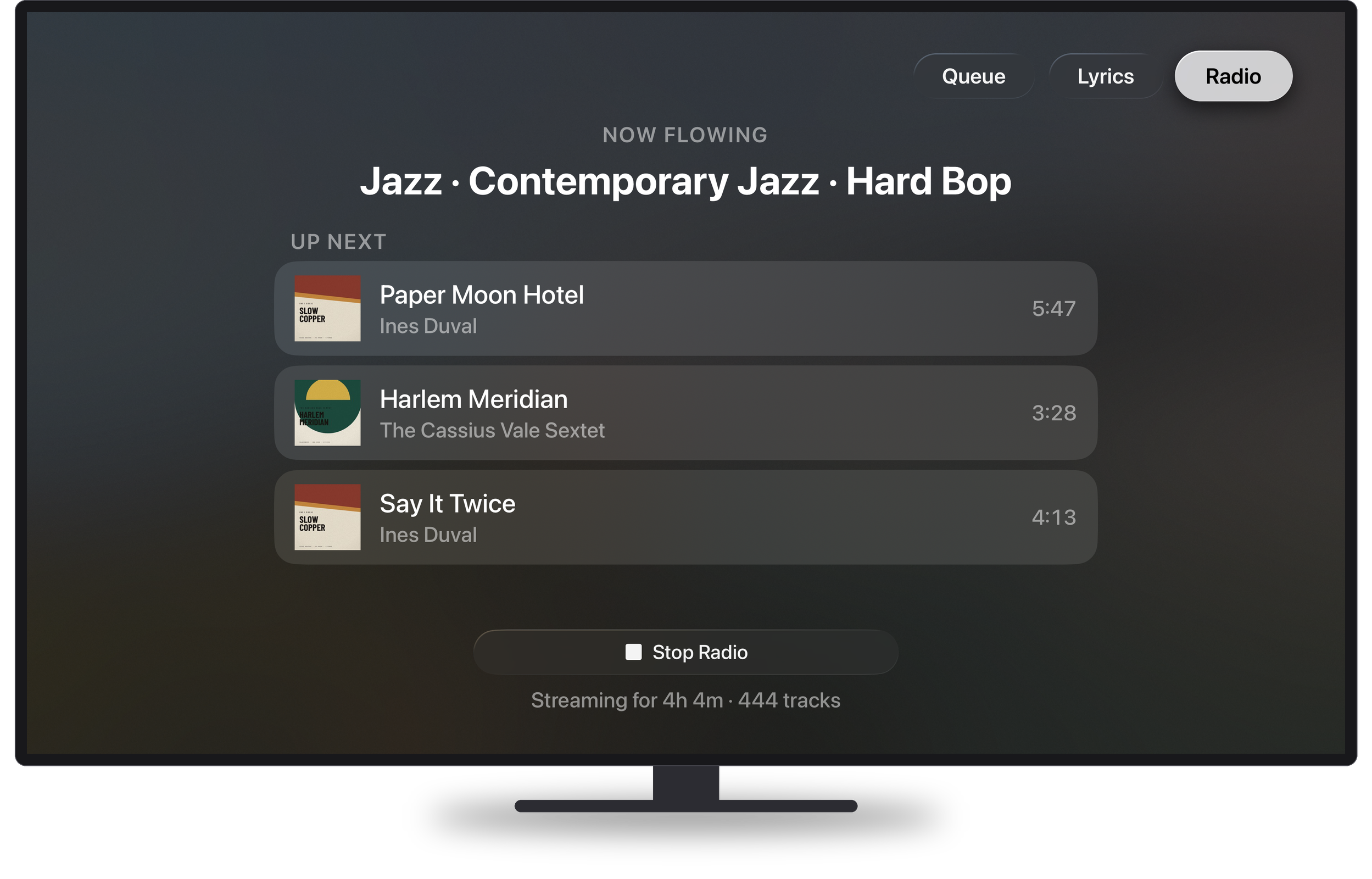
Serento Radio on Apple TV
Serento Radio: the genres it is tuned to and the tracks coming up

Internet radio

When a station plays, Now Playing shows the song on air and its artist, the station's logo, Live, and the codec with the bitrate Serento measured. The On Air tab follows the station: the song playing now and the songs before it. A song that is in your library gets a heart, so you can add it to your favorites from the sofa.
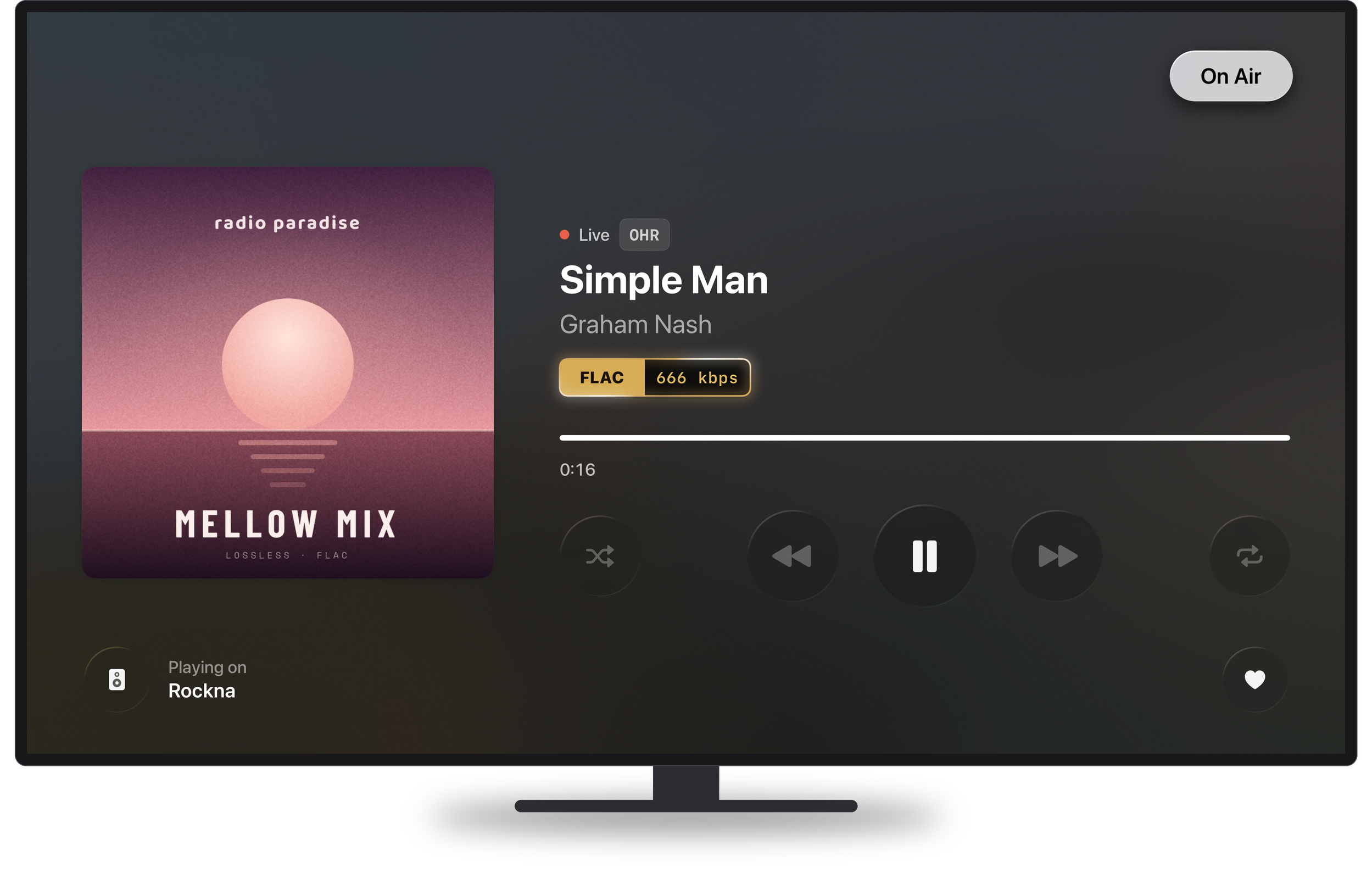
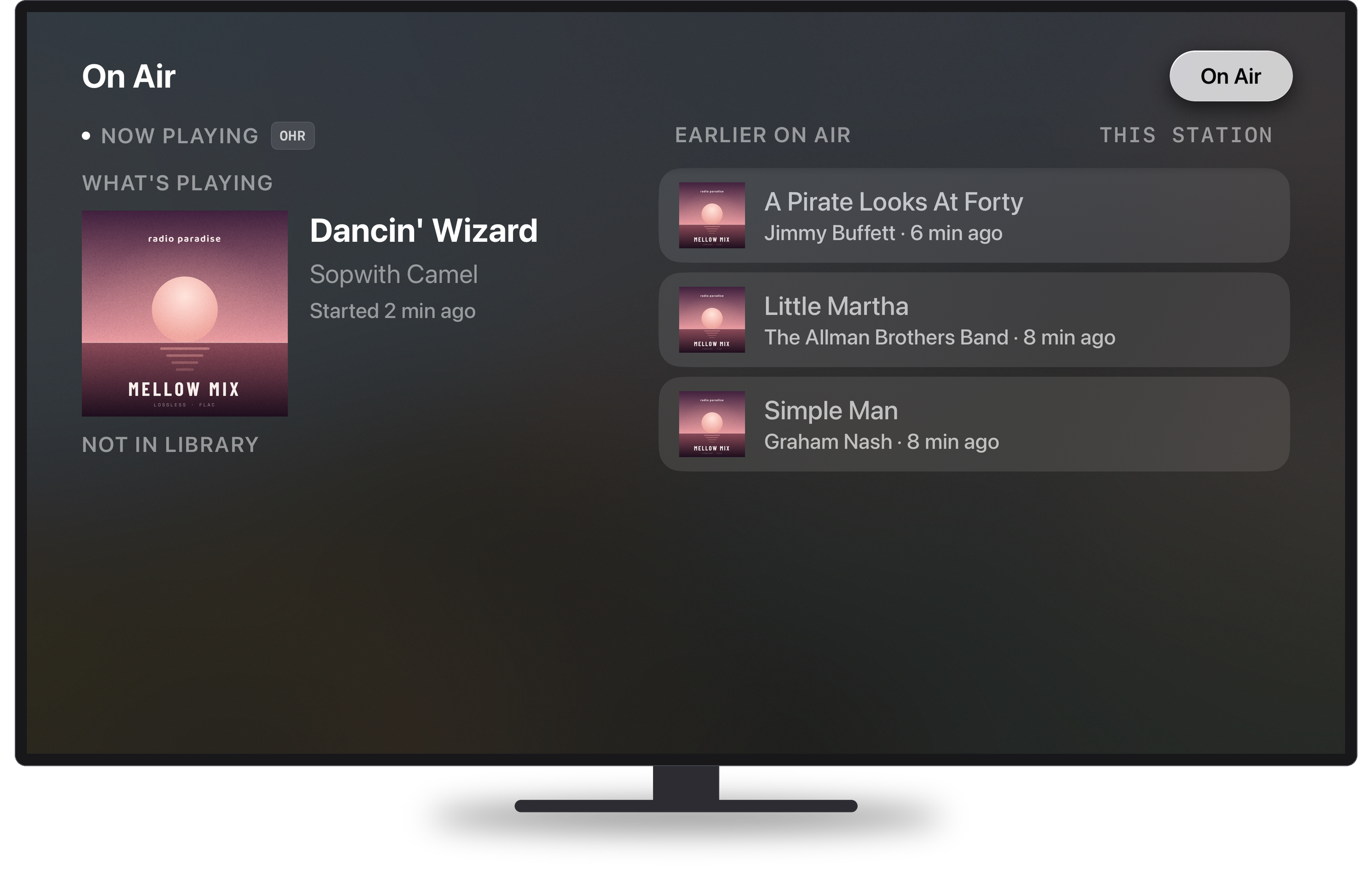
An internet radio station playing on Apple TV
A station: the song on air, the logo and the measured bitrate
On Air on Apple TV
On Air: what plays now and what played before

How it works

The Apple TV is a remote and a screen. Every press goes to the Serento device that plays the music, your iPhone, iPad or Mac, and that device carries it out exactly as its own button would. The TV then shows what that device tells it. The covers come from your own devices too.

The music itself goes from your server straight to your streamer. It never passes through the Apple TV.

A few things follow from that:

  • No subscription on Apple TV. It works with Serento on your iPhone, iPad or Mac, on the same network.
  • If your phone goes to sleep, the TV keeps showing what plays.
  • When another app plays on your streamer, Serento for Apple TV still shows what is playing, with play, pause, previous and next wherever the streamer allows them.

Get it

Serento 1.1.3 is on the App Store now. The Apple TV app comes with Serento at no extra cost: open the App Store on your Apple TV, search for Serento, and install it.

If you try it in your living room, I would love to hear how it works with your system. Come and tell me at community.serento.app, or write to contact@serento.app.
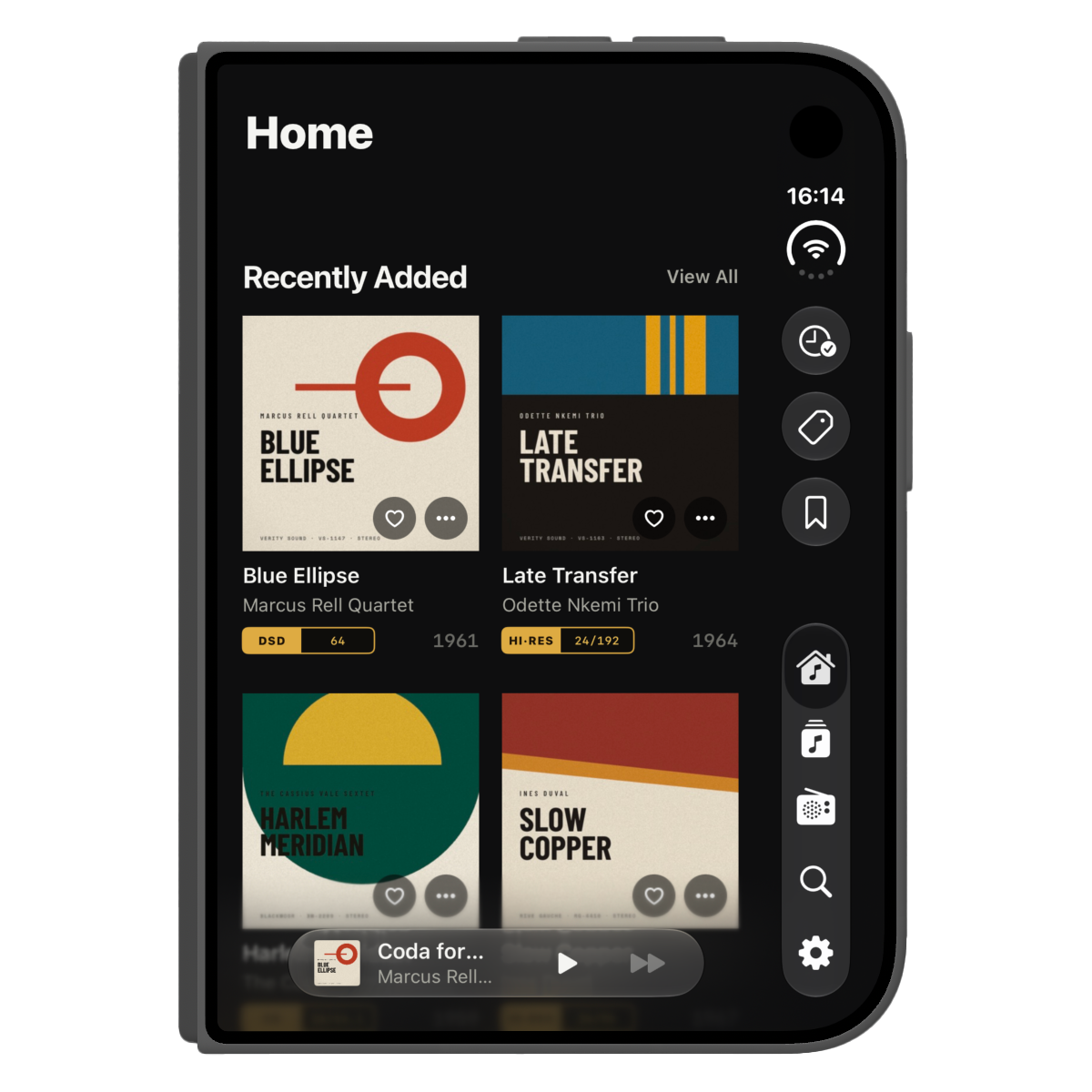
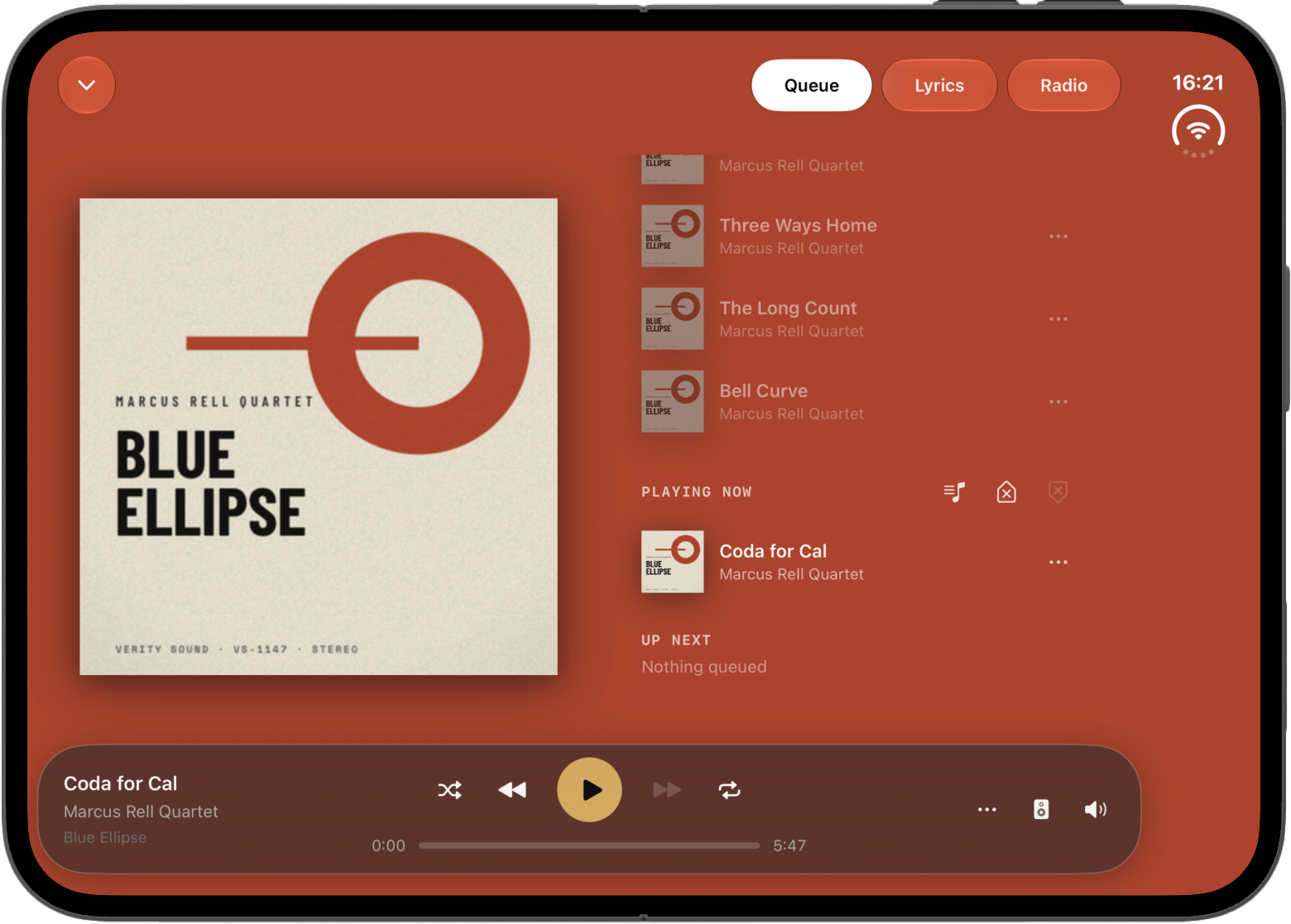
Serento on iPhone Duo

Closed, open, half folded like a book or standing on a table: Serento 1.1.2 gives every position of iPhone Duo a layout of its own.

New Features New Version

Hello everyone,

When Apple showed iPhone Duo, my first thought was Now Playing. A phone that opens into a small tablet, stands on a table like a tiny laptop and folds like a book can be a wonderful way to control your music, but only if the app actually uses it. So for 1.1.2 I went through every screen in Serento and asked the same question for each position of the phone: what should this look like here?

The rule I followed is Apple's own: the layout follows the size of the screen, not the name of the device. Closed, the Duo is a phone. Open, it is a small tablet. Half folded, the fold itself becomes part of the design.

Closed

On the outer screen, Serento is the iPhone app you already know. The system moves the tabs and the status bar to the side of the screen, and every screen fits the wider, shorter display, Now Playing included.

Serento on the outer screen of a closed iPhone Duo

Open

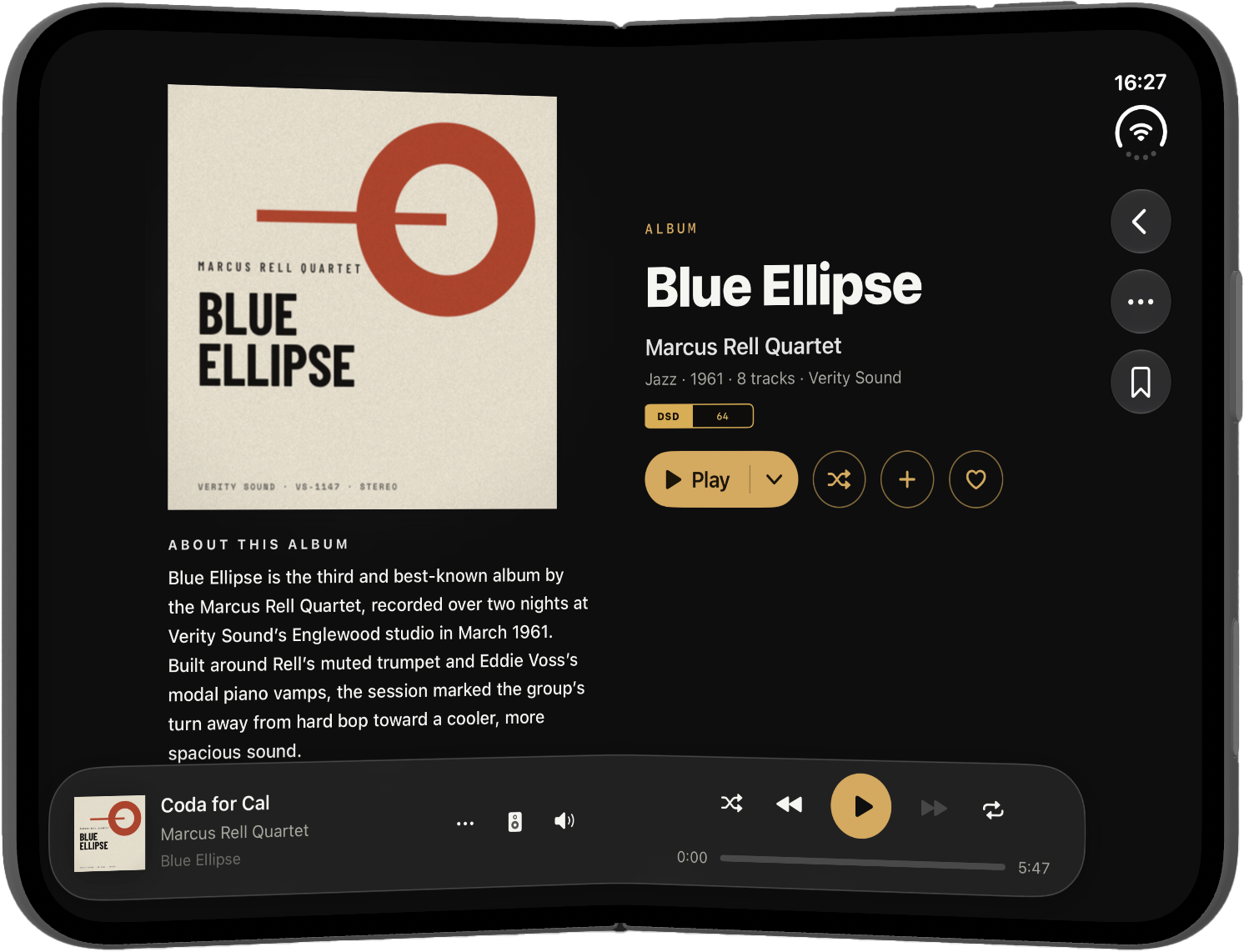
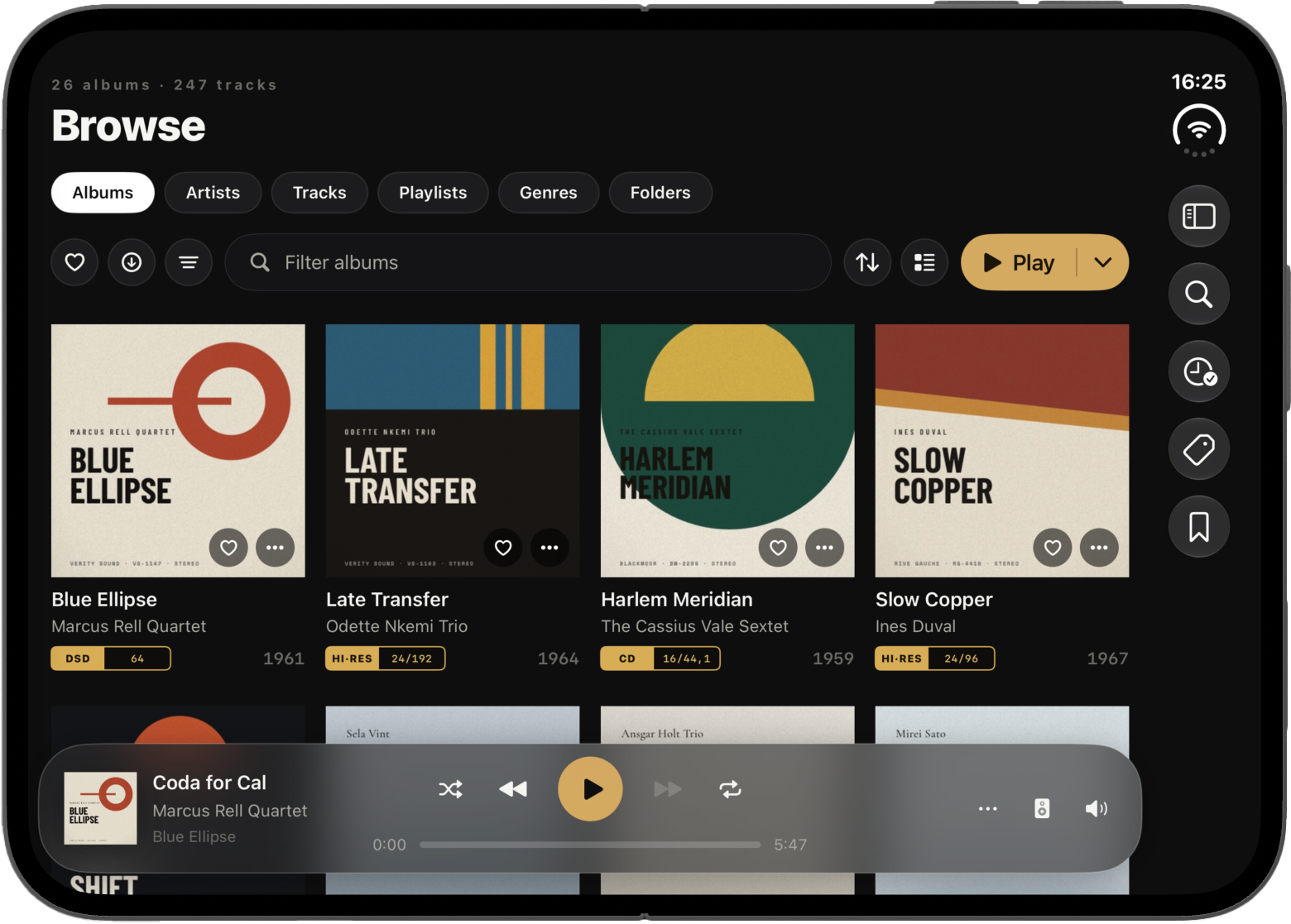
Unfold it and Serento uses the whole inner screen. The sidebar opens from the menu button, the grids show more of your covers, album and playlist pages put the cover beside the title and the buttons, and the track list becomes a proper table.

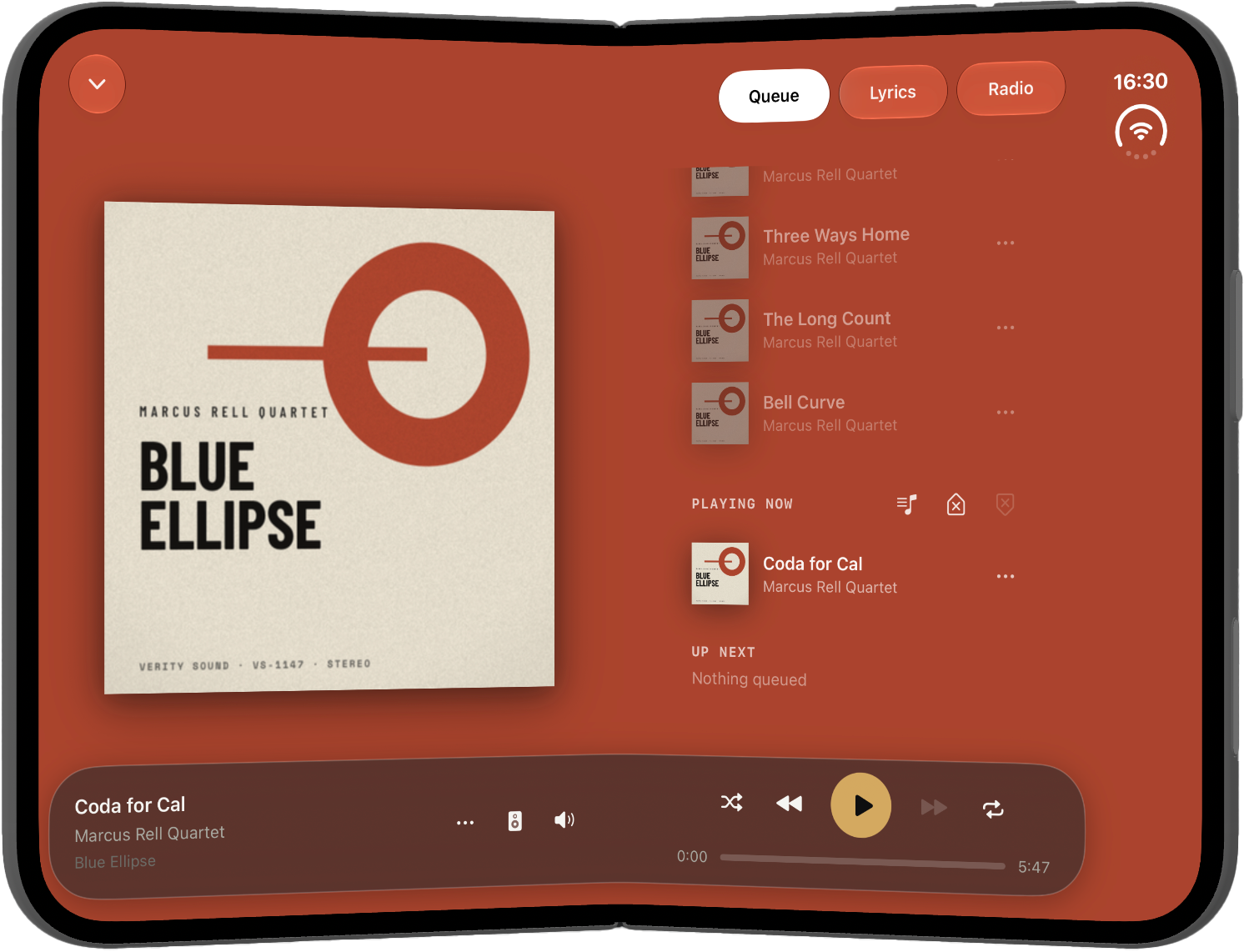
Now Playing gets room to breathe. Held upright, the cover takes the centre and Queue, Lyrics and Radio are one tap away. Turned sideways, the cover stays on the left and the queue, the lyrics or the radio sit on the right, so you can read along without losing the artwork.

Now Playing on the open iPhone Duo, the cover beside the queue
The library on the open iPhone Duo, with the sidebar

Like a book

Fold it halfway with the crease running down the middle and hold it like a book. This is the position I spent the most time on, because a fold through the middle of a button is no fun to tap.

Every screen is laid out around the fold. Grids split into two equal pages, with the fold as the gap between them. Album and playlist pages put the cover on the first page and the title and buttons on the second. The track table breaks its columns exactly at the fold. Settings keeps the list on one page and the details on the other. Text, like an artist's biography, stays on one page instead of running across the spine.

And nothing you can tap sits in the fold.

Now Playing splits right at the fold too: the cover on one page, the queue, the lyrics or the radio on the other.

An album page on iPhone Duo held like a book
Now Playing on iPhone Duo held like a book

On the table

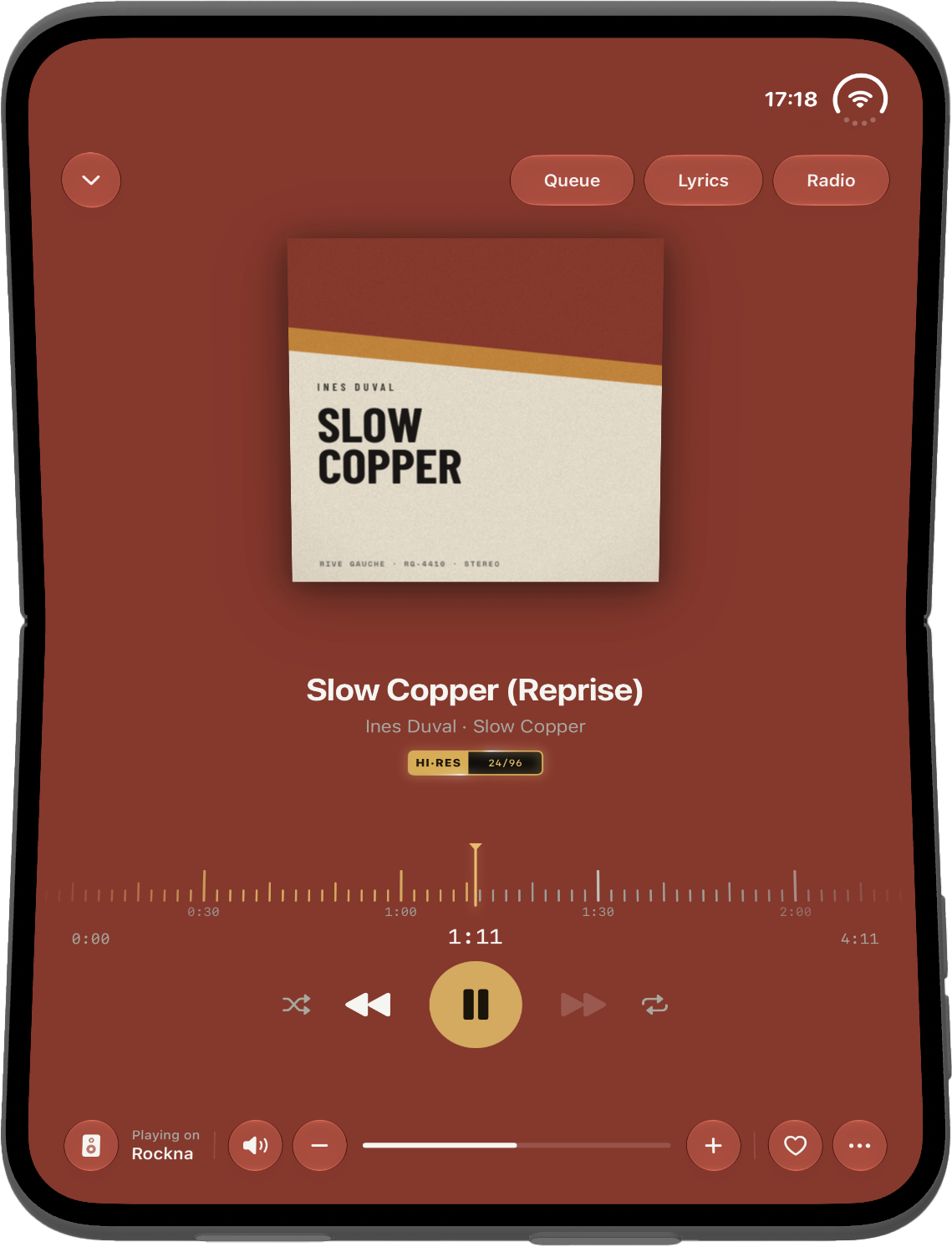
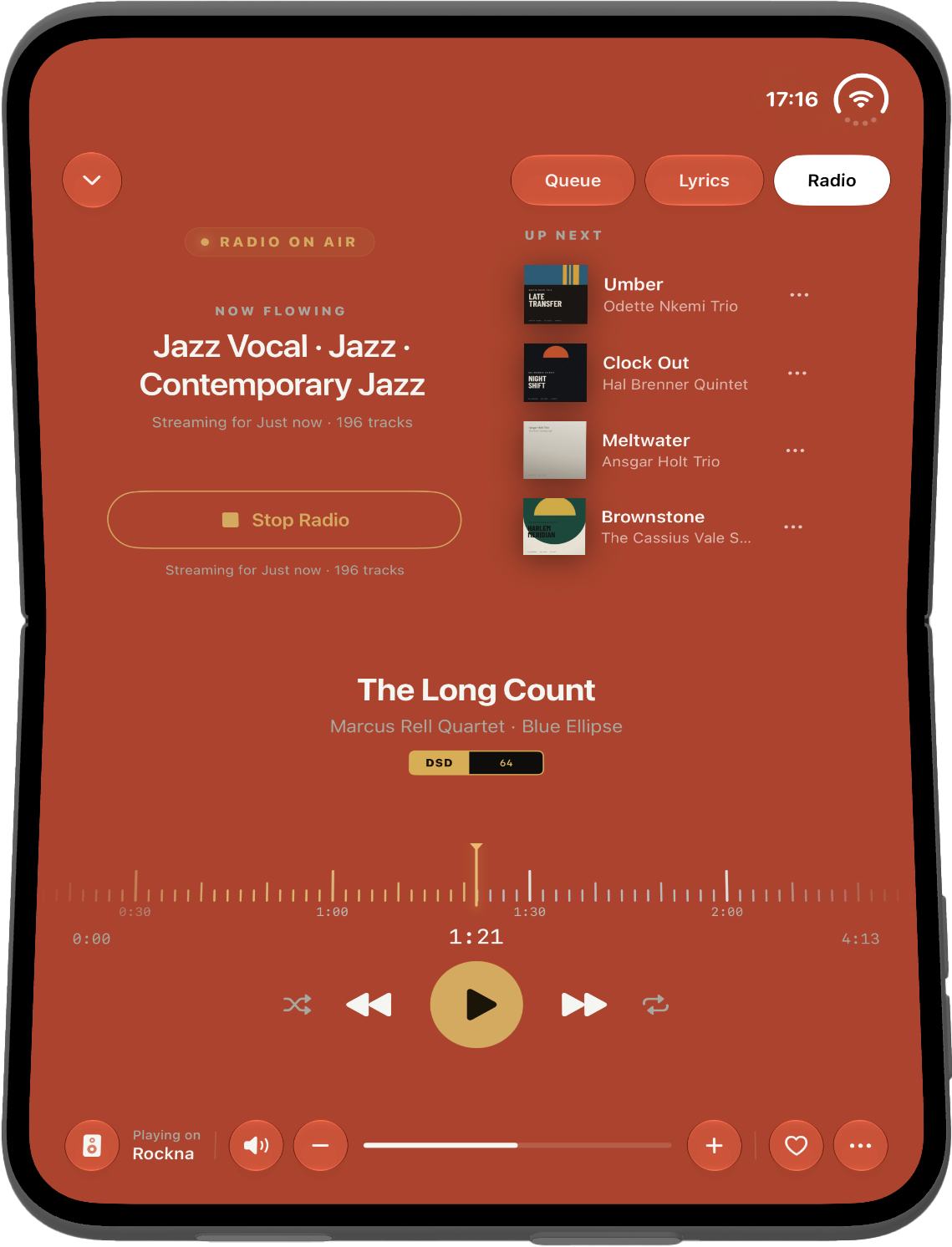
Stand the phone on a table with the fold across the screen, like a small laptop. Apple's advice for media in this position is simple: what you look at goes on top, facing the room, and the controls go on the bottom, the flat half under your hand. That is exactly what Serento does.

The top half shows the cover, with Queue, Lyrics and Radio above it. Tap one and it takes the cover's place across the whole half; tap it again and the cover is back. Radio uses that width for two columns: the station and its button on one side, and on the other the genres it found in your queue, or, once it plays, the tracks coming up next.

The bottom half is where your hand is. The title, the artist, the album and the format sit in the middle. Under them a time strip runs beneath a fixed playhead, like tape passing a head, and you drag it to move through the track. Then the times and the play controls, and along the bottom edge the output, the volume, the heart and the ⋯ menu.

Folding and unfolding

Closing or opening the phone never interrupts the music. The track keeps playing, the queue stays as it was, and Serento keeps your place: the same tab, the album you had open, the same Browse section, the same Settings screen, even what you typed in Search. If Now Playing was open, it stays open and simply changes shape.

Get it

Serento 1.1.2 is on the App Store now. iPhone Duo support is part of the same app, so there is nothing to switch on.

If you have a Duo, I would love to hear how it feels in your hands. Come and tell me at community.serento.app, or write to contact@serento.app.
Version 1.0.4 is live on the App Store!

This update should make Serento feel more mature and ready. One feature that was requested quite a lot of times during the beta period is multi select. I promised I would deliver it right after the initial release, so here it is!

Bug Fixes New Features New Version

Hello everyone,

I’m happy to announce that version 1.0.4 is live on the App Store. I’ve been working really hard to fix all the bugs after the initial release. This update should make Serento feel more mature and ready, even though I missed one thing in folder browsing for which I already submitted a bug fix. So expect 1.0.5 soon. One feature that was requested quite a lot of times during the beta period is multi select. I promised I would deliver it right after the initial release, so here it is!

Bellow is the change log. I hope you enjoy the new version.

Change log

Version 1.0.4 is the largest update since launch: two new ways to work with your library, PDF booklets, classical music in search, and a long list of playback and sync fixes.

NEW

Multi-select. Press and hold any album, track, artist, playlist, station or classical item to start selecting, then act on the whole set at once: play, queue, add to a playlist, tag, download or remove. It works on every list and grid in the app, on iPhone, iPad and Mac.

Playlists you can reorder. Drag tracks into the order you want and they stay that way, synced across your devices. The same drag works on bookmarks.

Booklets. An album that ships a PDF booklet now shows it, and an album with more than one shows them all. Text inside a booklet can be selected and copied. In order to be picked up, your pdf files need to have the one the following names: booklet.pdf, booklet2.pdf, booklet3.pdf, booklet4.pdf, booklet5.pdf, folder.pdf, [exact album name].pdf.

Classical music in search. Searching now returns composers, conductors, orchestras, soloists and works alongside albums, artists, tracks and stations, each with its own filter tab and its own View All screen.

Artwork you can enlarge. Tap an album or artist image to open it at full size on a dark layer.

Volume control. Renderers that support it gain volume buttons and a maximum volume limit, so a mis-tap cannot send full scale to your amplifier.

Per-track artwork on compilations. A compilation now shows each track’s own cover where the file carries one, instead of repeating the album cover down the whole list.

A new app icon.

IMPROVED

Folder browsing now understands hybrid libraries, where one level holds sub-folders next to folders that are already albums. Folders sort ahead of albums, alphabetically with numbers first, and the name it sorts on is the name you actually see on the row.

The genre taxonomy is considerably larger, so far fewer albums fall into a catch-all.

Haptic feedback on every control that acts on your library.

Swipe actions and drag to reorder now follow the system’s current list editing behaviour, and the toolbars above those lists match it.

FIXED

Audio: the noise heard when pressing next or play on a DSD file, and on anything above CD quality. PCM stuttering on next, previous and seek. Pause, play and seek no longer fight each other, and pressing play on an album plays that album.

Radio: stations start reliably again, including when another app is already producing audio, and Bluetooth resumes correctly after an interruption.

Sync: resume, cancel and re-sync behave as expected, Plex sync issues are resolved, and several servers now share one folder view correctly.

Home no longer flashes an empty state while it is still loading.

Downloads: the missing tab is back, the buttons have a row of their own, and the retry button renders correctly with Display Zoom.

Classical bookmarks open the screen they point at. The format badge no longer claims bit-perfect while nothing is playing. Tapping the mini player while Now Playing is already open now does nothing, as it should.

The alphabetical index bar, the tag breadcrumb and the horizontal shelves all scroll and land where you expect them to.

Many bug fixes and other small improvements.

文章僅以英文發布。