Serento 다운로드
글 · 블로그

만들면서 남긴 기록.

릴리스 노트와, 밖에서는 보이지 않는 결정들의 이유.

Serento on CarPlay

Serento 1.1.6 comes to CarPlay: Home, Browse, Radio and Search on your car's screen, with the music you downloaded to your iPhone and the whole radio catalog.

New Features New Version

Hello everyone,

With Serento 1.1.6, your music comes with you in the car. Serento is now a CarPlay app, and on the car's screen it looks like Serento: the same sections, in the same order, with the same covers.
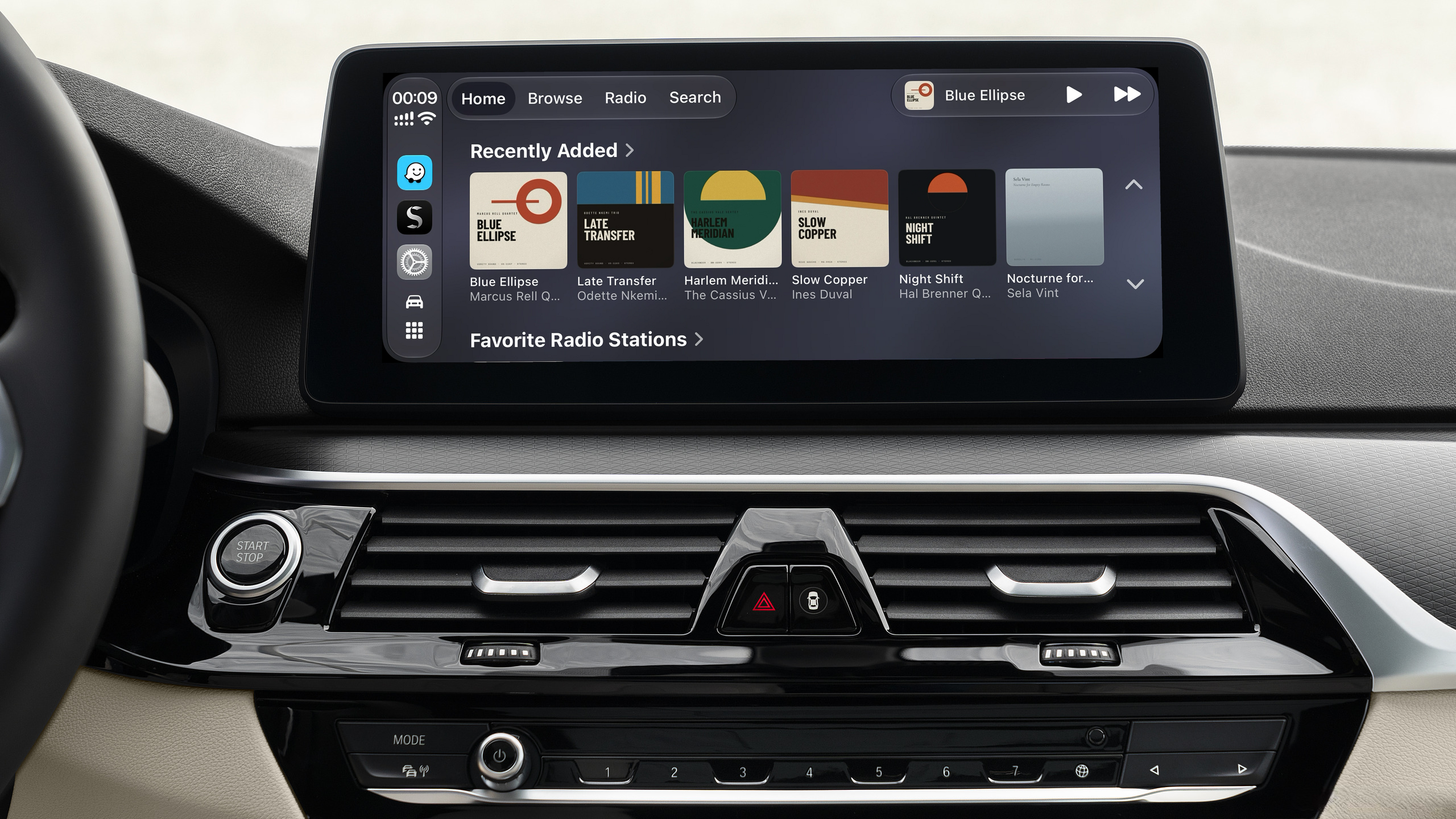
Serento's Home on a car's screen
Home in the car: Recently Added, then Favorite Albums

What you find in the car

Serento in the car has the tabs of the app: Home, Browse, Radio and Search.

Home is Serento's home page, made for the road: Recently Added, Favorite Albums, Favorite Radio Stations, Favorite Playlists and My Mixes, each a shelf of covers, and Recently Played at the end. The title of a shelf opens the whole list.

Browse has Albums, Artists, Tracks, Playlists and Genres. The artists are the ones Browse › Artists shows on your iPhone, with the same track artist settings. The genres are the Genres screen of your iPhone, with the same pictures: Serento's genre list, your Custom Genres, or your server's own images when Use Own Images is on.

Radio is the Radio tab of your iPhone: the genre filter at the top, then My Stations and Presets, every station with its logo, its category and its codec.

Search finds albums, artists, tracks and stations as you type, and keeps your recent searches, as on the phone. Apple opens search to audio apps from iOS 27, so with iOS 26 the car shows the first three tabs.

Every list of albums, artists, tracks or playlists starts with Play and Shuffle. An album's tracks carry their numbers, disc by disc, as on the phone.

The music on your iPhone

In the car, Serento shows the music you have downloaded to your iPhone: albums, tracks, playlists and mixes. A section appears as soon as it has something in it. On the road your server is far away, and downloaded music plays whether you have a signal or not.

Radio is different: stations are streams from the internet, so the whole catalog is there.

So before a drive, download what you want to hear. Settings › Manage › Downloads shows what is on your iPhone, and what you download while you drive appears in the car a few seconds later.

Playing

Everything you start in the car plays on your iPhone, and you hear it through the car. If your iPhone was playing on a streamer at home, Play in the car moves the music to the iPhone. Touching a track plays it and the rest of the list after it.

Now Playing is CarPlay's own screen, and the buttons on your steering wheel work as they do with any audio app. Lyrics stay on the phone: they never appear in the car. Serento Radio keeps the music going as on the phone, and away from your server it chooses from what you have downloaded.

Opening Serento on the car's screen does not stop the radio or another app that is playing: Serento takes over only when you press Play. Unplugging your iPhone pauses the music, as taking off your headphones does.

It follows your iPhone

The car shows what your iPhone shows. Turn Custom Genres or Use Own Images on or off, or change how your genres look, and the car follows in about a second, on the screen it is showing. Favorites, downloads, what you played and your stations follow the same way.

A scheduled sync does not run while your iPhone is connected to a car, and one that is running stops when you connect. It carries on where it stopped the next time it may run.

Getting started

Update Serento on your iPhone to 1.1.6 and connect it to your car: Serento is among your car's audio apps. It starts the same way whether you open it first on your iPhone or on the car's screen.
Serento drives HQPlayer

Serento 1.1.5 drives HQPlayer 5 and 6, Desktop and Embedded, in HQPlayer's own language: your queue in its playlist, gapless, and its upsampling, filters, matrix and Freewheel from your iPhone, iPad or Mac.

New Features New Version

Hello everyone,

HQPlayer was one of the most requested features, and with Serento 1.1.5 it is here. Not as one more renderer that receives a track at a time, but driven in HQPlayer's own language: the control protocol HQPlayer provides for control apps.

It works with HQPlayer 5 and 6, Desktop and Embedded.

Setting it up

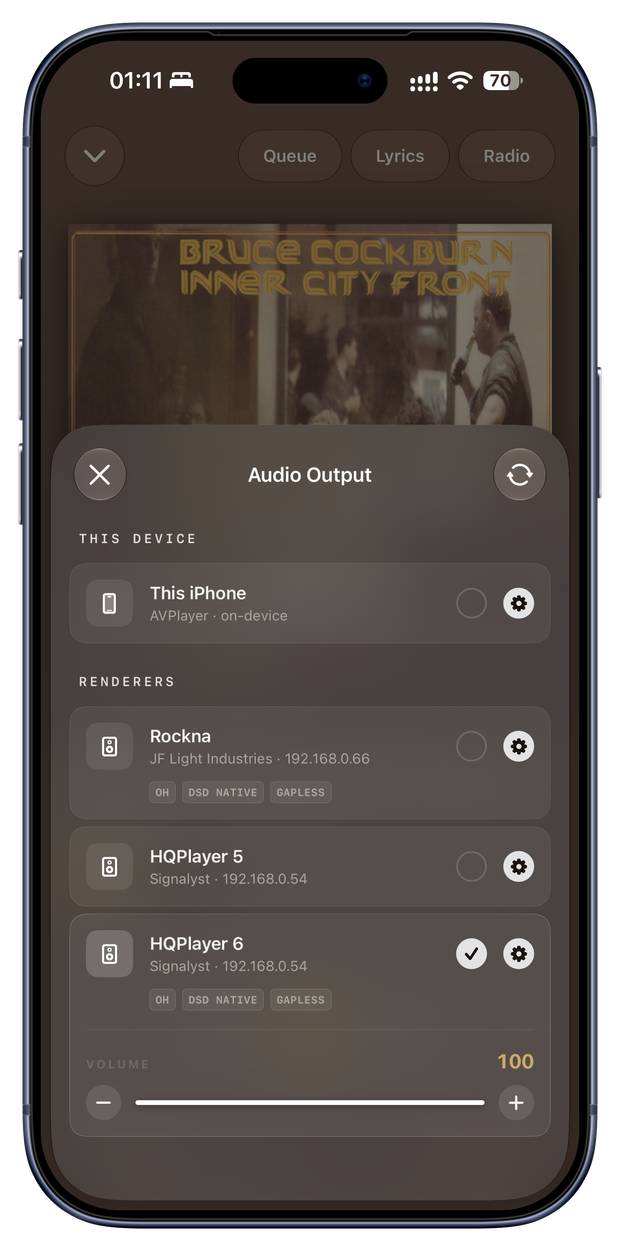
In HQPlayer, switch on "Allow control from network" (the network button in its toolbar). That is all. Serento finds HQPlayer on your network, remembers it, and from then on lists it in Audio Output like any other output.

If your HQPlayer does not appear by itself, for example because it runs on another part of your network, the + in Settings › Audio Output adds it by its IP address.

HQPlayer Desktop 5 has no UPnP renderer of its own. In Serento it is an output anyway, and it plays your queue the same way.

Your queue, in HQPlayer's playlist

When you press Play, Serento hands your queue to HQPlayer's own playlist, and HQPlayer plays through it by itself, track after track, gapless. Your phone is free to sleep: the music does not depend on it.

Changing the queue while the music plays works the way you expect. Play Next, Add to Queue, moving and removing tracks all reach HQPlayer's playlist, and the track you are listening to is never interrupted.

Serento's volume moves HQPlayer's own volume. And Serento follows HQPlayer: start or stop the music in HQPlayer itself, and Serento shows it within a couple of seconds.

Audio Output with HQPlayer selected
HQPlayer in Audio Output, beside your other outputs

HQPlayer's settings, in Serento

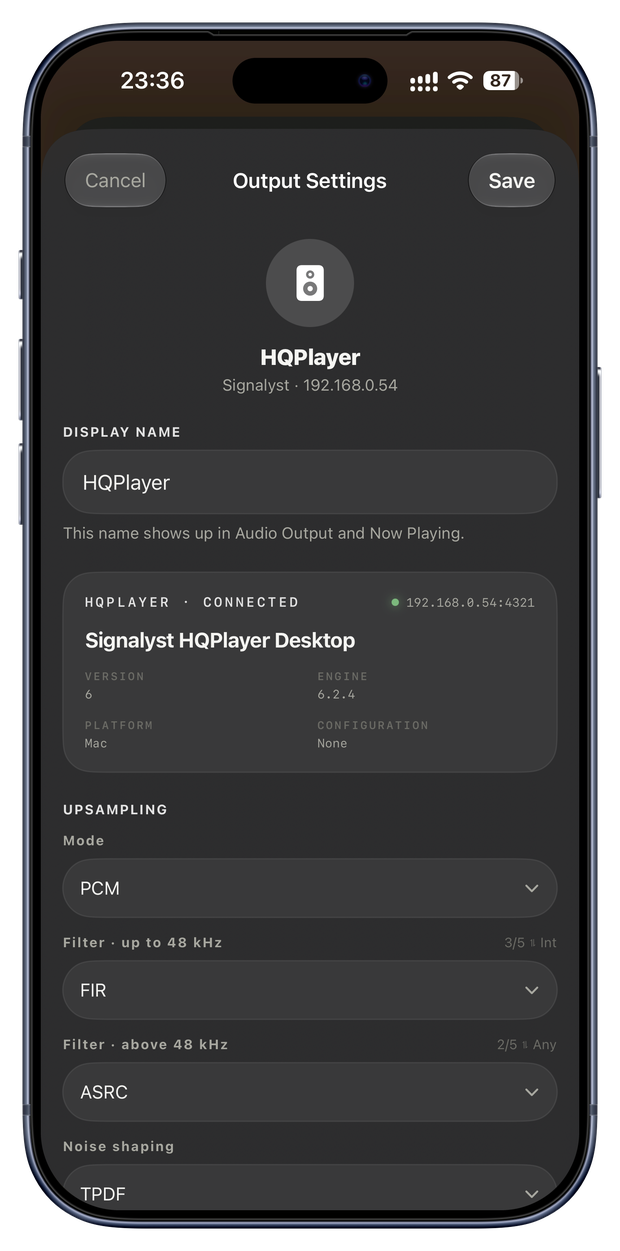
Open the gear next to HQPlayer in Audio Output, from Now Playing, from Settings, or from the output panel on iPad and Mac.

Output Settings for HQPlayer
HQPlayer's status and its upsampling, in Output Settings

At the top, a status card tells you whether HQPlayer answers, its address, the product, its version, engine and platform, and the saved configuration it is running.

Upsampling

  • Mode: source, PCM, or SDM (DSD) when your HQPlayer offers it for its output device.
  • Filter up to 48 kHz, and filter above 48 kHz. HQPlayer 6 gives each filter a short description, shown on the row of its label.
  • Noise shaping in PCM, or the modulator in SDM.
  • Output rate, or Auto.

Every list comes from your HQPlayer, so you see exactly the filters, modulators and rates it offers on your system.

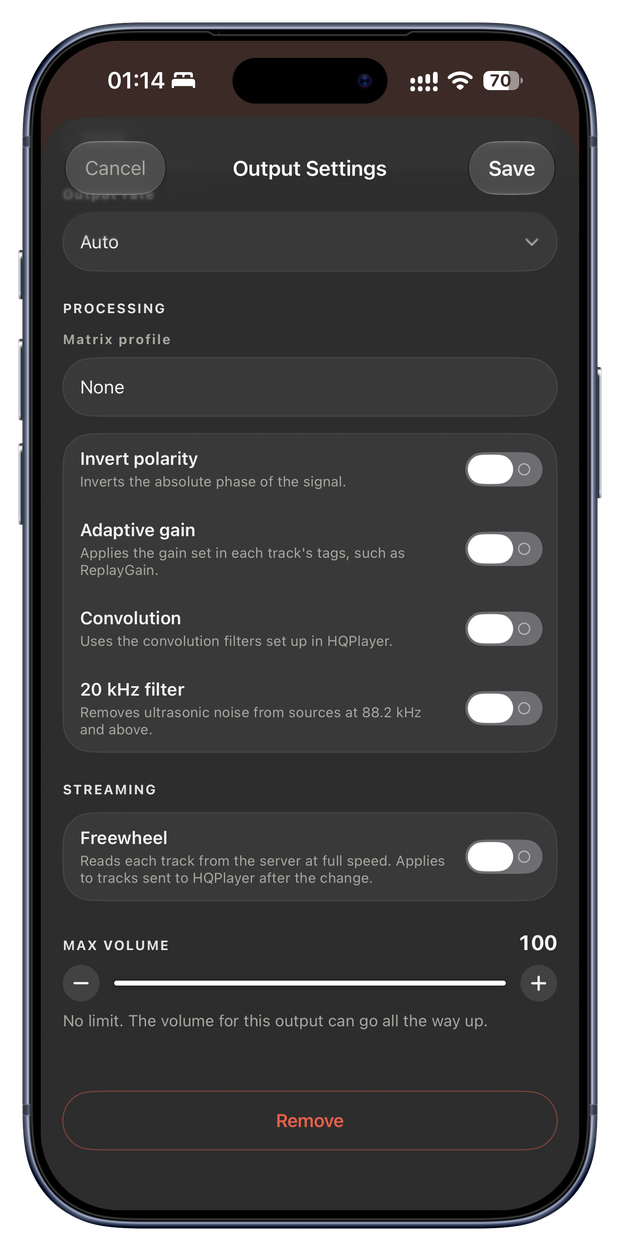
Processing

  • Matrix profile, from the profiles saved in HQPlayer.
  • Invert polarity, adaptive gain, convolution and the 20 kHz filter.

Streaming

  • Freewheel asks HQPlayer to read each track from your server at full speed. It is Serento's option for that output, sent with every track, so it applies to the tracks Serento sends after you change it.
Processing and Streaming in Output Settings
The matrix profile, the processing switches and Freewheel

Applied on Save

HQPlayer needs to stop to change a filter or a modulator. So nothing you choose is sent the moment you choose it: Serento keeps your choices and applies them all together when you press Save, in the order HQPlayer needs them. Change five settings and the music is interrupted at most once, not five times. Cancel sends nothing.

A few details follow from that:

  • When you pick a new mode, its noise shaping and output rates are HQPlayer's lists for that mode, so they are chosen after Save, the next time you open the settings.
  • If HQPlayer stops playing after Save, Serento tells you, so you can try another combination. It does not start the music again on its own.
  • If HQPlayer refuses a setting, Serento says so and applies the rest.

On all your devices

The name you give HQPlayer in Output Settings, and Freewheel, are the output's, not the device's: set them on your iPhone and they are there on your iPad and your Mac. The same goes for the name of any other output.

On Apple TV, HQPlayer is listed among your outputs like any other.

What the music goes through

Serento is a control point. The music goes from your server to HQPlayer, and from HQPlayer to your DAC. Serento never touches the audio: it tells HQPlayer what to play and how, and shows you what HQPlayer is doing.

Serento on Apple TV

Serento 1.1.3 comes to Apple TV: what your streamer plays, on the big screen, with the queue, synced lyrics and radio, controlled from the sofa with the Siri Remote.

New Features New Version

Hello everyone,

A lot of you listen in the living room, with the streamer in the rack under the TV. Until now the music lived on your phone: to see what was playing, or to skip a track, you reached for it. Serento 1.1.3 puts it on the big screen.

Serento for Apple TV is a companion to Serento on your iPhone, iPad and Mac. It does not play music itself. It shows what your streamer is playing and lets you control it with the Siri Remote, while your iPhone, iPad or Mac does the work, exactly as it does today.

Pick your streamer

Open Serento on Apple TV and it lists the streamers on your network. A streamer that is asleep says so. Choose one and Now Playing fills the screen.

Now Playing

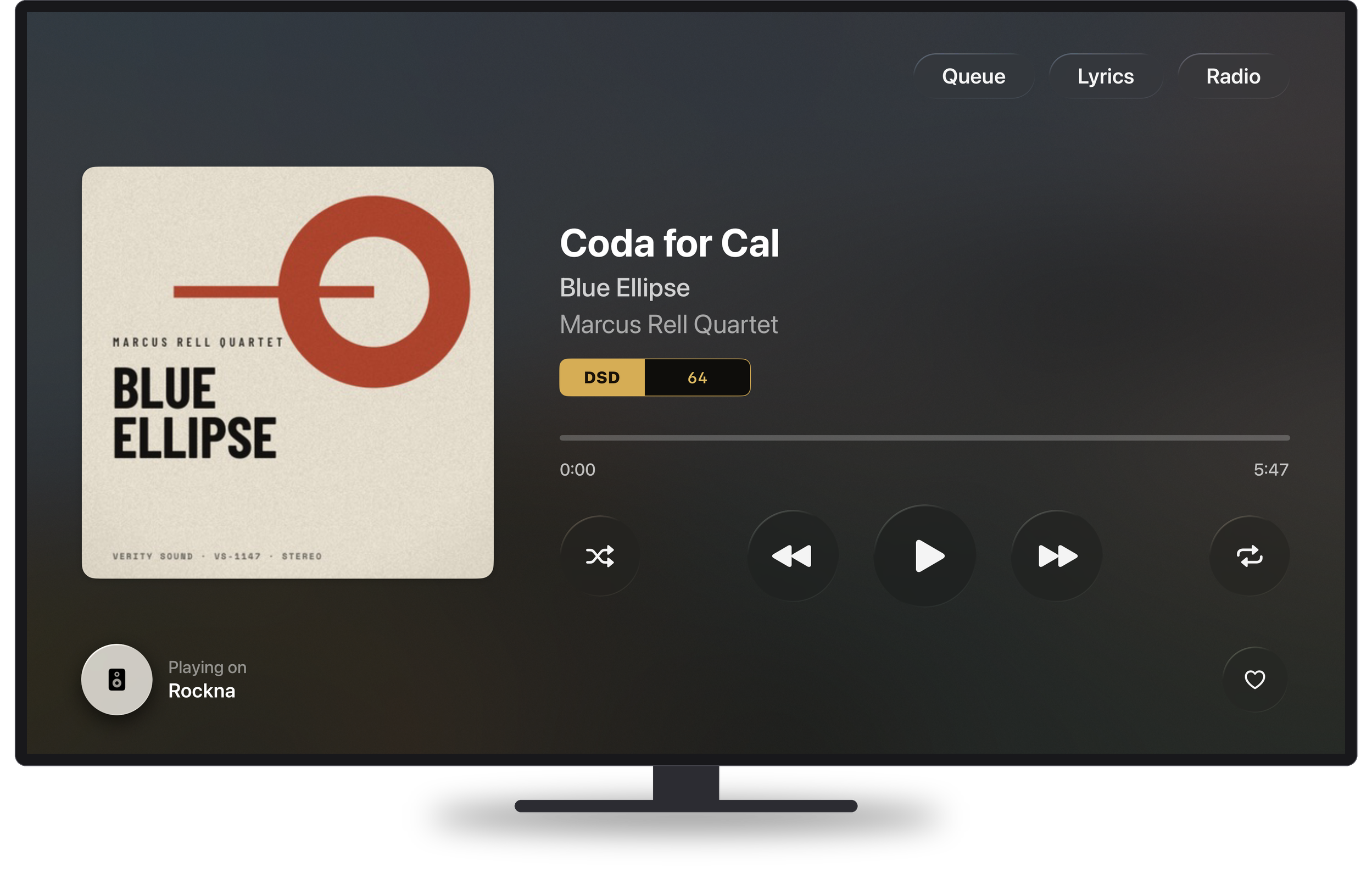
The cover, the title, the album and the artist, with the same format plate you see on your iPhone, and the bit-perfect ring when the music plays bit-perfect.

Below them is the bar: select it, move through the track with left and right, ten seconds at a time, and select again to jump there. Under the bar sit shuffle, previous, play and pause, next and repeat. The Play/Pause button on the Siri Remote works from anywhere on the screen.

At the bottom, "Playing on" names your streamer. From there you can move the music to another streamer in the house, and the heart adds the track to your favorites.

Now Playing on Apple TV
Now Playing: the cover, the format and the controls

Queue, Lyrics and Radio

The three tabs you know from Now Playing on your iPhone are here too, and each one opens across the whole screen.

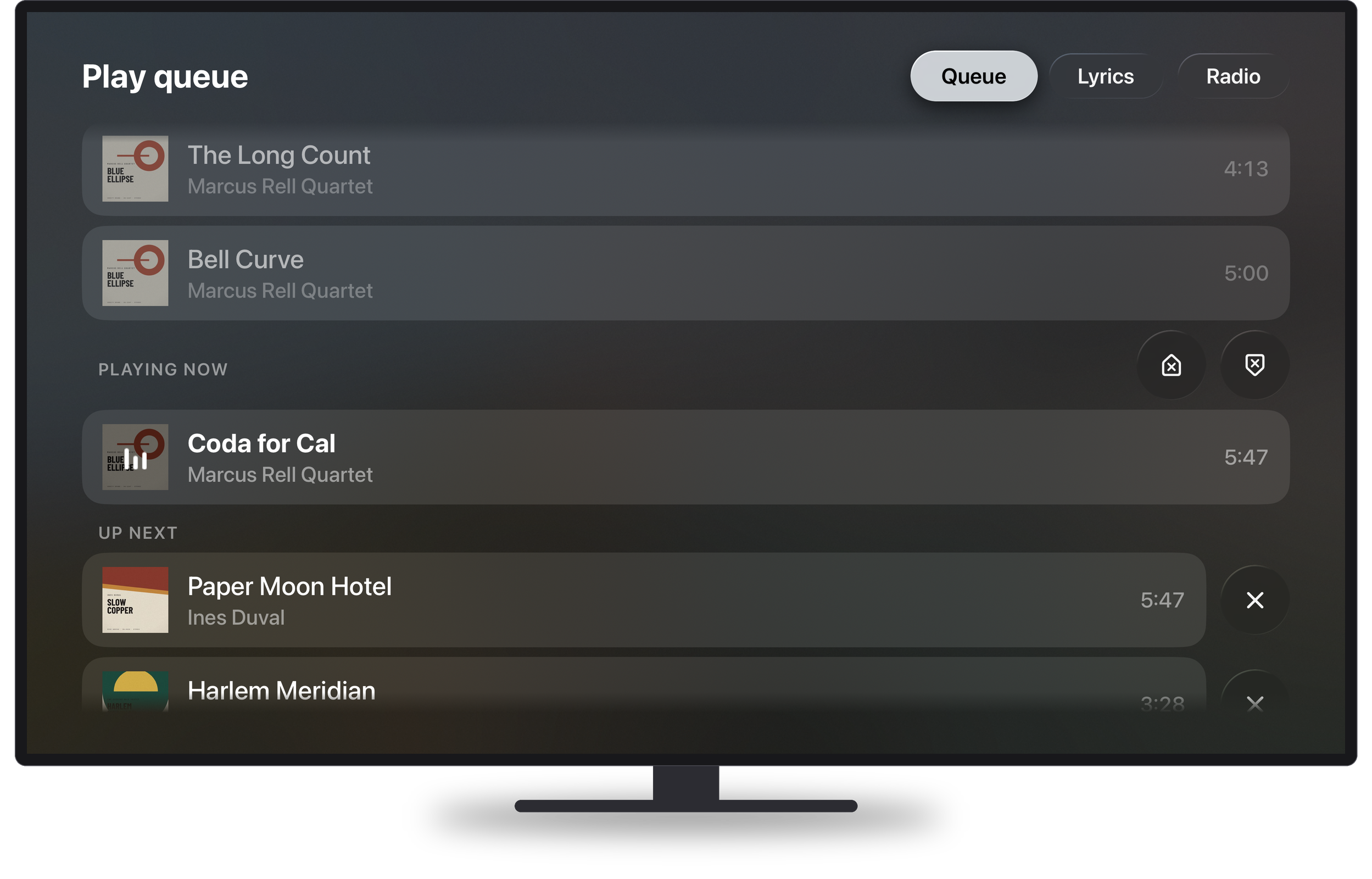
Queue shows what played, what plays now and what comes next, with the covers. Select a track to play it, remove one from Up Next, or clear the history or everything still to come.

The queue on Apple TV
The queue: what played, what plays and what comes next

Lyrics shows synced lyrics in large type, easy to read from the sofa, following the music line by line. If you calibrated the lyrics for your streamer on the iPhone, the TV uses the same calibration.

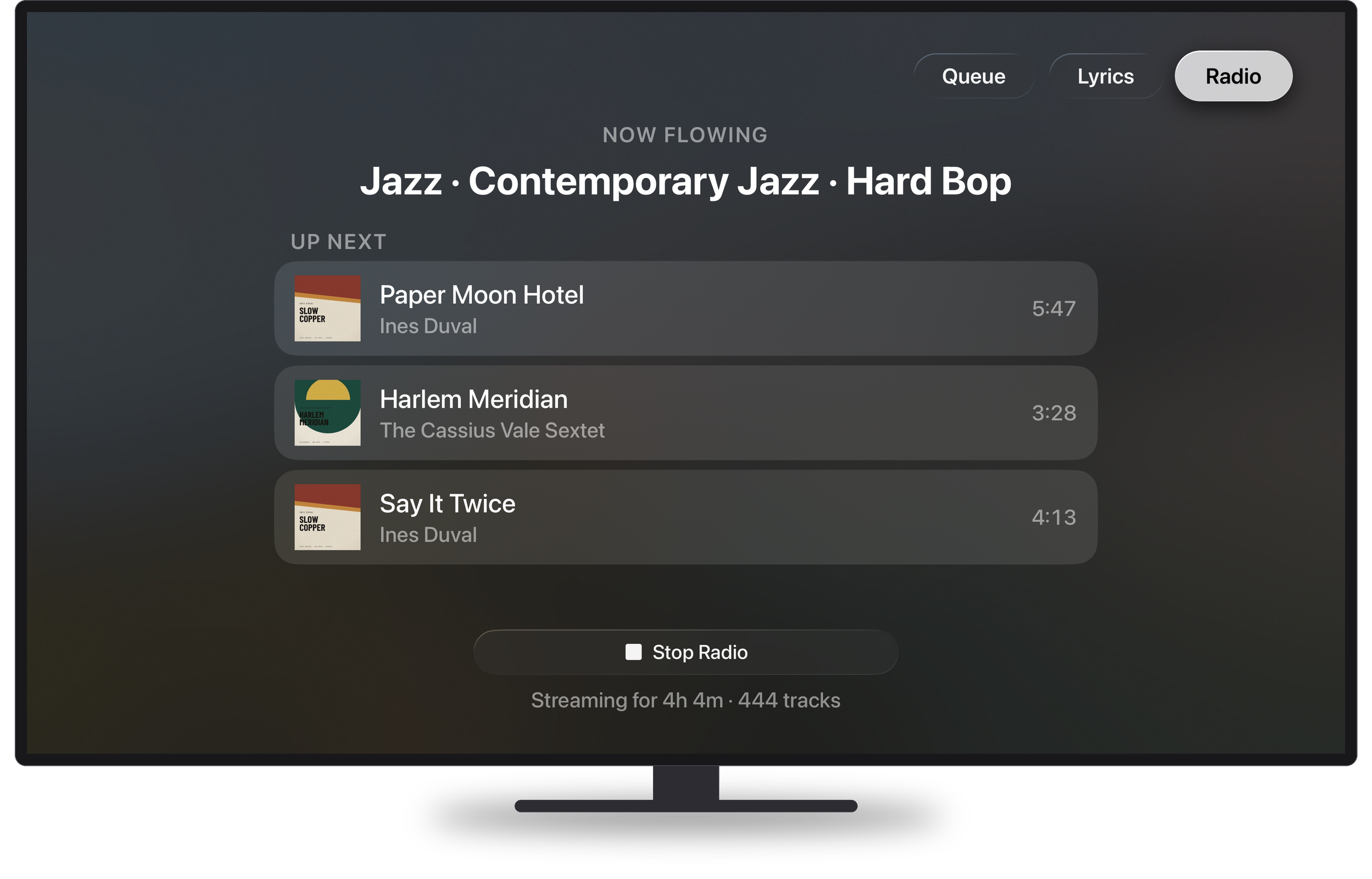
Radio starts and stops Serento Radio. You see the genres it found in your queue and, once it runs, the tracks it picked to play next.

Serento Radio on Apple TV
Serento Radio: the genres it is tuned to and the tracks coming up

Internet radio

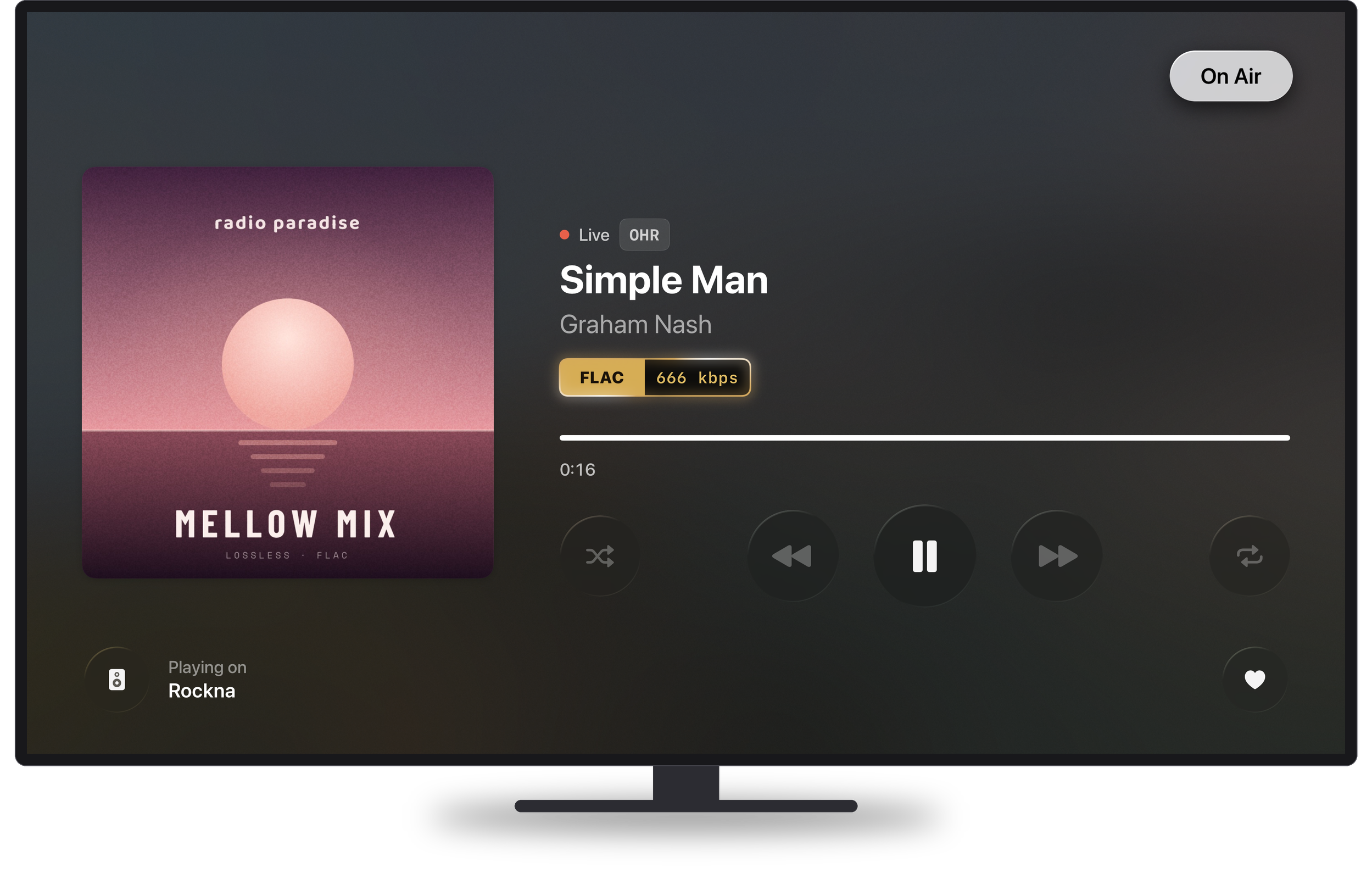
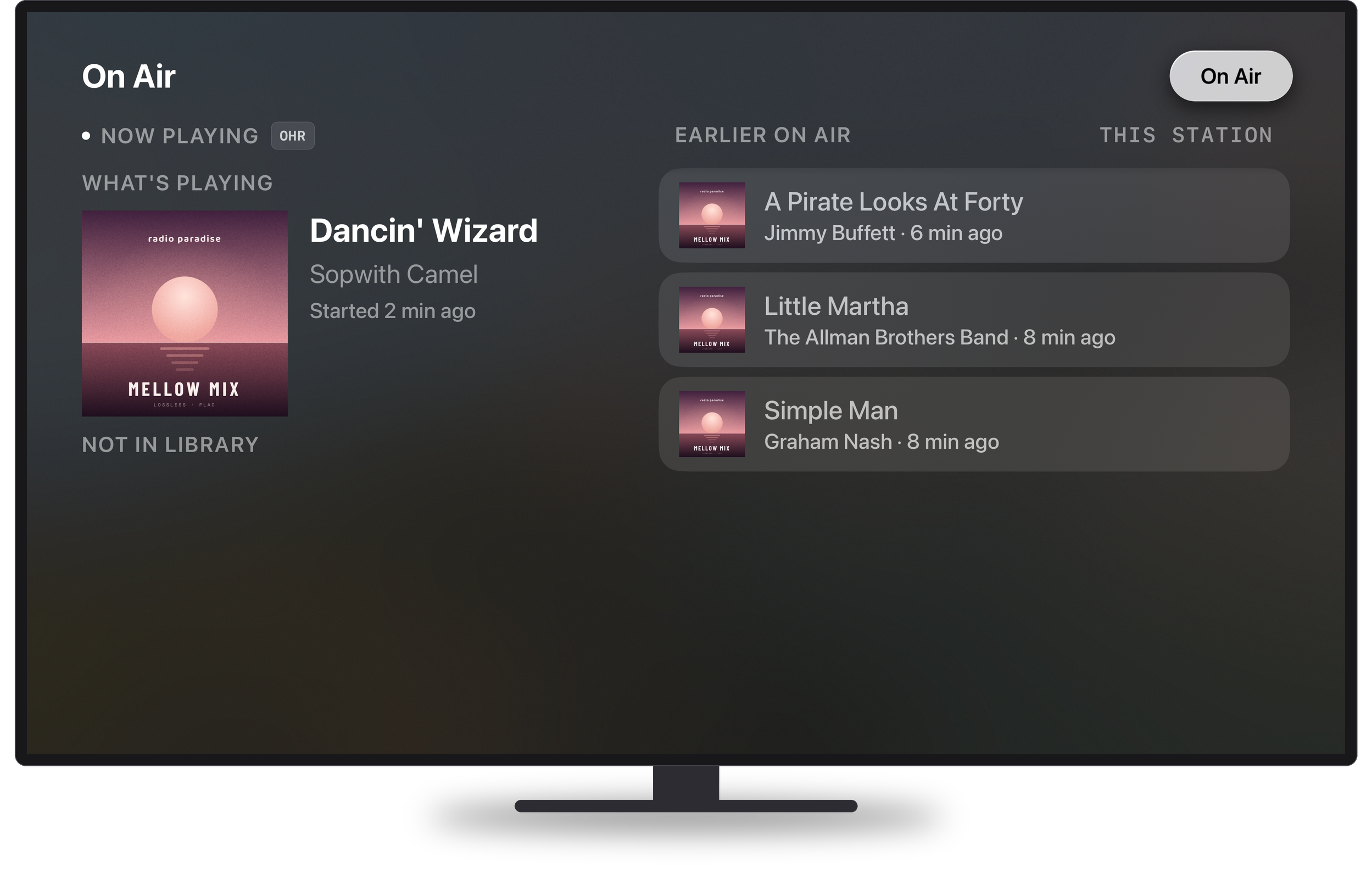
When a station plays, Now Playing shows the song on air and its artist, the station's logo, Live, and the codec with the bitrate Serento measured. The On Air tab follows the station: the song playing now and the songs before it. A song that is in your library gets a heart, so you can add it to your favorites from the sofa.

An internet radio station playing on Apple TV
A station: the song on air, the logo and the measured bitrate
On Air on Apple TV
On Air: what plays now and what played before

How it works

The Apple TV is a remote and a screen. Every press goes to the Serento device that plays the music, your iPhone, iPad or Mac, and that device carries it out exactly as its own button would. The TV then shows what that device tells it. The covers come from your own devices too.

The music itself goes from your server straight to your streamer. It never passes through the Apple TV.

A few things follow from that:

  • No subscription on Apple TV. It works with Serento on your iPhone, iPad or Mac, on the same network.
  • If your phone goes to sleep, the TV keeps showing what plays.
  • When another app plays on your streamer, Serento for Apple TV still shows what is playing, with play, pause, previous and next wherever the streamer allows them.

Get it

Serento 1.1.3 is on the App Store now. The Apple TV app comes with Serento at no extra cost: open the App Store on your Apple TV, search for Serento, and install it.

If you try it in your living room, I would love to hear how it works with your system. Come and tell me at community.serento.app, or write to contact@serento.app.

글은 영어로만 게시됩니다.